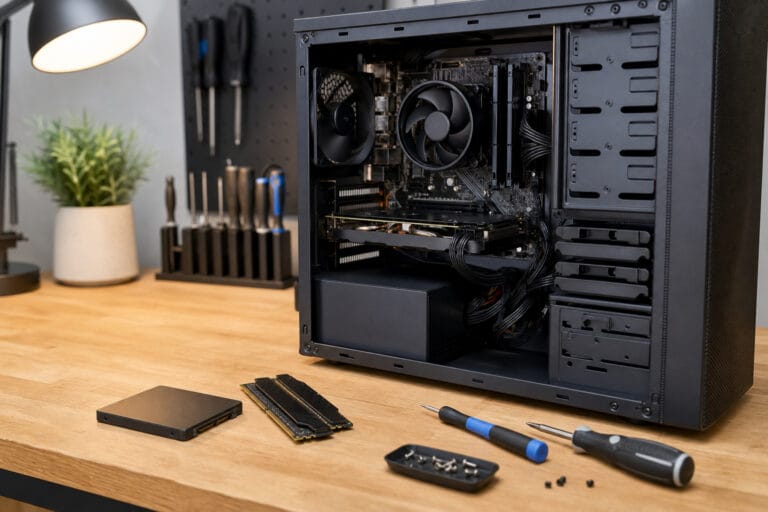

Most computer buying mistakes come from skipping the basics: buying for the brand instead of the specs, ignoring support dates, or not checking the return policy.
This guide lists the mistakes that cost shoppers the most and how to avoid each.
Buying Before Deciding What You Need

A flashy ad or a low price can pull you toward a machine that does not fit your work. A student does not need a high-end graphics card, and a video editor will struggle on a basic laptop.
Start with your tasks, as described in choosing the right computer for your needs.
Recommended Products
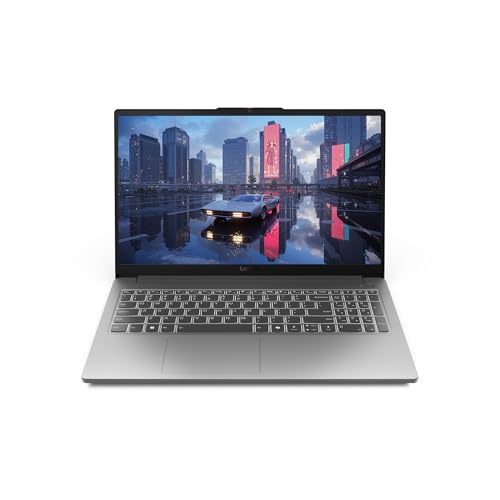
JOIN THE GAME – The Lenovo LOQ Essential will never let you down on the battlefield or in the classroom. It features smooth action, stunning visuals, and rapid-charge battery for gaming and educational excellence.

BUILT FOR EVERYDAY USE - HP 14, an entry-level, light workload configuration laptop. With up to 12 hours battery life and HP fast charge, it can keep you up and running all day long. Bring your ideas to life with the included one year subscription of Microsoft 365 including Word, Excel, and PowerPoint. Do more with AI as your personal assistant. Kickstart new projects with relevant answers, simplified solutions, and helpful advice

【Unbeatable Assurance & Support for Your Laptop】Shop with confidence on this laptop on sale, backed by a 2-Year Warranty & 6-Month Return Policy. Get 24/7 online support and direct help at 800‑606‑1179 for peace of mind.
Paying for the Brand Instead of the Specs
A brand name doesn’t fix a slow processor or tiny storage. Compare the processor generation, RAM, and storage type across models.
In 2026, treat 8 GB of RAM and a real SSD as the floor, and see what computer specs really mean if the numbers are unfamiliar.
Recommended Products

[Powerful Daily Performance] Equipped with a dual-core 6500Y processor (Turbo up to 3.4GHz), this laptop ensures smooth web browsing, video streaming, and document handling. Multitask effortlessly between email, spreadsheets, and presentations without lag. and multitask between applications like email, spreadsheets, and presentations without slowdowns.

【Reliable Performance for Work & Study】Powered by Pentium Gold 6500Y processor with up to 3.4GHz performance, this laptop computer handles daily tasks smoothly, including web browsing, document editing, online learning, and multitasking.

Key Features:Enjoy faster, more reliable wireless performance with Wi-Fi 6 (2x2) and Bluetooth 5.4. Includes all the essential ports you need: USB-C, 2× USB-A, HDMI 1.4b, SD media card reader, headphone/microphone combo jack, and AC Smart Pin.A soft Rose Gold finish adds a modern and elegant look to your workspace, making it ideal for students, young professionals, and anyone who prefers a clean and aesthetic setup.
Ignoring Support Dates
A computer that stops receiving security updates becomes a risk. Regular Windows 10 support ended on October 14, 2025. Check that any PC you buy, especially used or refurbished, can run Windows 11.
Chromebooks list an Auto Update Expiration date. See how long a computer should last.
Recommended Products

14” Diagonal HD BrightView WLED-Backlit (1366 x 768), Intel Graphics,

Dell Latitude 11-3180 Intel Celeron N4200 X2 1.1GHz 4GB 128GB 11.6in, Black Windows 11 Pro (Renewed)

14" diagonal, 1366x768 resolution, HD BrightView LED, Glossy NON-TOUCH Display
Judging Screen Size Instead of Quality
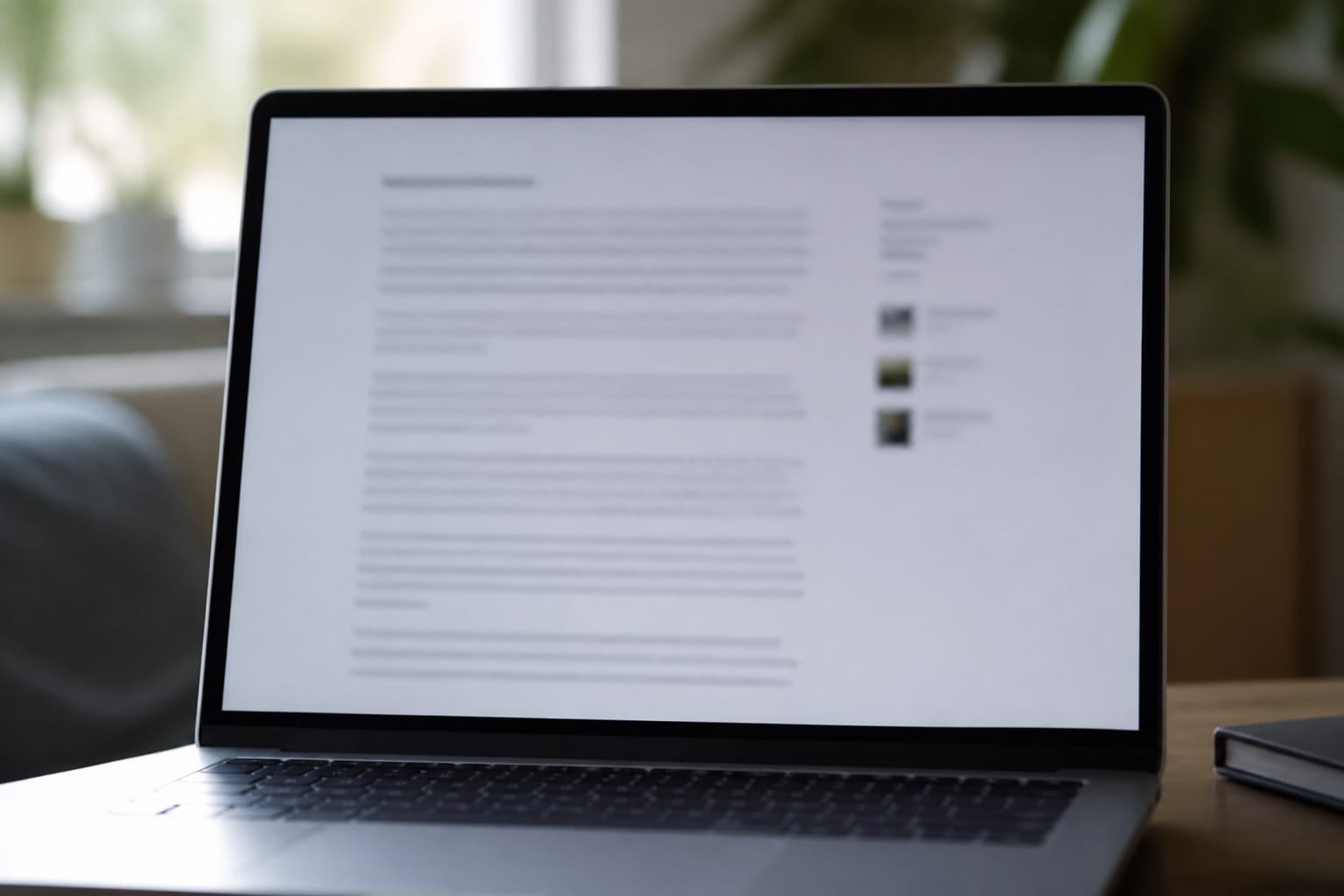
A big screen with low resolution looks fuzzy. Look for at least 1920 by 1080, and personally check the keyboard and trackpad, since you will use them constantly.
Weight matters too: a laptop that feels light in the store can feel heavy in a backpack.
Recommended Products

Connect 3 Devices Simultaneously: This Bluetooth keyboard features 3 Bluetooth channels, allowing you to connect up to 3 devices at once. You can easily switch between devices, and control your tablet, computer, TV, and phone with a single keyboard. Bluetooth 5.3 ensures a stable and reliable connection with a range of up to 10 meters

⌨️【3 Devices Connection】 This Bluetooth keyboard with touchpad ensures a stable and cable-free connection, Wireless 2.4 GHz connection with 33 feet (10m) operating range. Easily switch between 3 devices, You can switch between 3 devices with a single key clicking without any interference or disconnection,greatly upgrade your work efficiency.

Dual Connection Modes: The CZUR K5S keyboard supports both stable Bluetooth wireless connection and reliable wired USB connection, allowing you to easily switch between modes for flexible use with PC, laptop, tablet, and phone
Forgetting Ports, Battery, and Upgrades
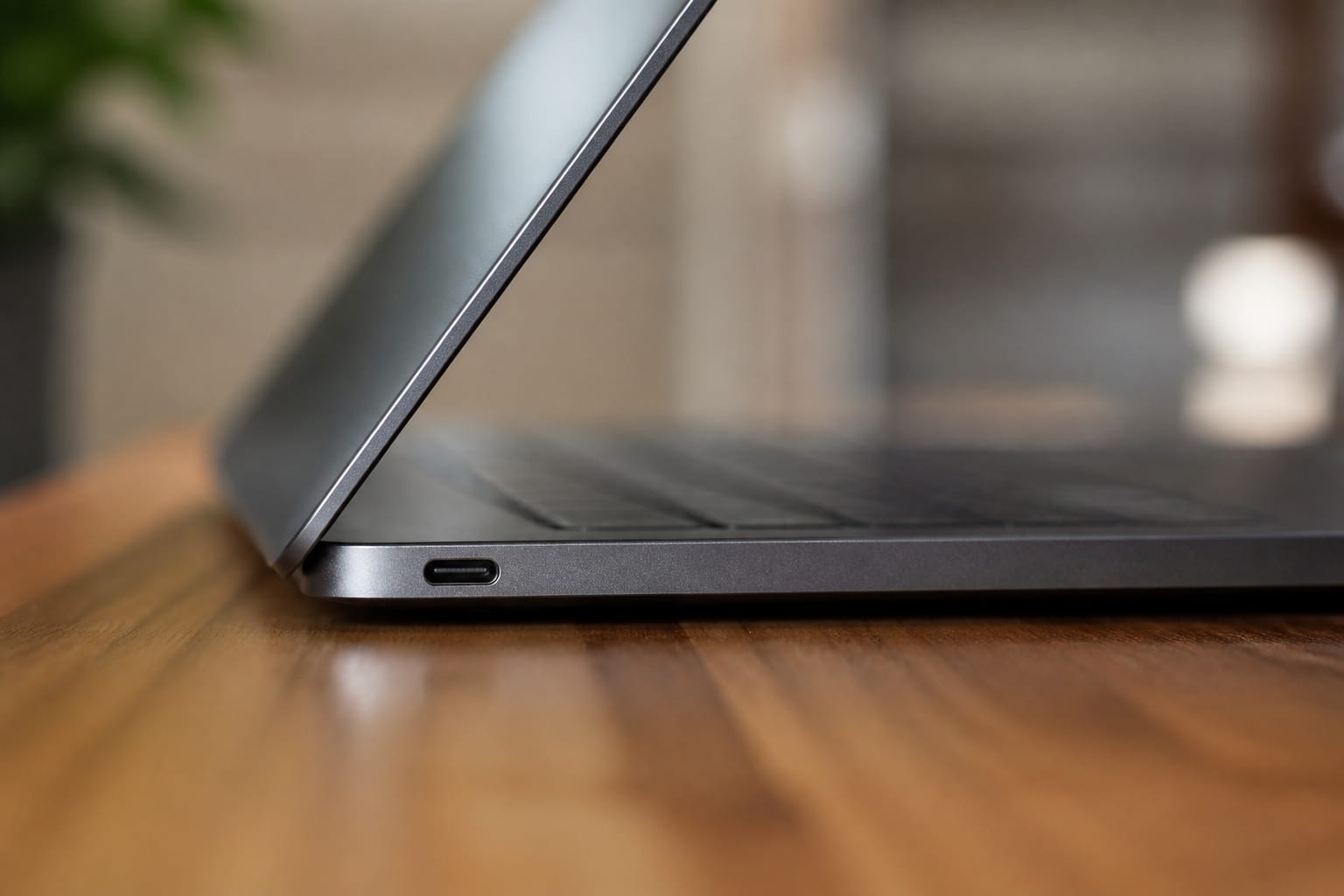
Count the ports you need, check whether USB-C can drive a monitor and charge the laptop, and read independent battery reviews instead of trusting the advertised hours.
Check if you can upgrade the memory and storage, since many thin laptops solder them. Our guide to upgrading an old computer explains how to check.
Skipping the Return Policy and Comparison Shopping
Return windows are short at some retailers, 15 days at Best Buy, for example, so test the machine as soon as it arrives.
Spend a little time comparing the same model across stores, and see our guide to getting the best deal online.
Also consider refurbished options; see our guide to refurbished computers.
Frequently Asked Questions
How long does a computer typically last?
It depends on software support and wear. See how long a computer should last for the dates that matter.
Is it safe to buy refurbished computers?
It can be safe if you buy it from the manufacturer or a seller with a real warranty. Check Windows 11 support on PCs.
Can I upgrade my laptop later?
Upgrading memory and storage is possible sometimes, depending on the model. The processor and graphics are usually never upgradable.
Do I need antivirus software for Macs?
Macs include built-in protections, but they are not immune to threats. Keep macOS updated, install software from trusted sources, and be cautious with links and attachments.
What is the best time to buy a computer?
Sales cluster around back-to-school season and Black Friday, but 2026 memory costs make waiting riskier. See when to buy a computer.