Most slowdowns come from a short list of causes: too many programs starting with the computer, a nearly full drive, pending updates, and heat.
You can fix these problems without paid cleanup tools. Here are some habits that keep a computer responsive, and some signs that maintenance has stopped helping.
Restart Regularly and Keep Updates Current
Restart the computer at least once a week. A restart clears memory and finishes pending updates. On Windows, note that Shut down, with Fast Startup enabled, saves part of the system state instead of clearing it, while Restart does a full reset, so use Restart when troubleshooting a slowdown.
Turn on automatic updates for the operating system and your web browser, and install driver and firmware updates from your laptop maker. Updates fix bugs and security holes.
If your PC is still on Windows 10, see our guide to the signs it is time to replace your computer, because regular support ended on October 14, 2025.
Trim Startup Apps and Background Load
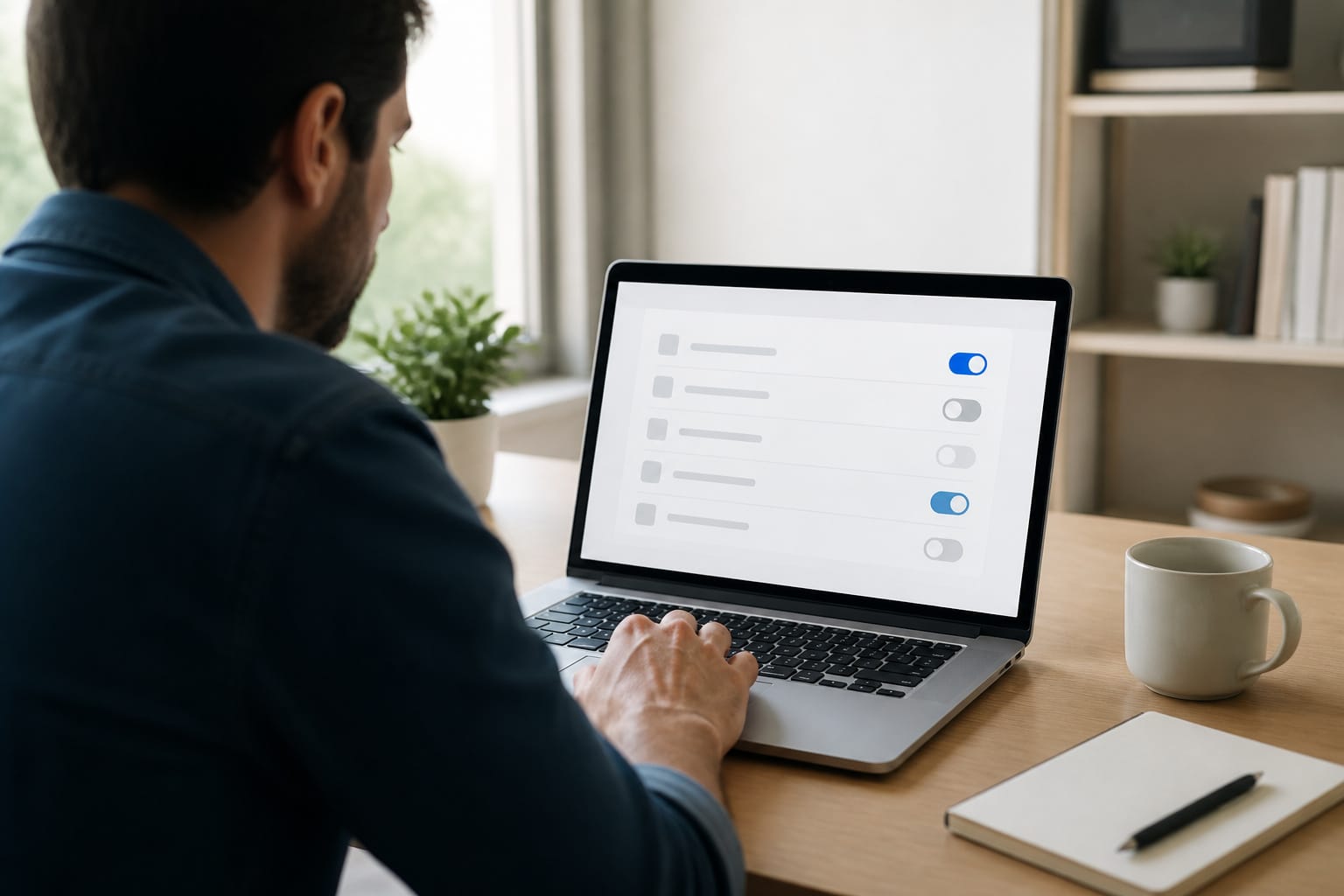
Programs that launch with the computer lengthen startup and keep using memory all day. On Windows, open Task Manager, go to the Startup apps tab, then disable chat, updater, and cloud tools you don’t need immediately. On a Mac, open System Settings, General, then Login Items, and remove what you don’t need.
Uninstall programs you no longer use, and review your browser extensions, since they can use a lot of memory. Open browser tabs do too, especially tabs with video or web apps, so close the ones you are finished with.
Leave Room on the Drive
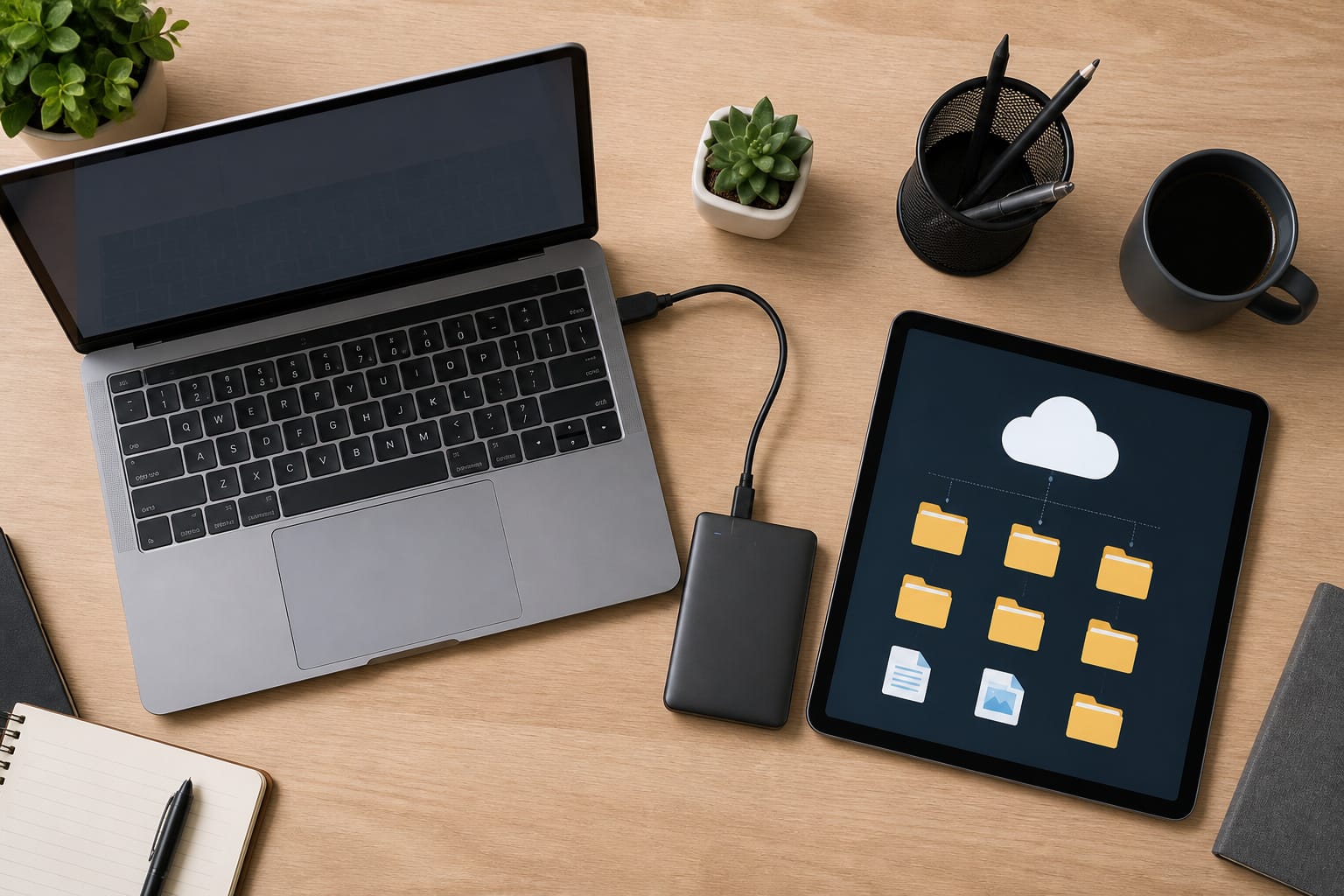
A nearly full drive slows everything down and can stop updates from installing, because the system needs free space for temporary files. A common rule of thumb is to keep at least 10 to 20% of the drive free. Move photos and large files to an external drive or cloud storage, and empty the trash and downloads folder.
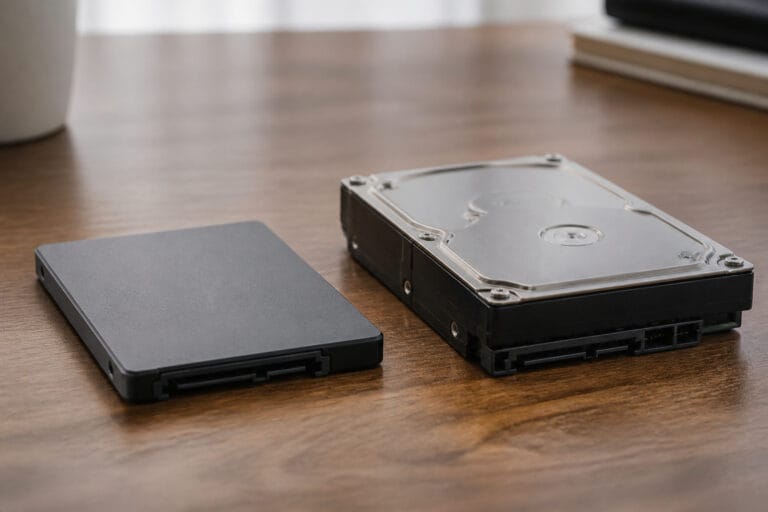
You do not need to defragment an SSD. Windows handles SSDs with a retrim operation and defragments only spinning hard drives, and it runs both on a schedule through the Optimize Drives tool. If you have a hard drive, letting that scheduled task run is enough. If the drive is old and slow, an SSD upgrade helps more than any software tweak, covered in our guide to upgrading an old computer.
Recommended Products

Ultra fast data transfers: the external hard drive works with USB 3.0 thickened copper cable to provide super fast transfer speeds. Theoretical read speed is as high as 110MB/s-133MB/s and write speed is as high as 103MB/s.
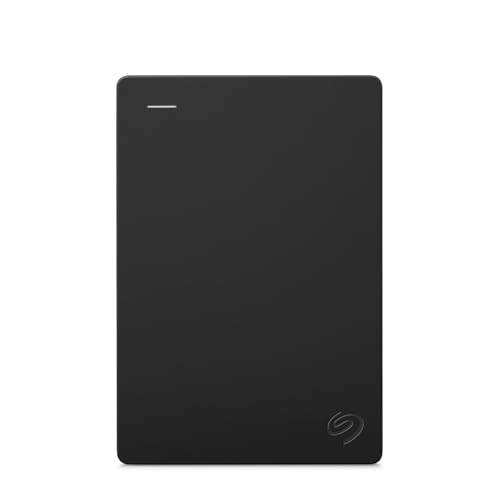
Easily store and access 2TB to content on the go with the Seagate Portable Drive, a USB external hard drive
Easily store and access 4TB of content on the go with the Seagate Portable Drive, a USB external hard drive.Specific uses: Personal
Security Basics That Do Not Slow Things Down
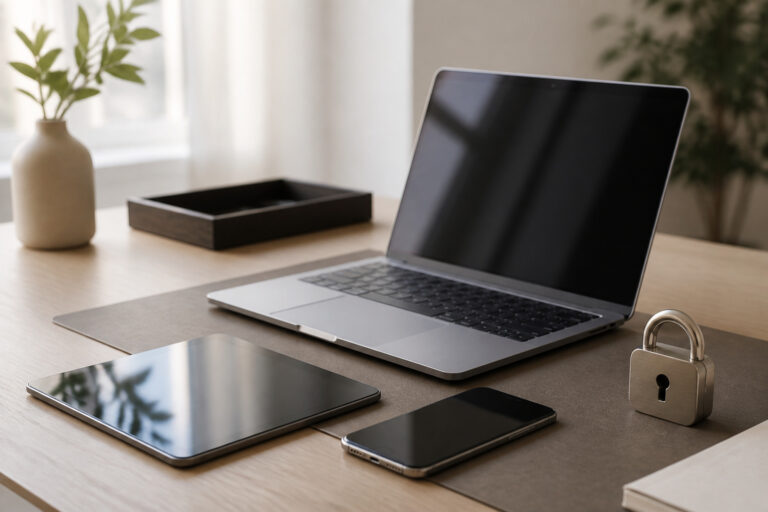
For most Windows users, the built-in Microsoft Defender is enough. In AV-TEST’s June 2026 round for home users on Windows 11,
Defender scored the maximum 6 out of 6 for protection, and AV-Comparatives’ February to May 2026 Real-World Protection Test showed it blocking 99.0 percent of 400 test cases.
Defender relies partly on Microsoft’s cloud, so it performs best when the computer is updated and online. Independent results are published by AV-TEST and AV-Comparatives.
Run one security program at a time, because two can conflict and slow the system. Most infections start with a bad download, a phishing link, or an outdated program, so be careful with attachments and install software only from official sources.
Recommended Products

THREAT DETECTION – Stay one step ahead. Suspicious links, risky sites, viruses, and scams, caught automatically before they reach you.

THREAT DETECTION – Stay one step ahead. Suspicious links, risky sites, viruses, and scams, caught automatically before they reach you.
Watch Heat and Dust
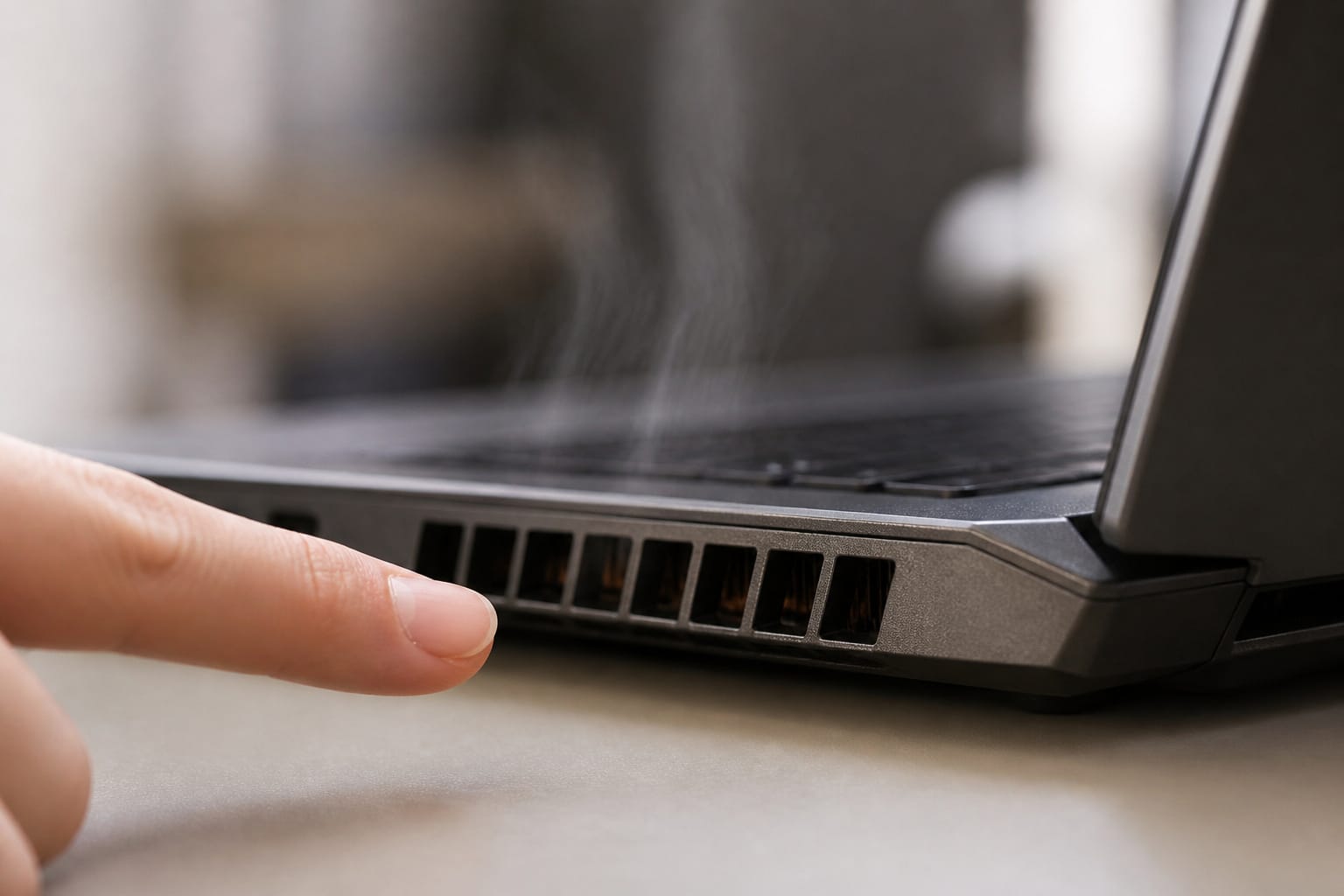
A computer that runs hot slows itself down. Keep vents clear, use a laptop on a hard surface, and clean dust out every few months with compressed air.
Our guide to making your computer last longer covers cooling, power protection, and battery care in more detail.
Know When Maintenance Stops Helping
If the computer is still slow after a restart, a cleanup, and some free space on the drive, check what is actually maxed out in Task Manager or Activity Monitor.
High memory use points toward a RAM upgrade, and slow storage points toward an SSD. If the processor is the limit or the machine is out of support, see how long a computer should last to judge how much life is left.
Frequently Asked Questions
Is Windows Defender good enough?
For most home users, yes. It scored the maximum for protection in AV-TEST’s June 2026 home-user round, and it is built in and updated through Windows Update. Its detection is strongest while the computer is online because it leans on Microsoft’s cloud. Add careful browsing habits, and keep Windows and your browser updated.
How often should I replace my computer?
There is no fixed schedule. Replace it when it stops receiving security updates, when repairs cost too much, or when it can no longer do your work. Our guide on how long a computer should last covers the support dates.
Can too many browser tabs slow down my PC?
Yes. Each tab uses memory, and tabs with video, music, or web apps use more, so a computer with limited RAM slows down as tabs pile up. Close tabs you are finished with, and consider more RAM if you keep many open on purpose.
Does defragmenting help SSD performance?
No. Defragmentation helps spinning hard drives by putting file pieces closer together, but an SSD has no moving parts. Windows runs a retrim operation on SSDs instead, automatically.
Is it safe to use my laptop while it is charging?
Yes. Modern laptops stop charging at full, so working while plugged in is fine. The thing to manage is heat, so keep the vents clear and use the laptop on a hard surface.