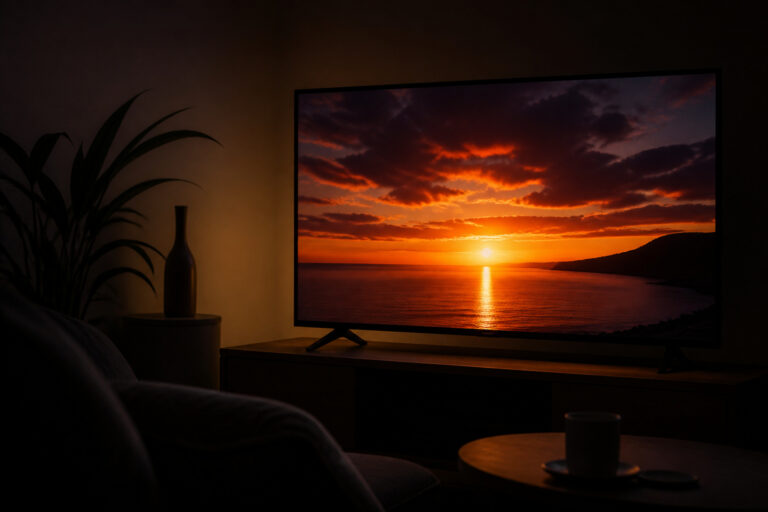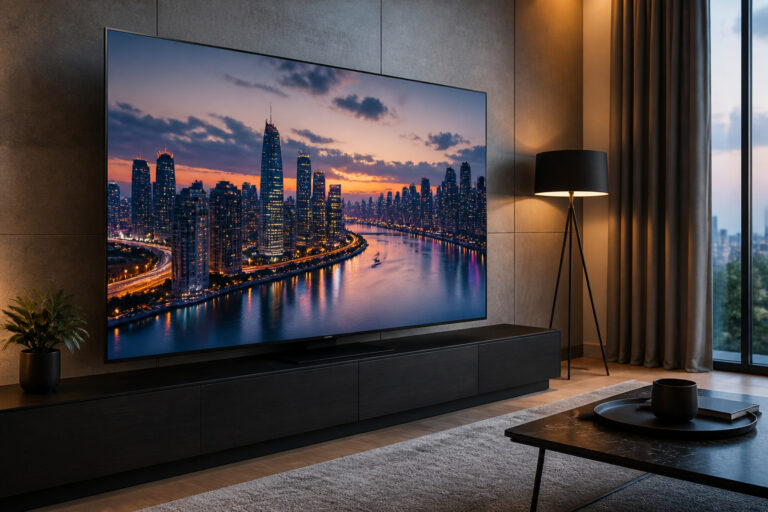
You can get a much better picture without using expensive calibration tools. A good picture mode, a few eyeball adjustments, and the right room lighting go a long way.
Here is a simple method.
Start With the Right Picture Mode
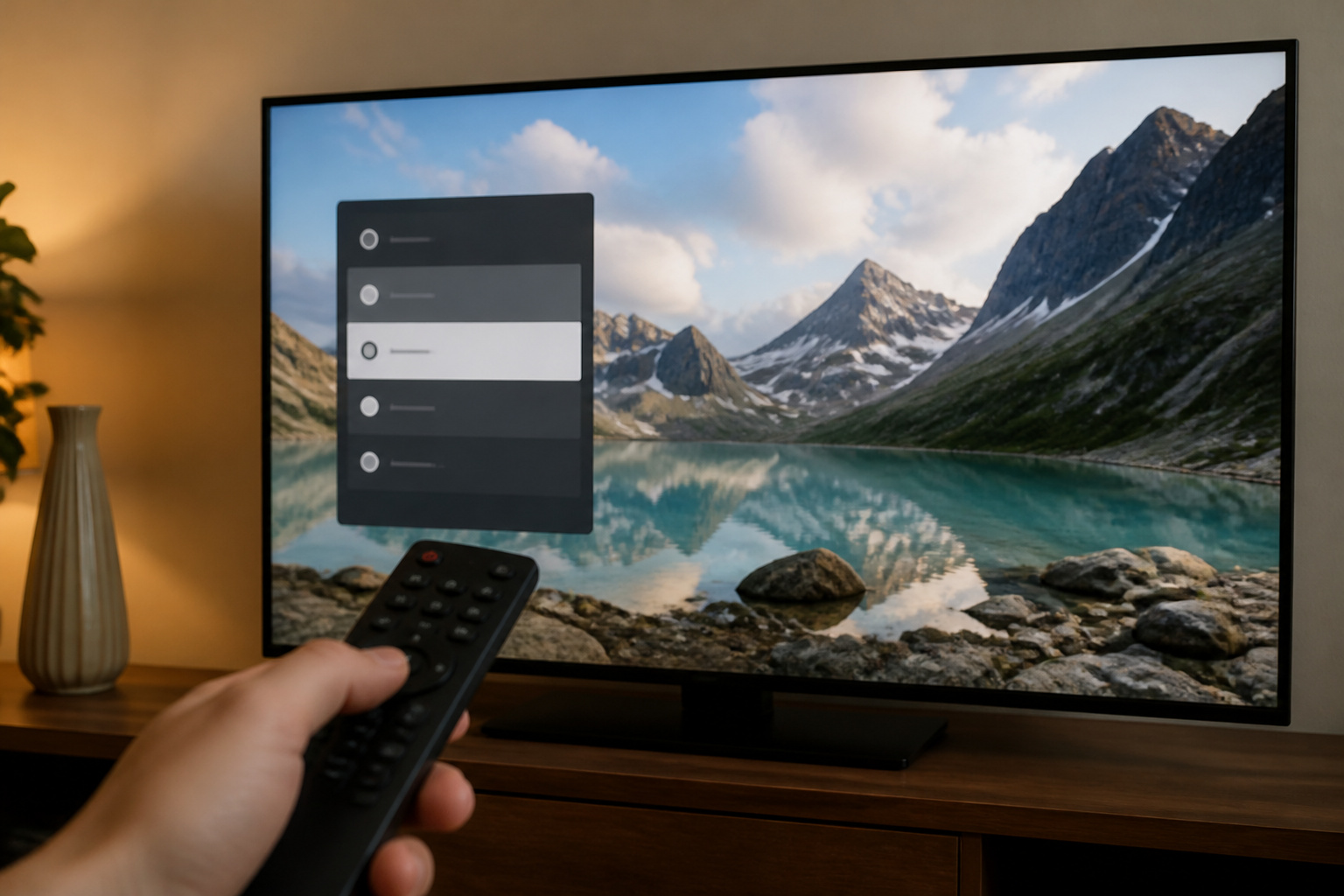
Choose Movie, Cinema, or Filmmaker Mode for films, and Standard for general viewing. These modes aim for natural color and contrast.
Avoid Vivid, which pushes brightness and color beyond what the content intended. Turn off extras like dynamic contrast and heavy noise reduction while you adjust.
Products Worth Considering

SPECIFICATIONS: Monitor calibration colorimeter with Easy 1 2 3 software workflow, USB C connection, compact body approx. 34mm tall x 37mm diameter, adjustable counterweight...
Use a Familiar Scene
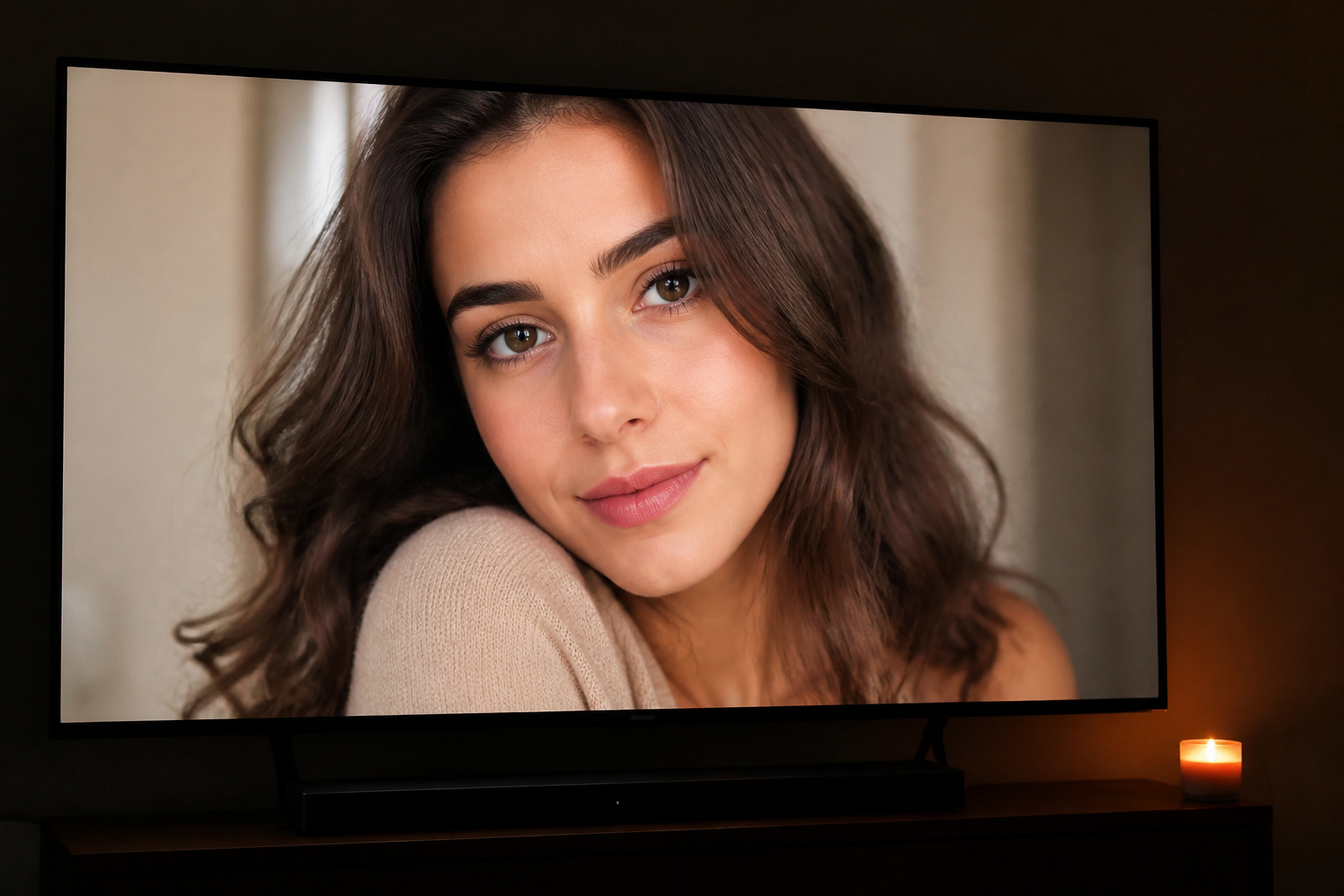
Choose a scene you know well, one with clear faces, dark areas, and a few bright spots. High-production-quality streaming shows are a good choice.
Judge each change against that scene so you notice problems like crushed shadows or clipped highlights.
Set TV Brightness, Contrast, and Color by Eye
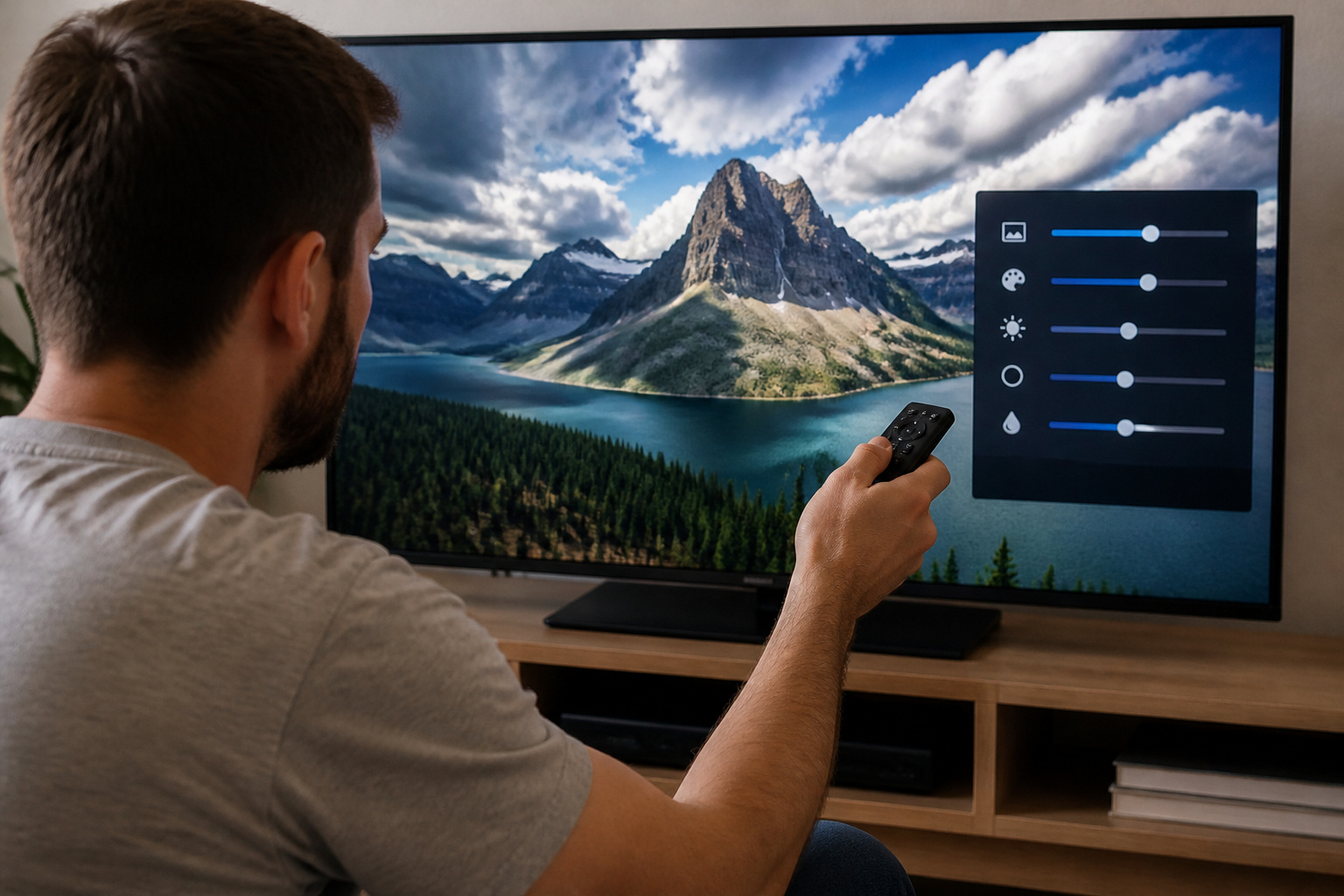
Raise brightness (black level) until dark areas look dark but still show detail. Set contrast so bright areas look vivid without losing detail in clouds or white shirts.
Adjust color so skin tones look natural, not orange or pale. Keep sharpness low, since high sharpness adds halos. Choose a warm color setting for the most natural whites.
Products Worth Considering

PRECISE CALIBRATION: Ensure accurate temperature readings with this precise thermometer calibration tool, a must-have for professional and home use.
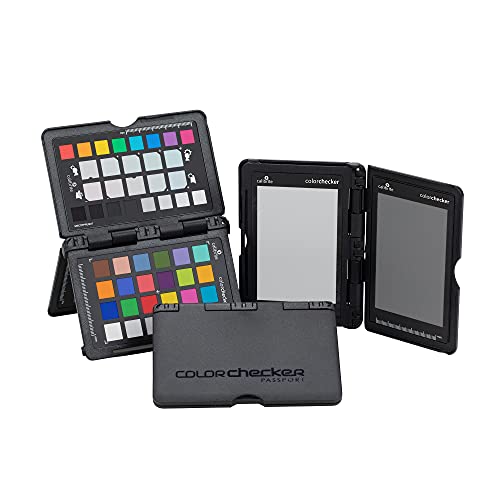
SPECIFICATIONS: Portable ColorChecker Passport kit with 4 targets for exposure control, custom white balance, camera profiling, and enhancement patches, folding protective case with multiple positions, includes lanyard for quick access, Calibrite PROFILER calibration software supports DNG and ICC profiling workflows.

SPECIFICATIONS; Includes Calibrite Display 123 colorimeter for monitor calibration plus ColorChecker Passport Video 2 for video and photo capture control, designed for exposure reference, white balance setup, and consistent color workflow from capture through edit.
Set the Backlight for Your Room
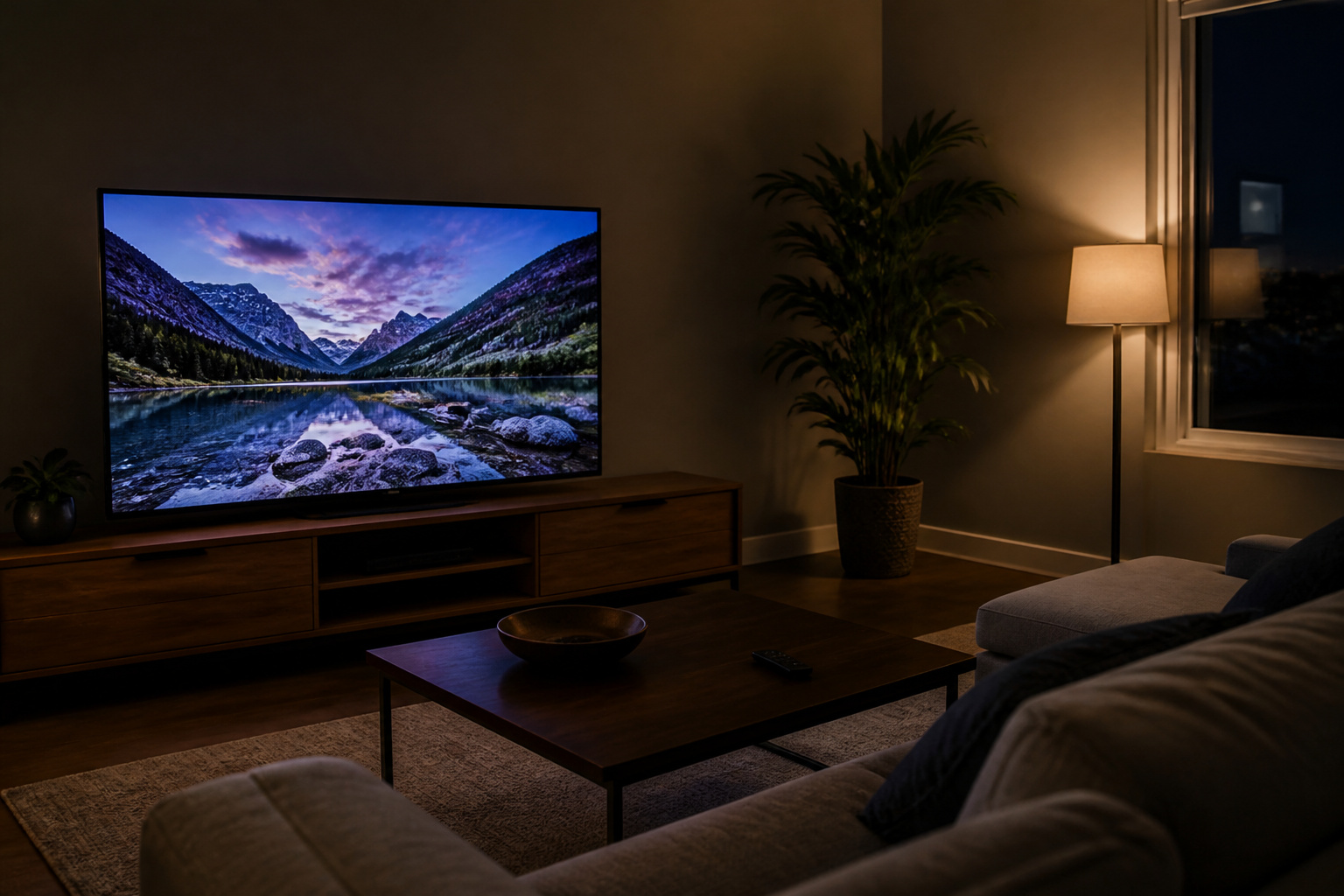
Adjust the backlight or OLED brightness for your room. In a dark room, a lower setting looks more comfortable and gives better contrast. In a bright room, raise it.
If the picture still looks off, see why a TV looks too dark and the best TV settings for movies, sports, and gaming.
Products Worth Considering
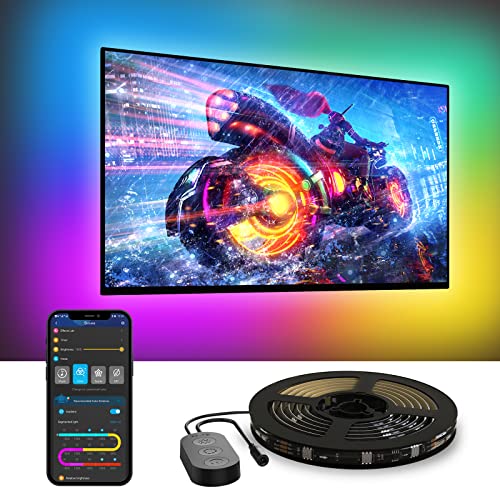
A Symphony of RGBIC Lighting: Govee RGBIC technology realizes the color segmentation display of the TV lights behind, creating more dynamic and gorgeous lighting effects. Experience more vibrant colors in your TV lights and upgrade your visuals.

Colorful LED Lights: Features 16 million color LED strip capable of creating various mood lighting effects for different settings like bedroom, gaming room, or home theater. Bring you a better visual experience.

[ AMBIENT LIGHTING BEHIND YOUR TV ] - MATICOD led strip lights is suitable for various places and atmospheres. A bright tv backlight can provide a good viewing experience in the dark and relieve the visual fatigue caused by the dim space. Variety of color and dynamic options make tv lights the perfect atmosphere maker. Can be a novelty gifts for your family, friends, loved ones!
Add Bias Lighting
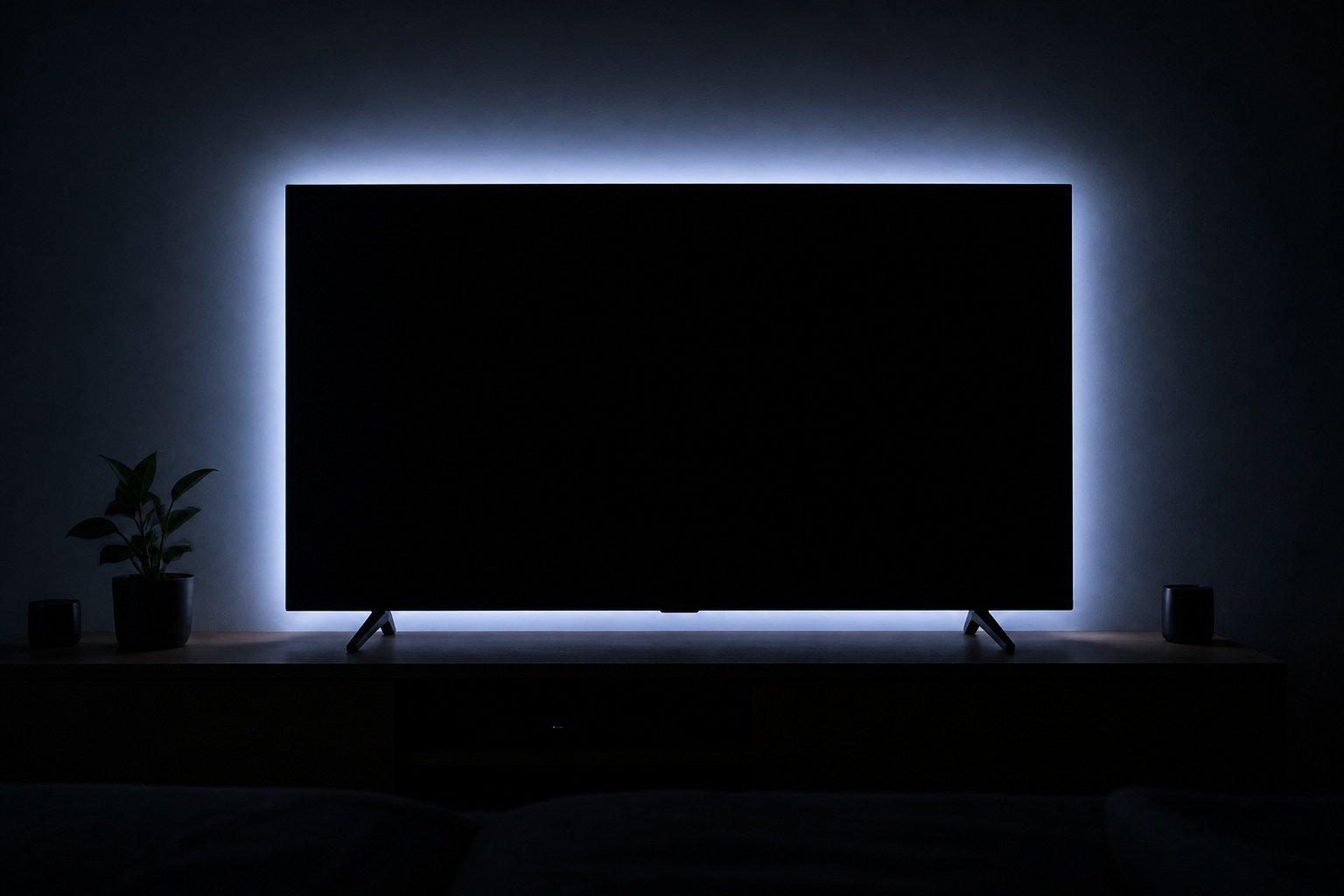
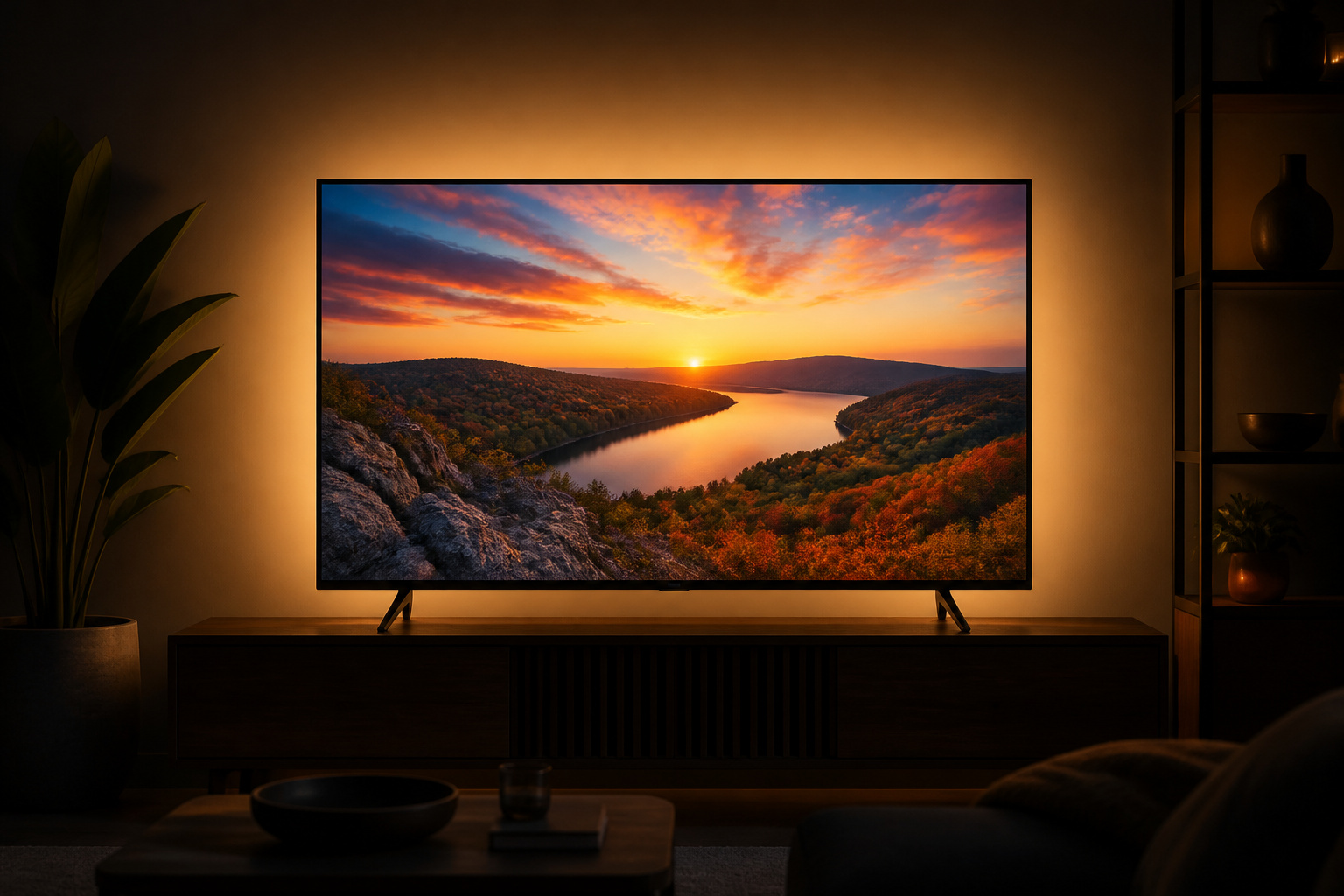
A soft light behind the TV reduces eye strain and makes the picture look deeper in a dark room. Plug-in LED strips that attach to the back of the TV are an inexpensive option.
Choose a neutral white color, around 6500K, so it does not tint what you see. Keep it dim and out of direct line of sight. It won’t change the TV itself, but it can improve how contrast looks in dark rooms.
Products Worth Considering
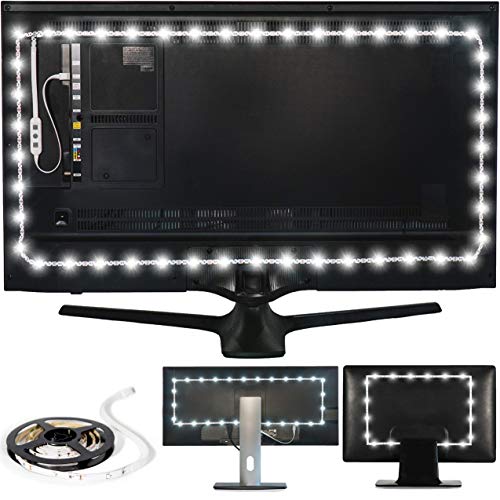
Easy on the Eyes: LED TV lights with 6500K True White color temperature help relieve eyestrain and headaches.

Easy On The Eyes: LED TV lights with 6500K True White color temperature help relieve eyestrain and headaches.
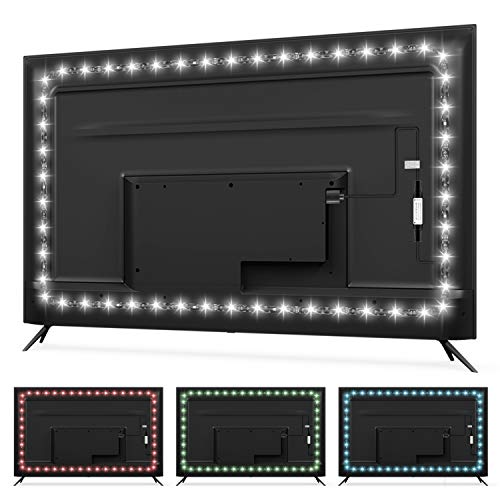
RGBW 6500K Pure White Light Strip: 6500K pure white light offered by separate LED beads, prevents eye strain caused by strong contrast between light screen and dark room, relieves headache and eyes dryness
Use Game Mode and HDR Settings Where Needed
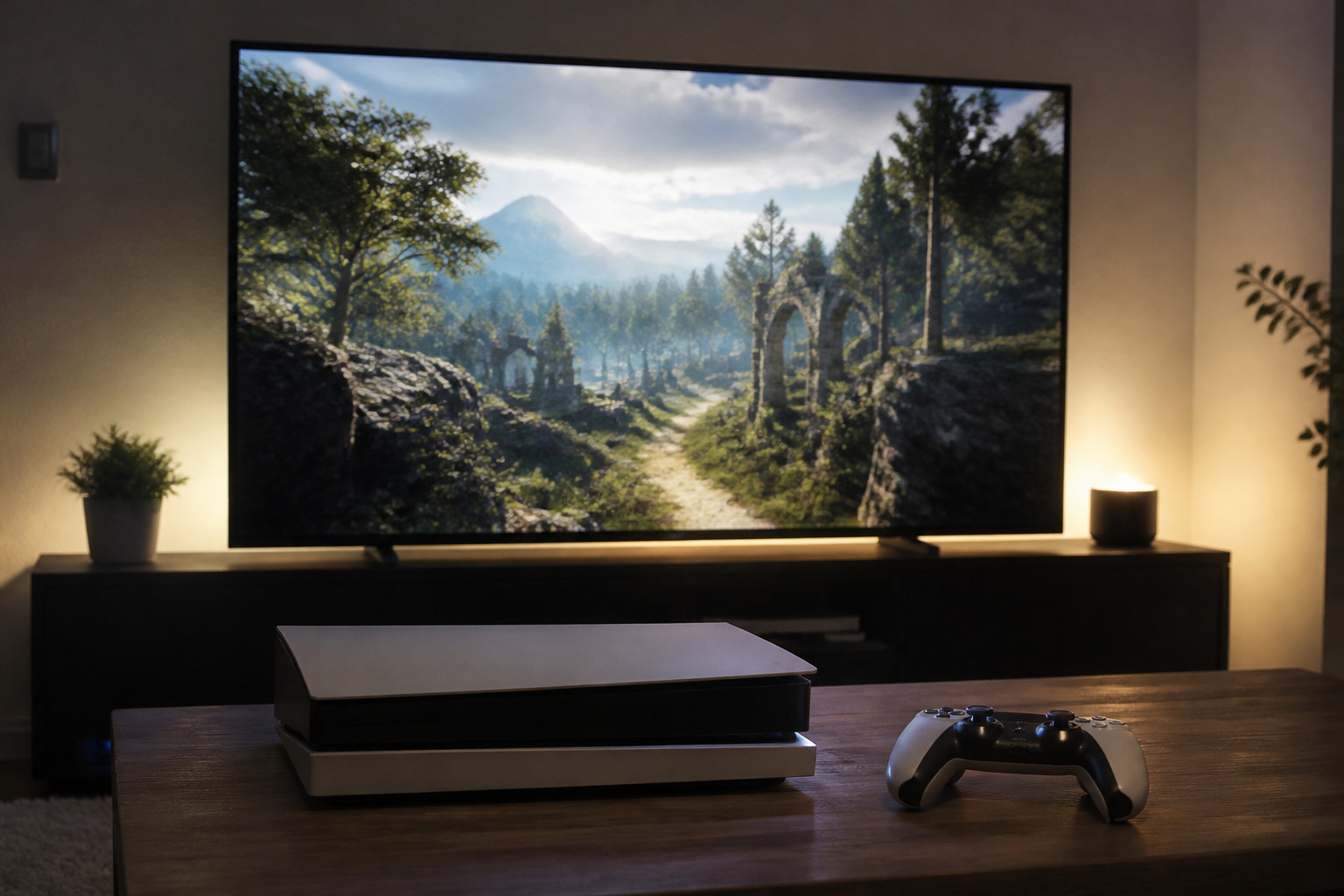
Game mode reduces delay for consoles. HDR content may need separate picture settings, since many TVs keep HDR and standard settings separate; see HDR explained.
If the picture looks soft after adjusting, see why a TV looks blurry.
Products Worth Considering

AIRSLIM: This TV blends right into your wall with a slim design; It brings clutter-free minimalism to the room without distracting you from what you watch

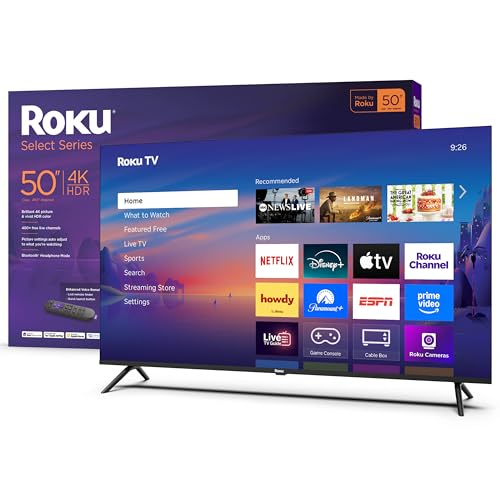
A treat for the eyes: Sharp 4K brings out rich detail on our 50" flat screen TV, while colors pop off in lifelike clarity with HDR10. Roku Smart Picture cleans up incoming TV signals, optimizes them, and chooses the right picture mode.
Frequently Asked Questions
Do I need calibration tools?
No. Good modes and careful adjustment by eyeballing are enough for most people.
What is Filmmaker Mode?
A picture mode that turns off extra processing so movies look as the director intended.
Should I use Vivid mode?
Not for general viewing. It is bright but distorts color.
Is a warm color temperature better?
Often yes. Warm settings usually give more natural whites.
Is bias lighting worth it?
It is a cheap addition that reduces eye strain in dark rooms and can make the picture appear deeper.