Most TVs ship with settings tuned to look impressive on a showroom floor, not in your living room. A few changes can make a noticeable difference for movies, sports, and games.
The menu names vary by brand, but the same ideas apply everywhere.
Start With the Picture Mode
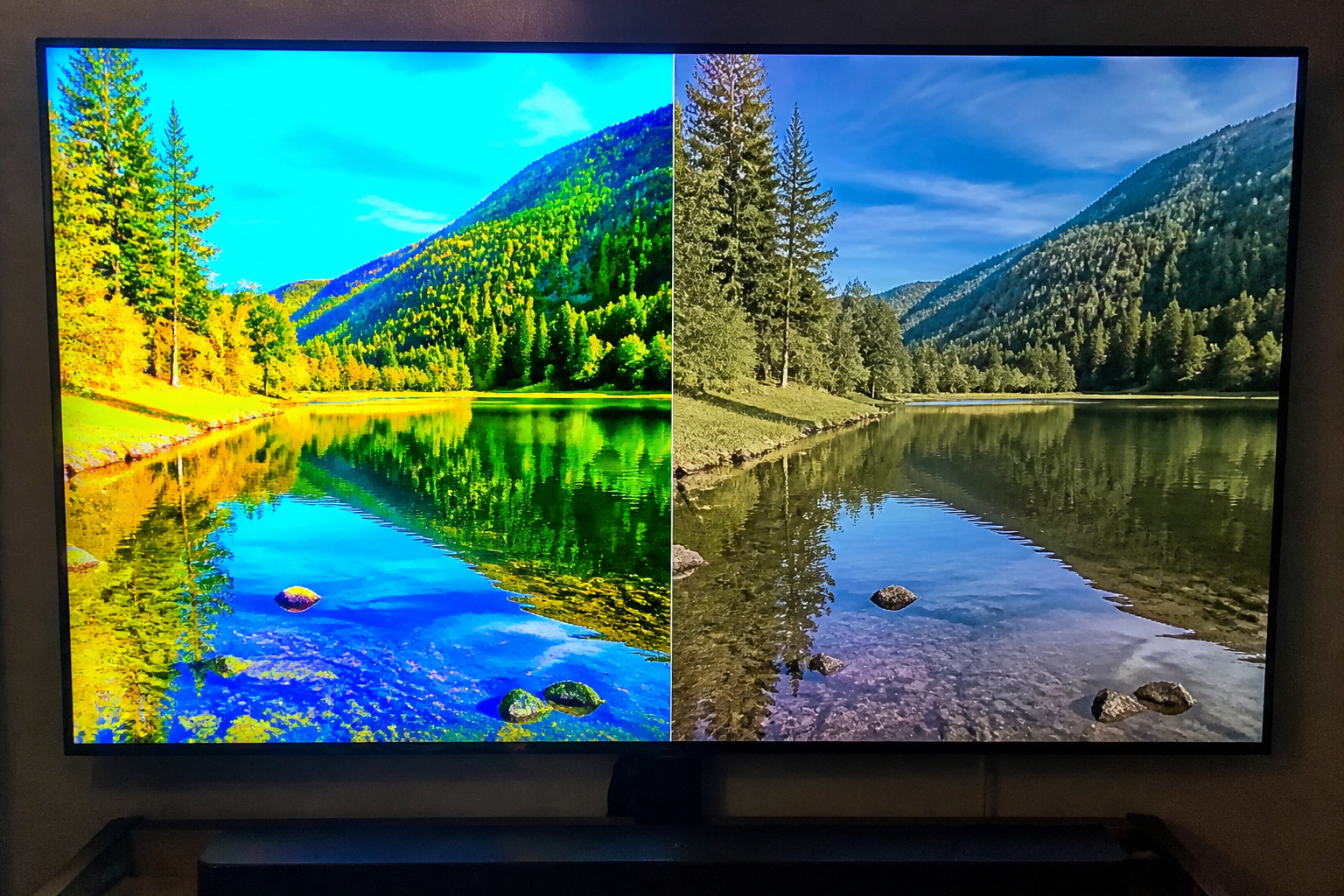
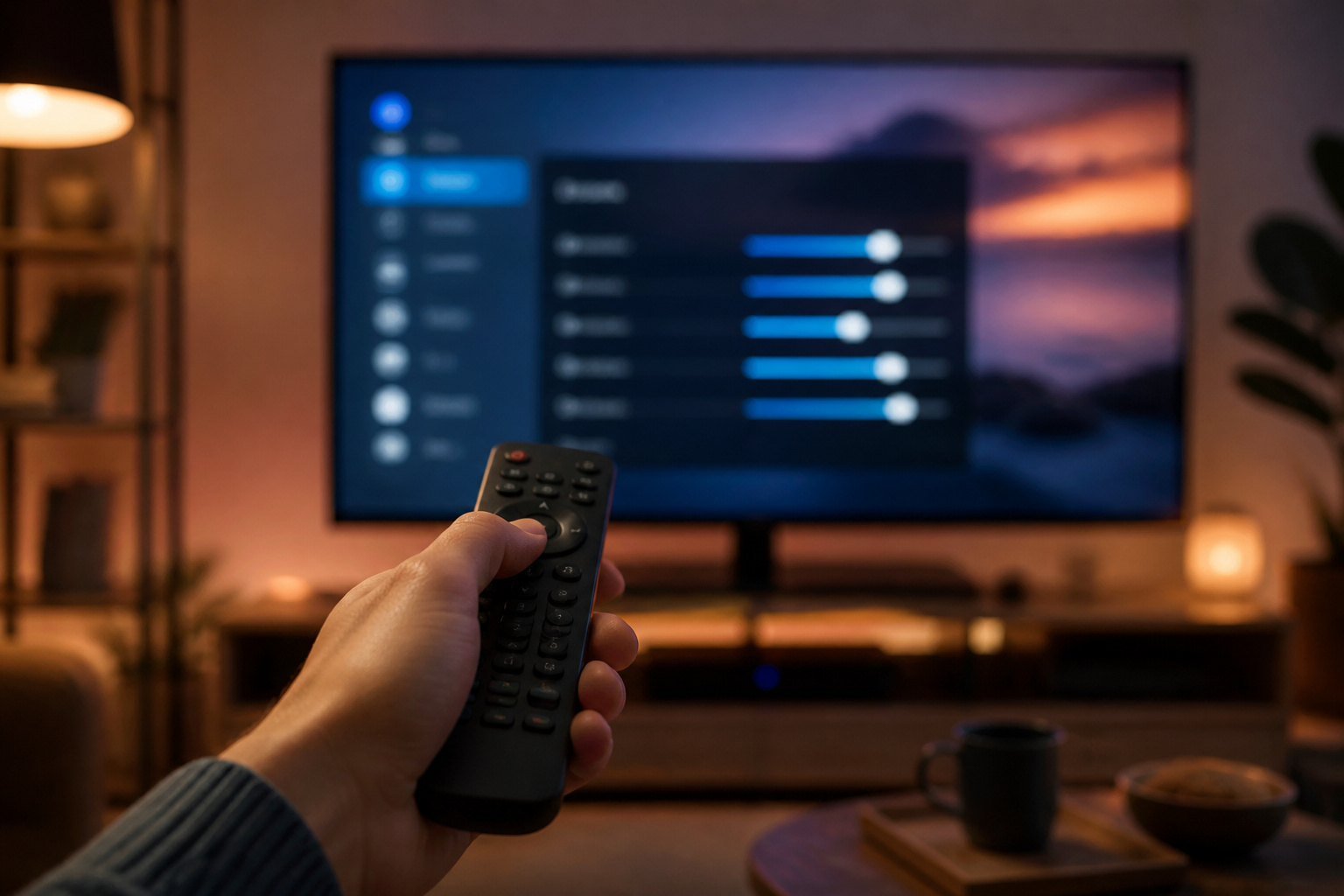
Picture mode is the biggest single setting. Vivid or Dynamic modes boost brightness and color for store lighting, but look harsh and unnatural at home.
For movies, choose Movie, Cinema, or Filmmaker Mode, which aim to show the picture as it was mastered.
Standard is a reasonable default for general viewing. Switch modes per input if your TV allows it.
Recommended Products


DESIGNED TO LOOK LIKE A PICTURE FRAME: Looks like real art with a slim design that mounts flush to the wall, customizable bezels* to match your style, and an external hub that connects the TV to power and your devices with a single wire.

Settings for Movies

In Movie or Filmmaker Mode, set the color temperature to its warmest setting, often labeled Warm or Warm 2, for more natural whites.
Turn off motion smoothing so films keep their intended frame rate; see our explainer on motion blur and judder.
Reduce or turn off noise reduction and edge enhancement, which can soften a clean picture or add halos. In a dim room, lower the backlight or OLED brightness to a comfortable level and let contrast do the work.
Recommended Products

❤️3 COLOR MODES FOR COMFORTABLE NIGHT READING: Switch between 3000K warm white to relax before sleep, 4300K natural white for everyday reading, and 8000K cool white for crisp detail. At 25 lumens the soft, even glow lights just your page - easy on your eyes, invisible to your partner

❤️3 COLOR MODES FOR COMFORTABLE NIGHT READING: Switch between 3000K warm white to relax before sleep, 4300K natural white for everyday reading, and 8000K cool white for crisp detail. At 25 lumens the soft, even glow lights just your page - easy on your eyes, invisible to your partner

CREATE THE PERFECT AMBIANCE - Our indoor spot lights cast 800 lumens of warm, flicker-free glow—ideal for plants, art, or a reading corner. Pick from three color temps (3000K, 4500K, 6000K) to suit any mood. The memory saves your last setting (unplug to reset). Brighter and more versatile than any other rechargeable spotlights, they instantly elevate your space
Settings for Sports

Sports look best with a bit more brightness and clear motion. Standard or Sports mode is a good starting point.
If the picture looks too smooth, reduce motion smoothing rather than switching it off completely, since a light setting can help pan shots.
Sports channels are usually broadcast in 60 frames per second or lower; see our guide to refresh rates for what helps most.
Recommended Products

FHD RESOLUTION: Along with 1080p high-definition LCD screen, you’ll find a powerful full array LED backlight, creating a sharper, more colorful picture.

Gift-Ready Smart Frame with Instant “WOW”:Preload photos, notes, countdowns and a custom face before you wrap it. They open the box — it lights up with your message on a floating transparent screen. A truly personal gift for birthdays, anniversaries, long-distance couples, families and creators.Supports AI-generated image creation in different styles.
Settings for Gaming
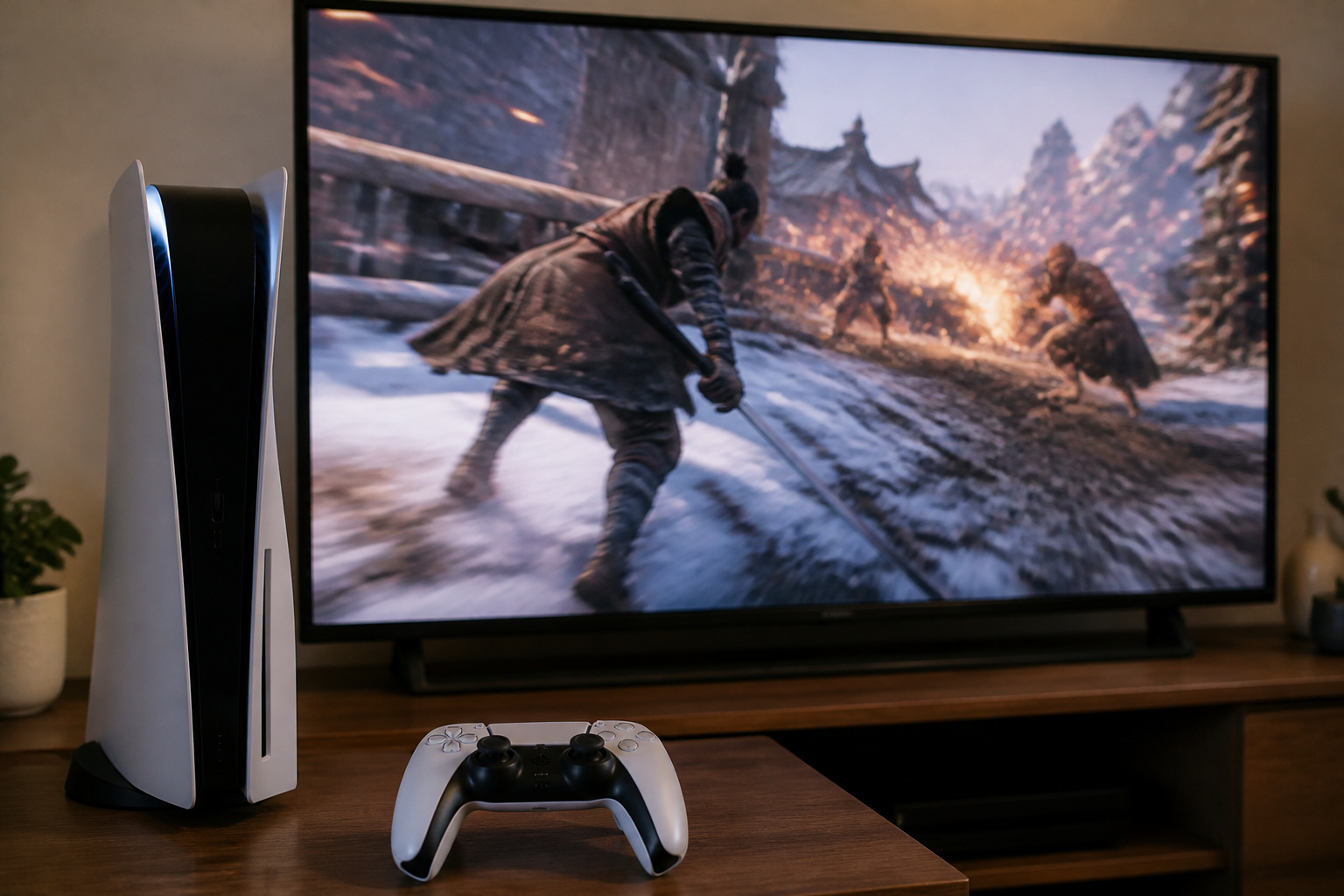
Use Game mode, which turns off most processing to cut input lag so controls feel responsive. If your TV and console support them, turn on Auto Low Latency Mode (ALLM), Variable Refresh Rate (VRR), and HDR for games supporting these features.
Not every picture mode keeps these features active, so test with a game you know. See our HDMI cables explained guide for hardware details.
Recommended Products

Real 8K HDMI certified cable: The HDMI cables pass HDMI 2.1 Certified. The HDMI Cable delivers 10K 8K@60Hz and 4K@240Hz higher resolution, 4 times higher than 4K@60Hz. The advanced technology makes a remarkable improvement in image clarity and sharpness
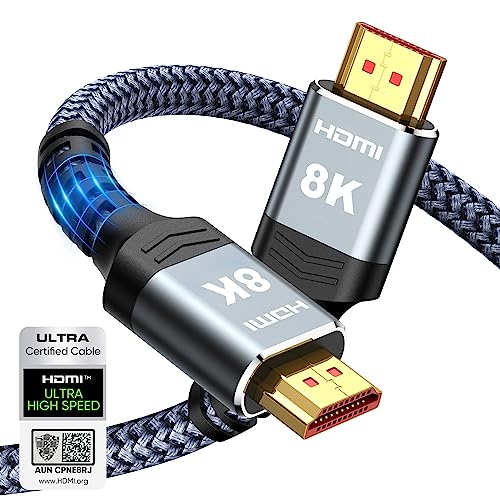
Top Technology--8K@60HZ: This 8K Ultra-High Speed 2.1 HDMI Cable uses the most cutting-edge technology, which is compatible with 8K@60HZ,4K@240HZ and 4K@120HZ clearly displays every particle, and accurately processes every signal source.

Certified UHD 8K HDMI 2.1 Cable: Highwings Certified Ultra High Speed UHD HDMI 2.1 Cable uses the most cutting-edge technology, is compatible with10K, 8K 60Hz, 4K 240Hz 120Hz, clearly displays every particle, and accurately processes every signal source
Brightness, Contrast, and Sharpness
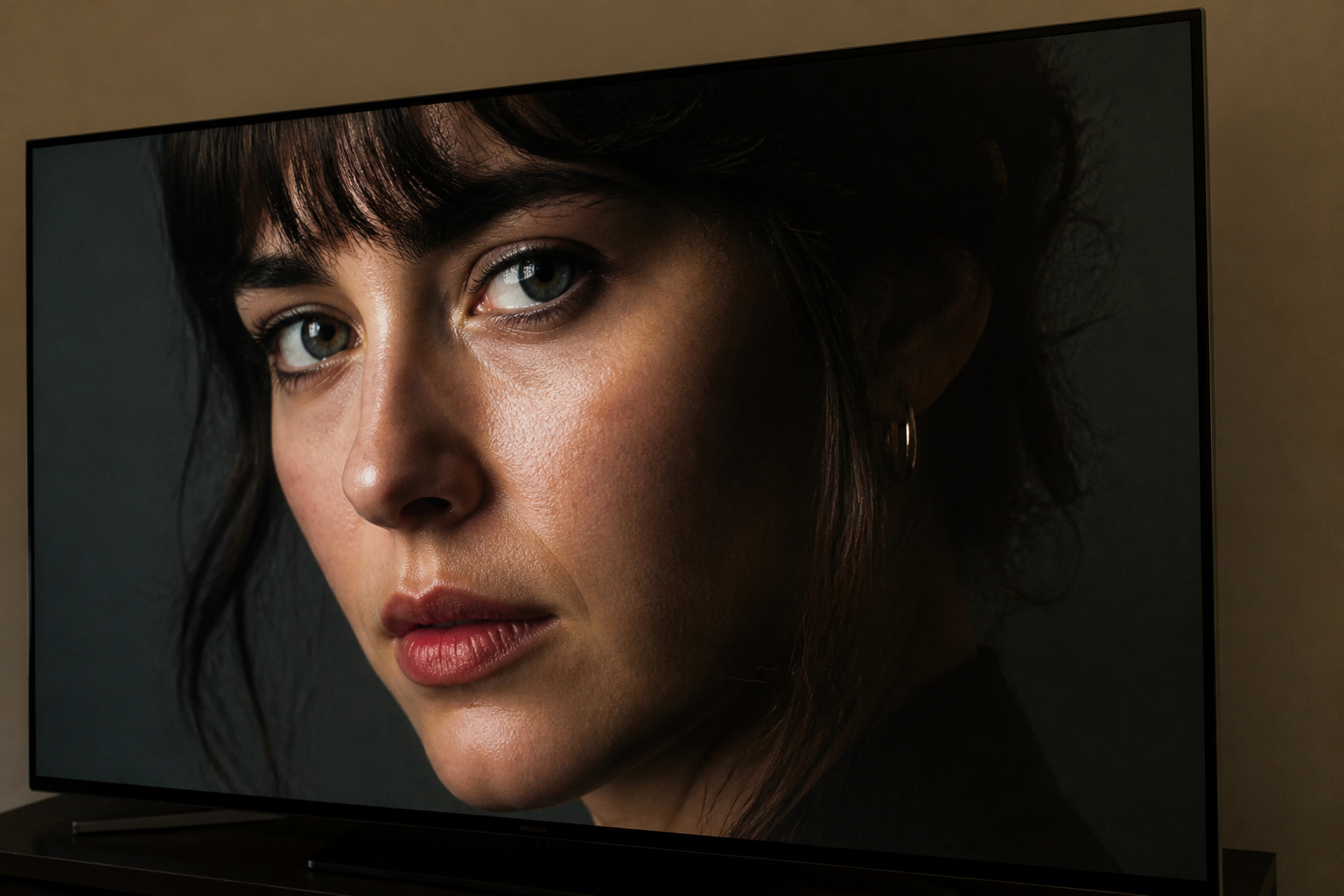
Your TV’s brightness (or black level) controls how dark the darkest parts appear, and contrast controls the brightest parts. Adjust them using a scene with dark shadows and bright highlights so you can see detail in both.
Keep sharpness low, since high sharpness adds artificial edges rather than real detail. If your picture seems off, see why a TV looks too dark and how to optimize picture settings without calibration tools.
Recommended Products


Framing Location Wall Stud Finder: The Wall Stud Finder offers positioning to find framing location, and this stud finder reduces repeated drilling when you mount a picture shelf. It supports tidy marks and stable wall displays in entryways or living areas

Frequently Asked Questions
What is the best picture mode for movies?
Filmmaker Mode, Movie, or Cinema is generally best. These modes aim for accuracy rather than showroom brightness.
Should I turn off motion smoothing?
For films, usually yes. For sports, a low setting can reduce blur. For games, turn it off and use Game mode.
What does Game mode do?
It disables extra image processing to reduce input lag. Some TVs also slightly reduce picture quality in this mode in exchange for faster response.
Do I need to calibrate my TV professionally?
No. Good presets and a few adjustments are enough for most people. Professional calibration helps mostly when you want precise color or have a high-end display.
Why does the picture look different in each app?
Many TVs save separate picture settings for each input and sometimes for each app or content type. Check that your streaming app and HDMI inputs are using the mode you expect.