Motion blur and judder are two different problems. Blur makes moving objects look smeared, while judder makes panning shots look jerky or stuttery.
Both can be reduced with settings, and sometimes the right fix is to leave things alone.
What Causes Motion Blur
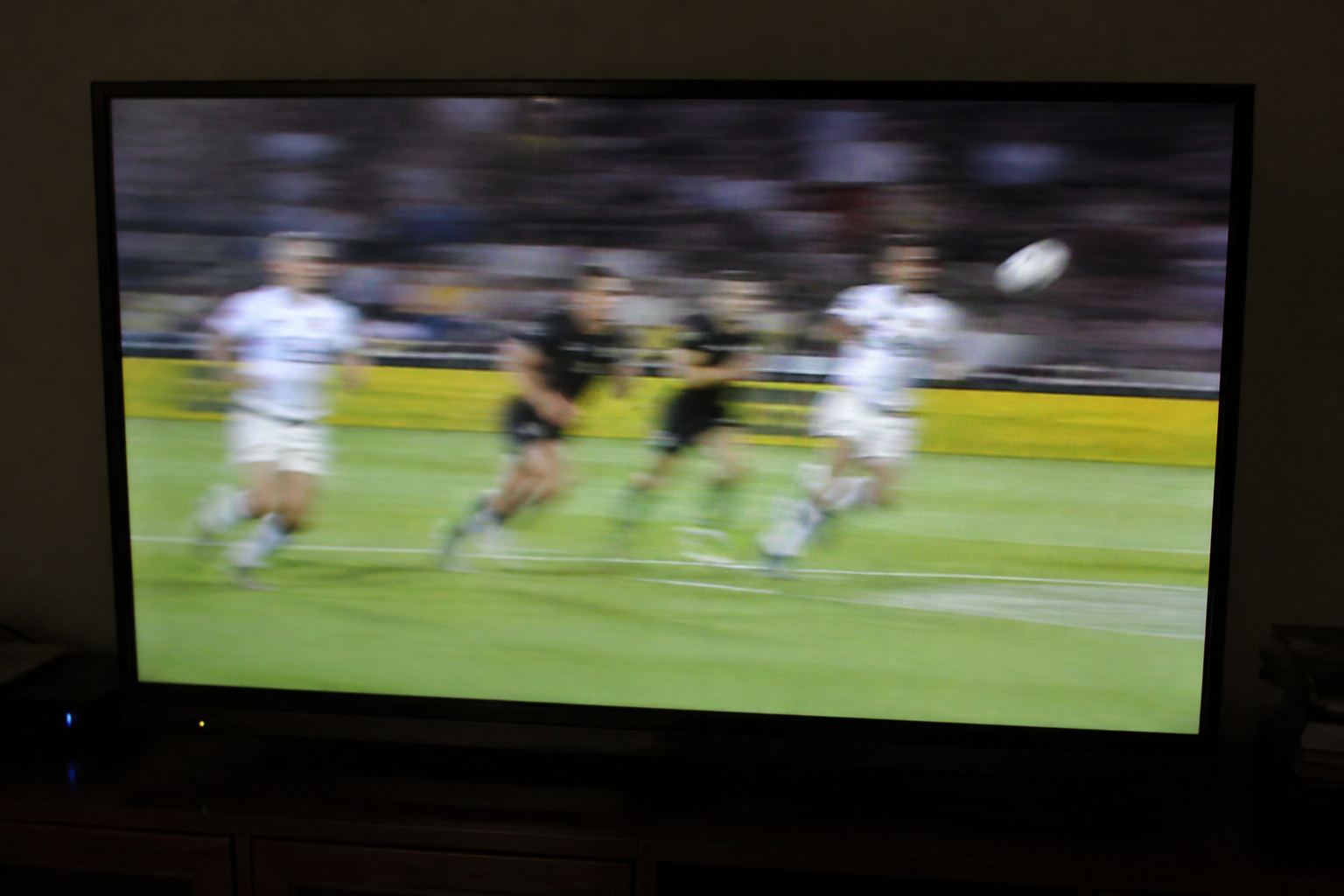
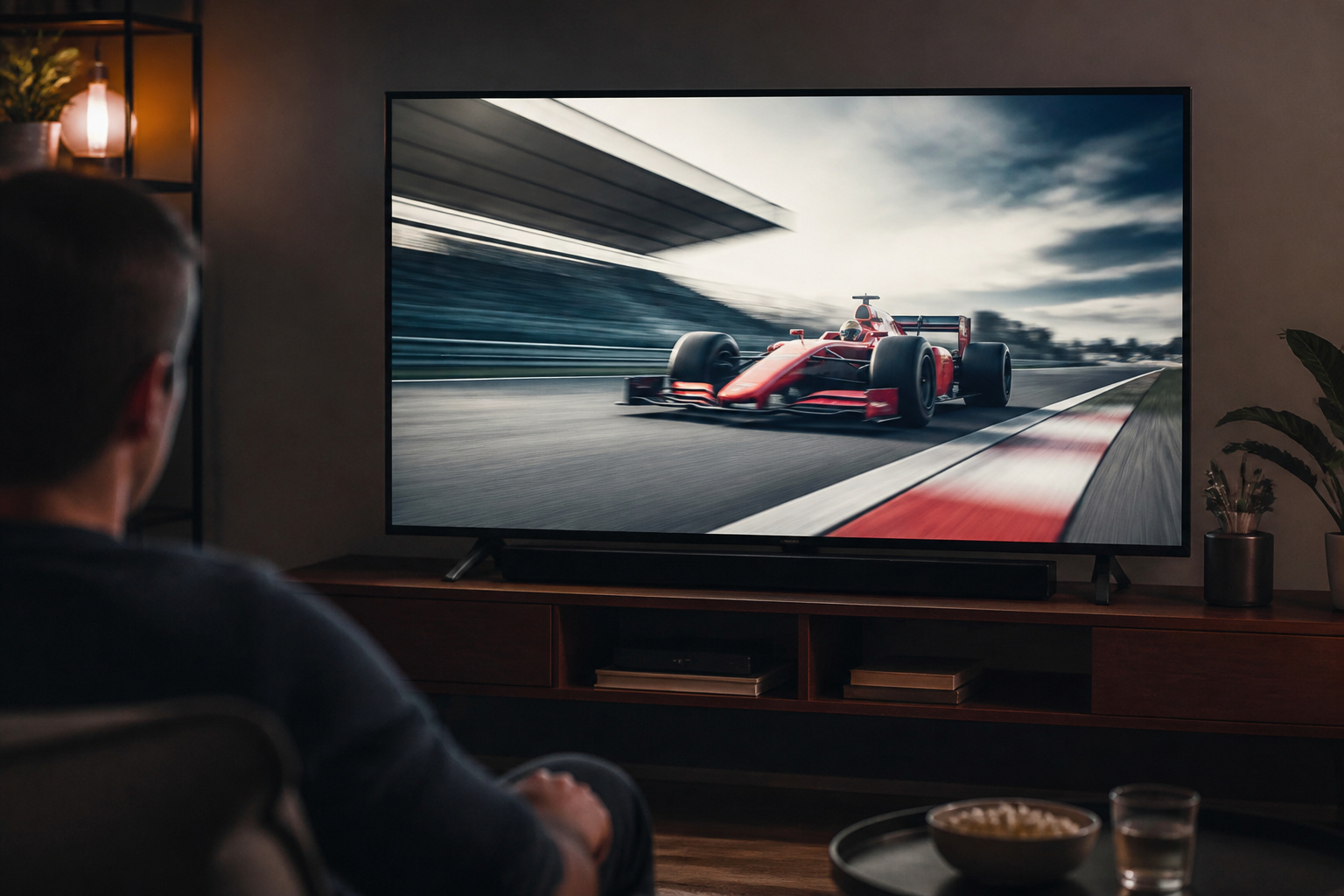
Blur comes from slow pixel response or from the way an LCD holds each frame on screen. Fast action such as sports can look smeared on a TV with slow response or low refresh rate.
OLED panels respond faster, so they usually show less blur. See 60Hz vs 120Hz and OLED vs QLED vs LED.
What Causes Judder
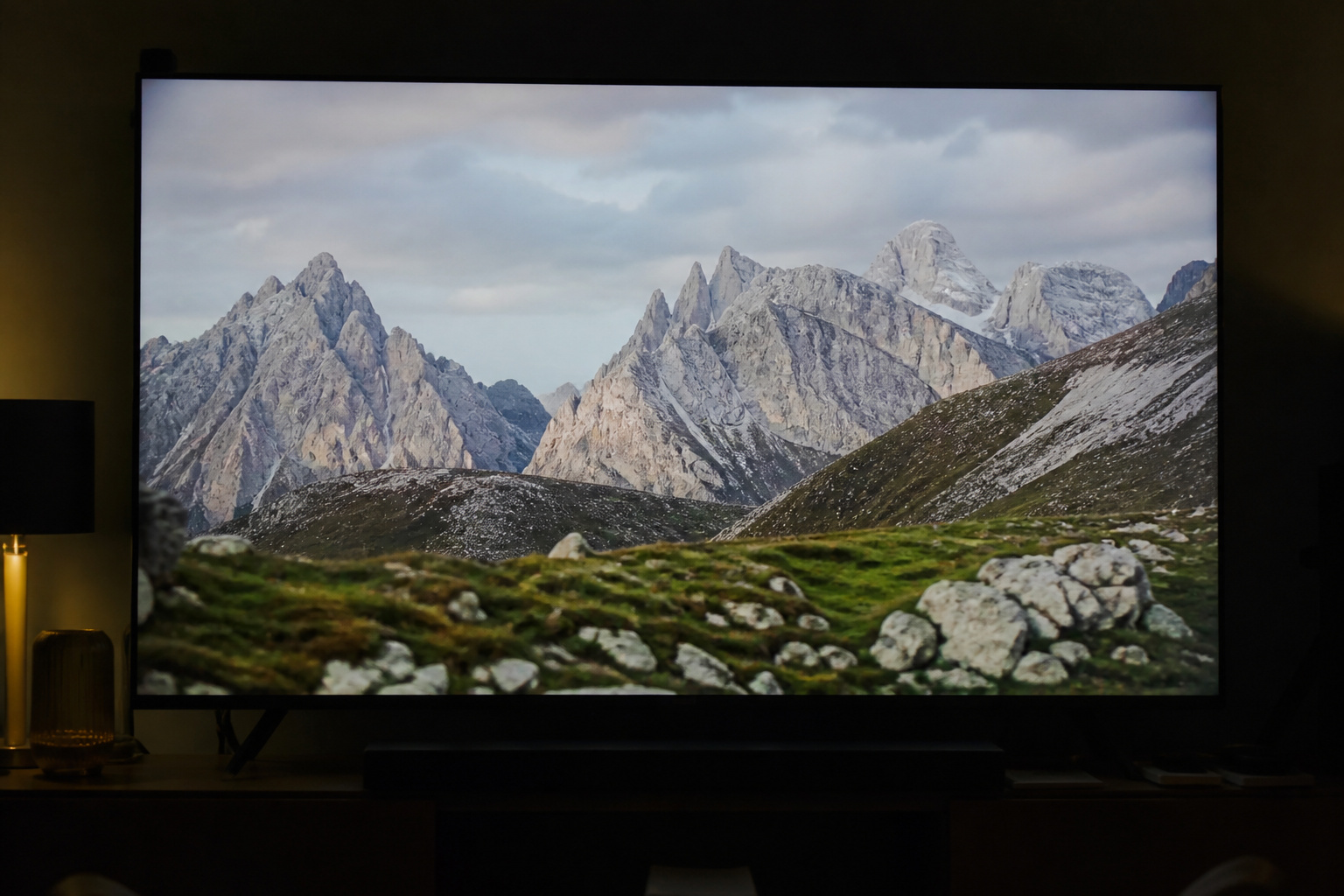
Judder appears when content does not match the display’s refresh rate. A 24 frames per second movie on a 60Hz TV requires uneven frame repetition, which creates a subtle stutter in slow pans.
A 120Hz panel displays 24 fps evenly, which removes this. Some streaming devices have a frame-rate matching option to change the output to match the content.
Motion Smoothing: Use With Care
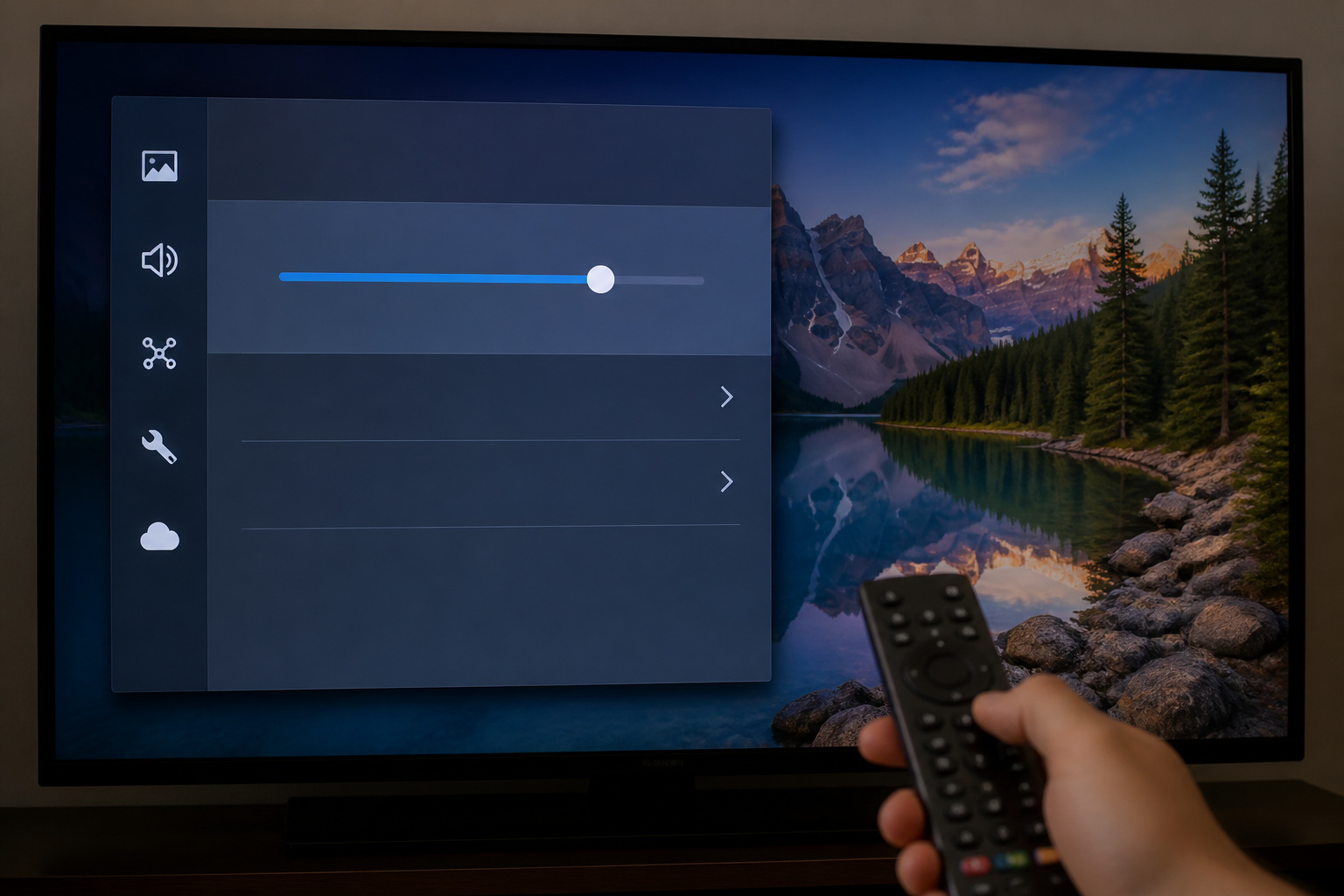
Motion smoothing, also called interpolation, creates extra frames to make motion look smoother. It can reduce blur in sports but often makes films look artificially smooth, known as the soap opera effect.
Try a low setting for sports and turn it off for movies. Look for a Film or Cinema mode that avoids smoothing.
Recommended Products
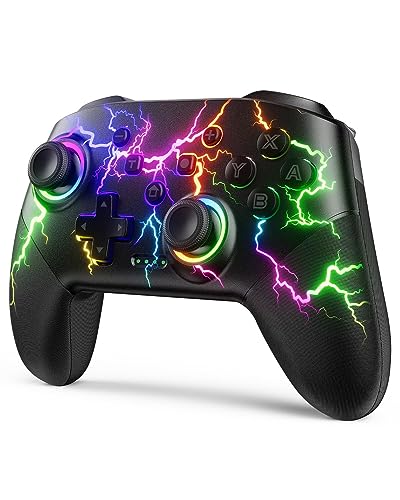
RGB Cool Lightning Bolt & Long Battery Life: Switch controller with lightening bolt style and 9-color LED looks really cool; 4 light modes: solid lights, breathing lights, RGB strobe led light and led off; Fully charged: 3-4 hours, Runtime: 10-15 hours
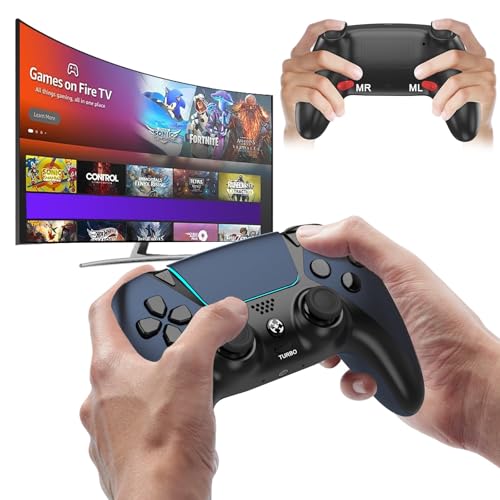
🎮【𝐄𝐧𝐡𝐚𝐧𝐜𝐞𝐝 𝐆𝐚𝐦𝐢𝐧𝐠 𝐂𝐨𝐧𝐭𝐫𝐨𝐥𝐥𝐞𝐫 𝐟𝐨𝐫 𝐋𝐮𝐧𝐚】Ymir Upgrade for luna controller for fire tv has Patent: No.US D998,043 S. Experience superior gameplay with our firestick controller,specifically designed for Amazon's cloud gaming service.Features programmable back paddles for custom mapping and turbo function for rapid fire.Fully compatible with Luna,Fire TV,PC,GeForce NOW,Tablet,phone,android,the ultimate wireless solution for your cloud gaming needs.Dominate on PlayStation and PC

Switch Compatible: Works with Nintendo Switch 2, Switch, Switch Lite, Switch OLED, and Windows PC (wired connection)
Use Game Mode for Gaming
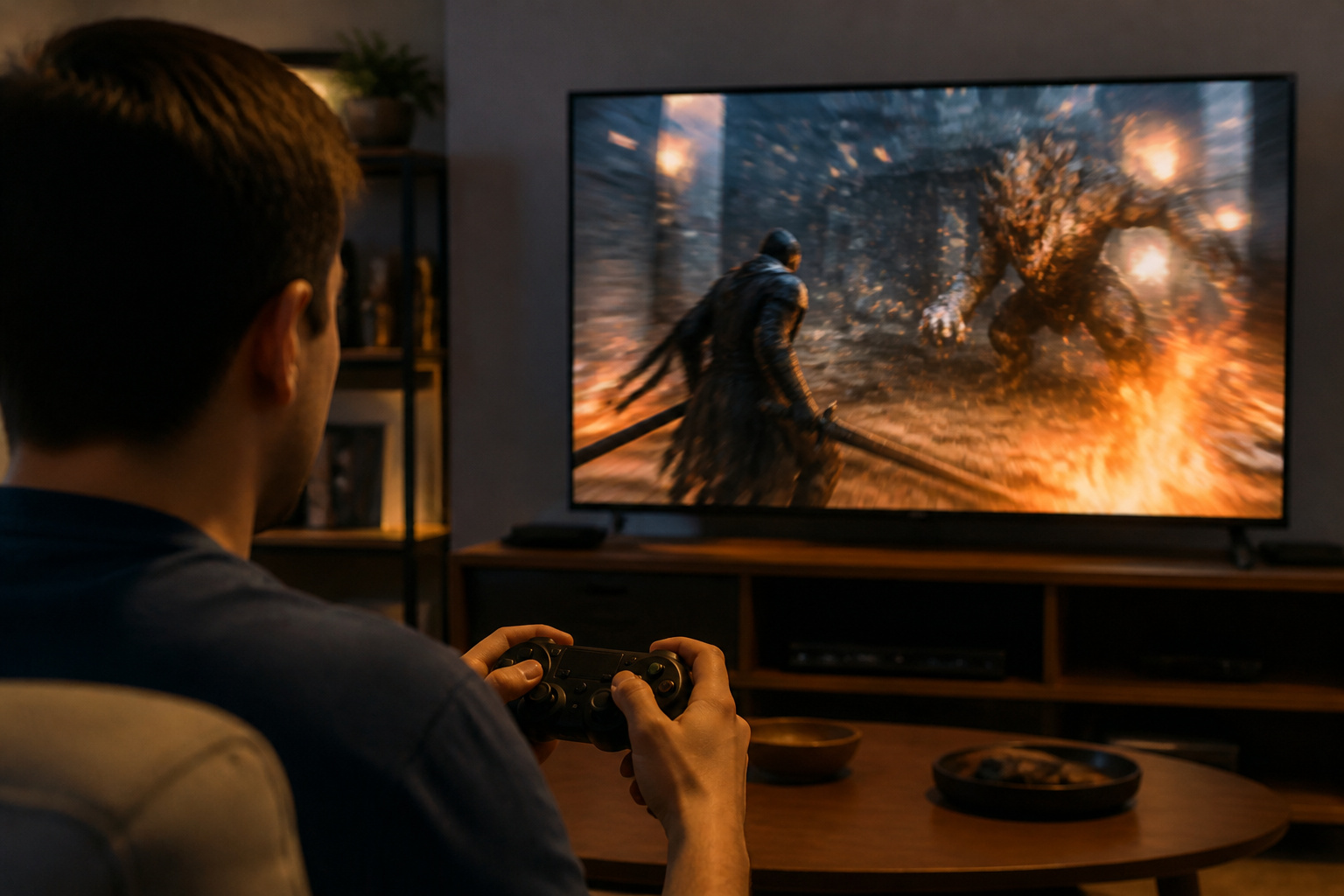
For games, use Game Mode to cut processing delay. Enable variable refresh rate if your TV and console support it.
Our TV settings guide explains the modes. For HDMI requirements at high frame rates, see HDMI cables explained.
Recommended Products

Real 8K HDMI certified cable: The HDMI cables pass HDMI 2.1 Certified. The HDMI Cable delivers 10K 8K@60Hz and 4K@240Hz higher resolution, 4 times higher than 4K@60Hz. The advanced technology makes a remarkable improvement in image clarity and sharpness
Real 8K HDMI certified cable: The HDMI cables pass HDMI 2.1 Certified. The HDMI Cable delivers 10K 8K@60Hz and 4K@240Hz higher resolution, 4 times higher than 4K@60Hz. The advanced technology makes a remarkable improvement in image clarity and sharpness
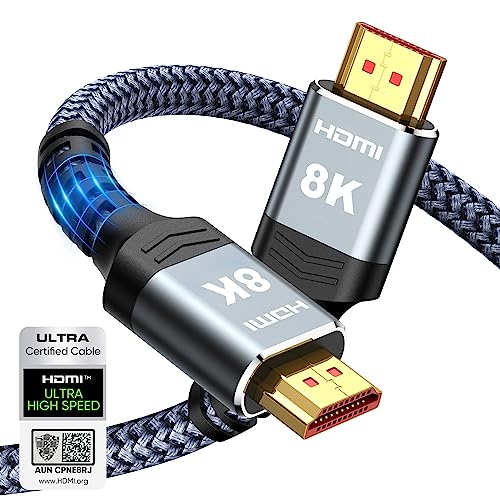
Top Technology--8K@60HZ: This 8K Ultra-High Speed 2.1 HDMI Cable uses the most cutting-edge technology, which is compatible with 8K@60HZ,4K@240HZ and 4K@120HZ clearly displays every particle, and accurately processes every signal source.
Check the Source
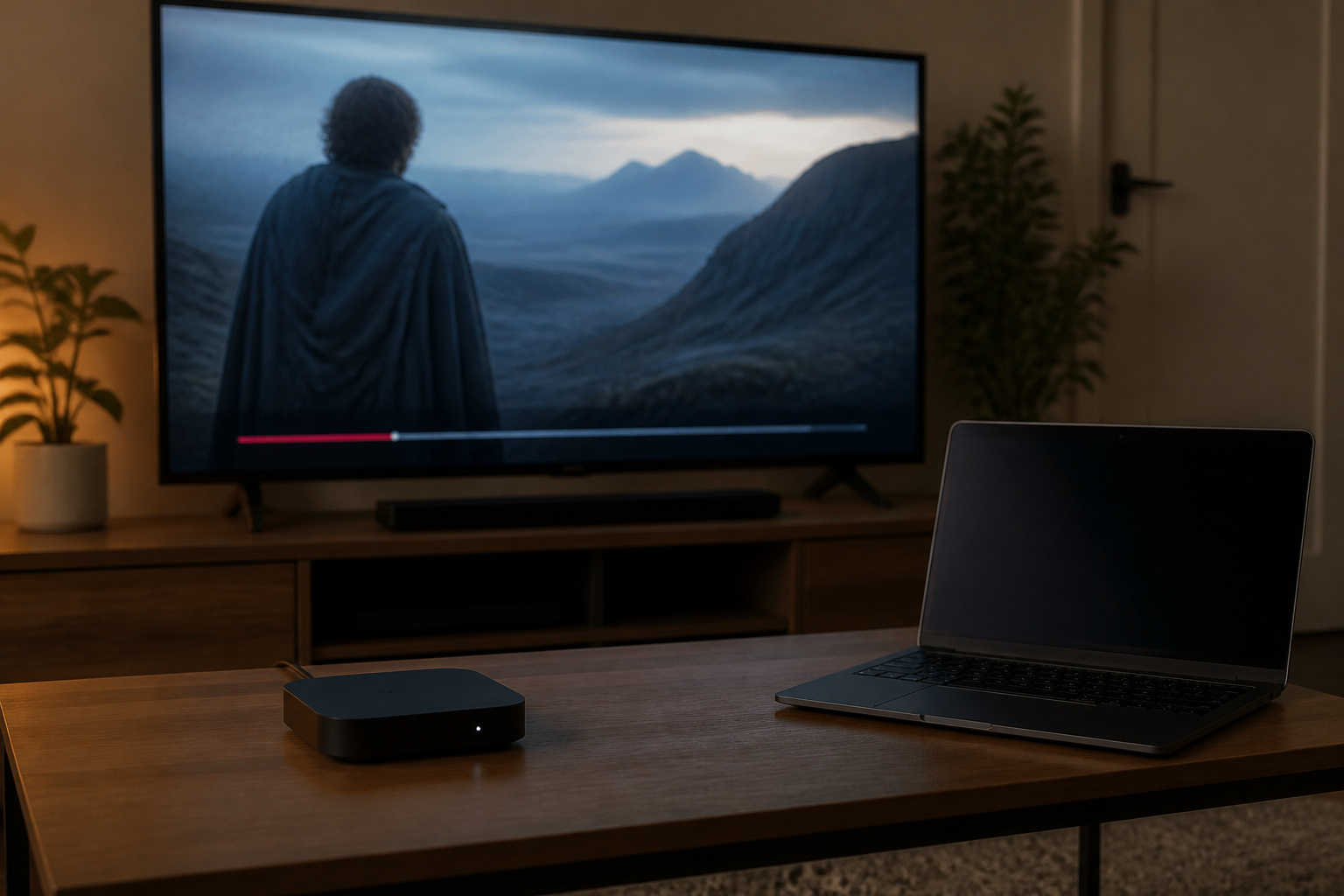
Low frame rate or heavily compressed video can look blurry or jerky, whatever your settings are. Test another source to see if the problem is the content.
A slow connection can also cause stutter; see smart TV buffering. If everything looks soft, see why a TV looks blurry.
Frequently Asked Questions
What is the difference between blur and judder?
Blur smears moving objects, while judder makes motion look uneven or stuttery during pans.
Should I turn motion smoothing on?
For sports, a low setting can help. For movies, most people prefer it off.
Does a 120Hz TV fix judder?
It can with 24 fps films, because 120 divides evenly by 24.
Does OLED have less motion blur?
Usually, because pixels respond very quickly. Some OLEDs can show judder on 24 fps content instead.
Can the cable cause motion problems?
A bad cable can cause dropouts, but not usually smooth-motion issues. Check settings and source first.