The right monitor depends on what you do, how far you sit from the screen, and what you connect to it. Long spec lists make that hard to see. This guide explains what size, resolution, panel type, refresh rate, and ports actually change, so you can match a monitor to your work instead of the biggest number on the box.
Start With How You Will Use It
Office work, school, and web browsing need a sharp, comfortable screen, not high refresh rates. Photo and video work needs color accuracy and a panel that looks the same from slightly different angles. Gaming favors fast refresh rates and a graphics card that can drive them. Coding and spreadsheets benefit from extra screen space, whether through a larger screen, an ultrawide, or two monitors.
Write down what you will connect, such as a laptop, a desktop, or a console, and how much desk space you have. If you are still deciding on the computer itself, our guide on how to choose the right computer for your needs is a good starting point.
Size and Resolution
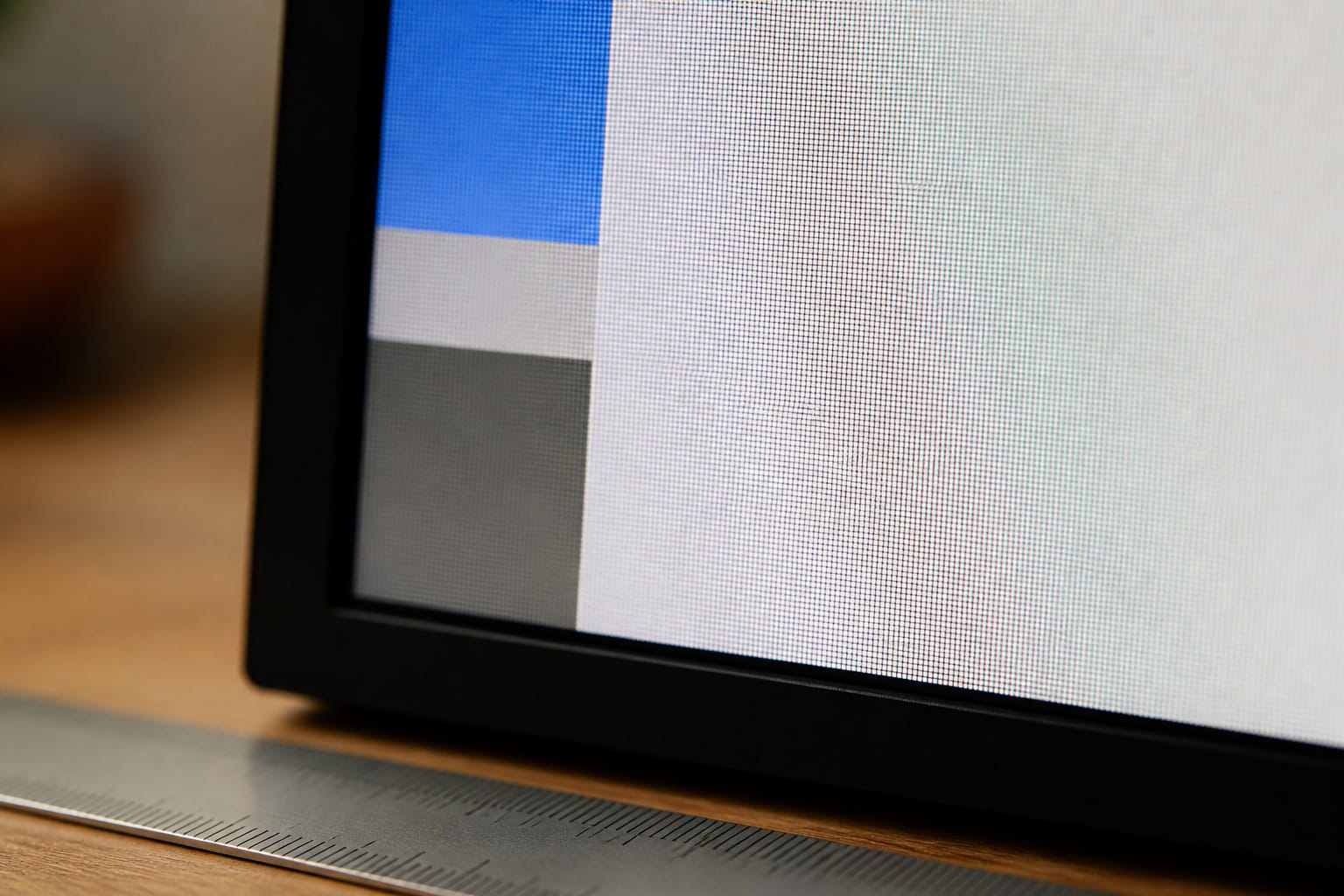
Size and resolution work together, because what matters for sharpness is pixel density. A 24 inch Full HD (1920 by 1080) screen is about 92 pixels per inch, a 27 inch 1440p (2560 by 1440) screen is about 109, and a 27 inch 4K screen is about 163. Higher density gives sharper text and finer detail, which matters if you read or edit for hours.
As a practical guide, Full HD suits 21 to 24 inch monitors, 1440p is a good match for 27 inches, and 4K shines at 27 inches and above if your computer can drive it. Ultrawide monitors, typically 34 inches at 3440 by 1440, add width for timelines, spreadsheets, and side-by-side windows. Remember that more pixels need more graphics power, which matters for gaming and 4K video.
Recommended Products

High-Resolution QHD Gaming Display: 27-inch QHD (2560 x 1440) Fast IPS gaming monitor with 210Hz(OC) refresh rate designed for professional gamers and immersive gameplay

27 inch WQHD 2k 2560x1440 curved gaming monitor, fast refresh rate 200Hz Freesync for game and entertainment.

27” QHD IPS DISPLAY: Enjoy stunning detail and vibrant color with a 2560x1440 Quad HD resolution on a 27-inch IPS panel, offering wide viewing angles and precise image quality.
Panel Type: IPS, VA, TN, and OLED
IPS panels offer wide viewing angles and good color, which makes them the safe choice for most office and creative work. VA panels offer deeper blacks and higher contrast, which suits dim rooms and movies, though some are slower in fast motion. TN panels are fast and cheap but have weaker color and viewing angles, so they are now mostly found in budget and competitive gaming models.
OLED monitors offer excellent contrast and fast response, but they cost more, and static elements such as taskbars can cause burn-in over time if you do not use the manufacturer’s protection features. Text can also look slightly less crisp on some OLED panels. For an all-day office monitor, a good IPS panel remains the safer, cheaper pick.
Recommended Products

Incredible Images: The Acer KB242Y G0bi 23.8" monitor with 1920 x 1080 Full HD resolution in a 16:9 aspect ratio presents stunning, high-quality images with excellent detail. The zero-frame design provides maximum visibility of the screen from edge-to-edge.

Clear visuals. Fluid motion: A 144Hz refresh rate and 1ms MPRT deliver smooth, tear‑free motion across work, gaming, and streaming for clearer, more fluid viewing.

Incredible Images: The Acer KB272 G0bi 27" monitor with 1920 x 1080 Full HD resolution in a 16:9 aspect ratio presents stunning, high-quality images with excellent detail.
Refresh Rate and Response Time
Refresh rate is how many times the screen updates each second. A 60 Hz monitor is fine for documents and video, while 75 to 120 Hz makes scrolling and cursor movement look smoother, and 144 Hz or higher is mainly for gaming. To use a high refresh rate, your computer’s graphics hardware and the cable have to support it.
Adaptive sync technologies, sold as FreeSync or G-Sync, match the screen to the computer’s frame rate and reduce tearing in games. Response time numbers such as 1 ms are measured under favorable conditions, so treat them as marketing unless an independent review confirms smooth motion.
Recommended Products
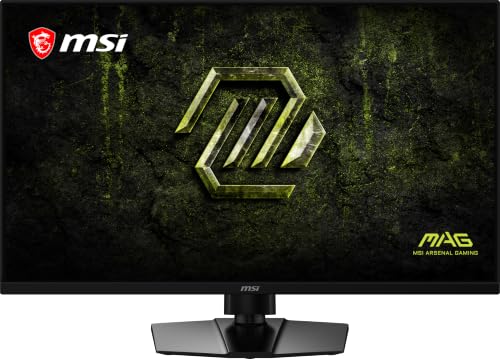
Dual Mode – Easily switch between different resolutions and refresh rates, allowing user to adjust settings based on the game

MSI's 24-inch Full HD IPS monitor (1920×1080) delivers a 1500:1 contrast ratio with wide 178°/178° viewing angles — producing deeper blacks, brighter highlights, and accurate colors from virtually any position for gaming and productivity.
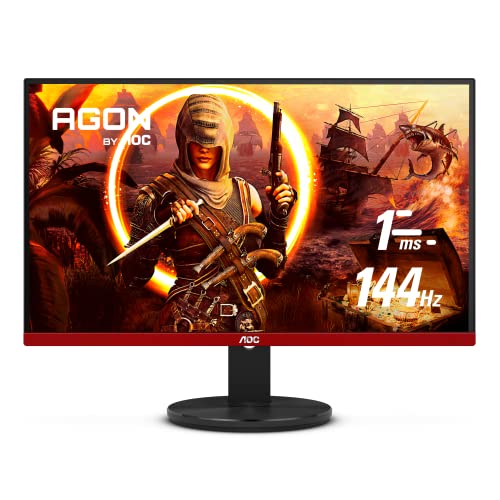
24" (23.8" Viewable) AOC Gaming monitor with 1920 x 1080 Full HD resolution VA panel.Aspect ratio:16:9.Viewing Angle:178.0 degrees.Specific uses for product - Gaming
Color, Brightness, and HDR
For everyday work, look for an IPS or similar panel with good sRGB coverage and enough brightness for your room. Photo and video work benefits from wider color coverage and factory calibration, and professional work calls for a calibrated display. Look for independent measurements, because the percentages on the box are not always tested the same way.
HDR is often overstated. VESA’s DisplayHDR certification sets tiers by peak brightness, starting with DisplayHDR 400, which only requires 400 nits at peak, and rising through 600, 1000, and 1400. A monitor labeled HDR without a certification may do little, and entry-level HDR often looks only slightly different from standard picture quality. If HDR matters to you, look at the certified tier and read reviews.
Ports and Connecting Your Computer
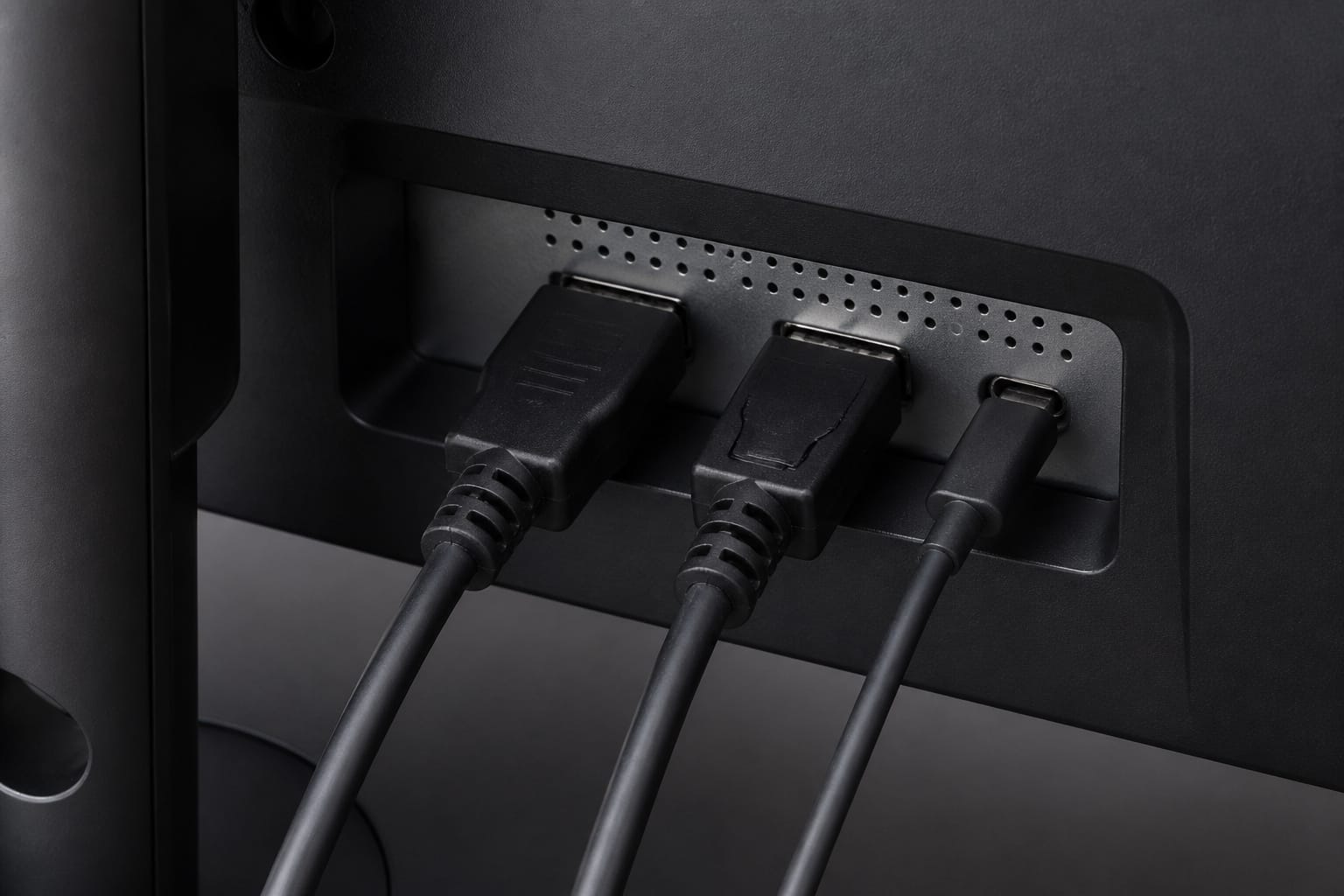
HDMI works with nearly everything, and DisplayPort is common on desktop monitors and often handles higher refresh rates at higher resolutions. USB-C with DisplayPort support is the most convenient option for laptops, because one cable can carry video, data, and power. The USB Power Delivery specification allows a wall-powered monitor to charge a laptop while it displays, but monitors supply different wattages, so check that the figure matches what your laptop needs.
Skip VGA for new setups, since it is analog and limited in sharpness. Check that the monitor’s ports match your computer’s outputs, and use the cable that came with it or one rated for the resolution and refresh rate you want. Our guide on what computer specs really mean explains related terms.
Recommended Products

Extensive Compatibility - Forhelp portable monitor features 2 full-featured Type-C ports and 1 MINI HDMI port. You can easily access your favorite devices with just one USB Type-C or MINI HDMI cable. NOTE: Your device should support Thunderbolt 3.0/4.0 or USB 3.1 Type C DP ALT-MODE. It is compatible with all devices equipped with HDMI and USB Type-C ports like laptops, PS, XBOX, SWITCH game consoles.
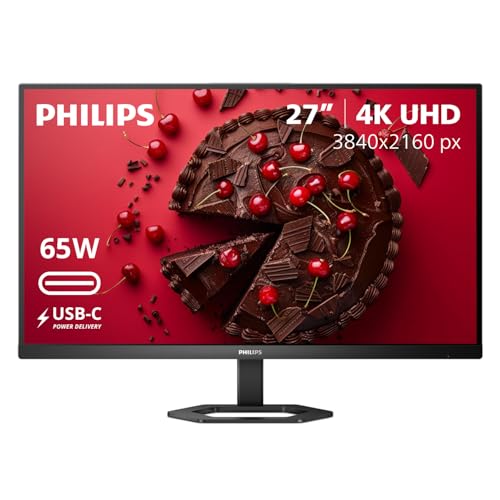
27" ULTRACLEAR 4K UHD DISPLAY Enjoy exceptional detail with a 27-inch IPS panel and 3840x2160 Ultra HD resolution, delivering sharp visuals and accurate colors for work, entertainment, and content creation.

5-in-1 Connectivity: Equipped with a 4K HDMI port, a 5 Gbps USB-C data port, two 5 Gbps USB-A ports, and a USB C 100W PD-IN port. Note: The USB C 100W PD-IN port supports only charging and does not support data transfer devices such as headphones or speakers.
Ergonomics and Eye Comfort

Placement matters as much as the monitor. OSHA’s guidance suggests placing the screen 20 to 40 inches from your eyes, with the top at or slightly below eye level and the center about 15 to 20 degrees below horizontal eye level. Tilt the screen slightly and manage window and lamp glare. The American Optometric Association recommends the 20-20-20 rule: every 20 minutes, look at something 20 feet away for 20 seconds.
Features such as flicker-free backlights and low blue light modes can add comfort, but placement, lighting, and breaks do more. Choose a stand with height and tilt adjustment, or buy a monitor with a VESA mount, usually 75 by 75 mm or 100 by 100 mm, so you can fit an arm.
Budget and Value
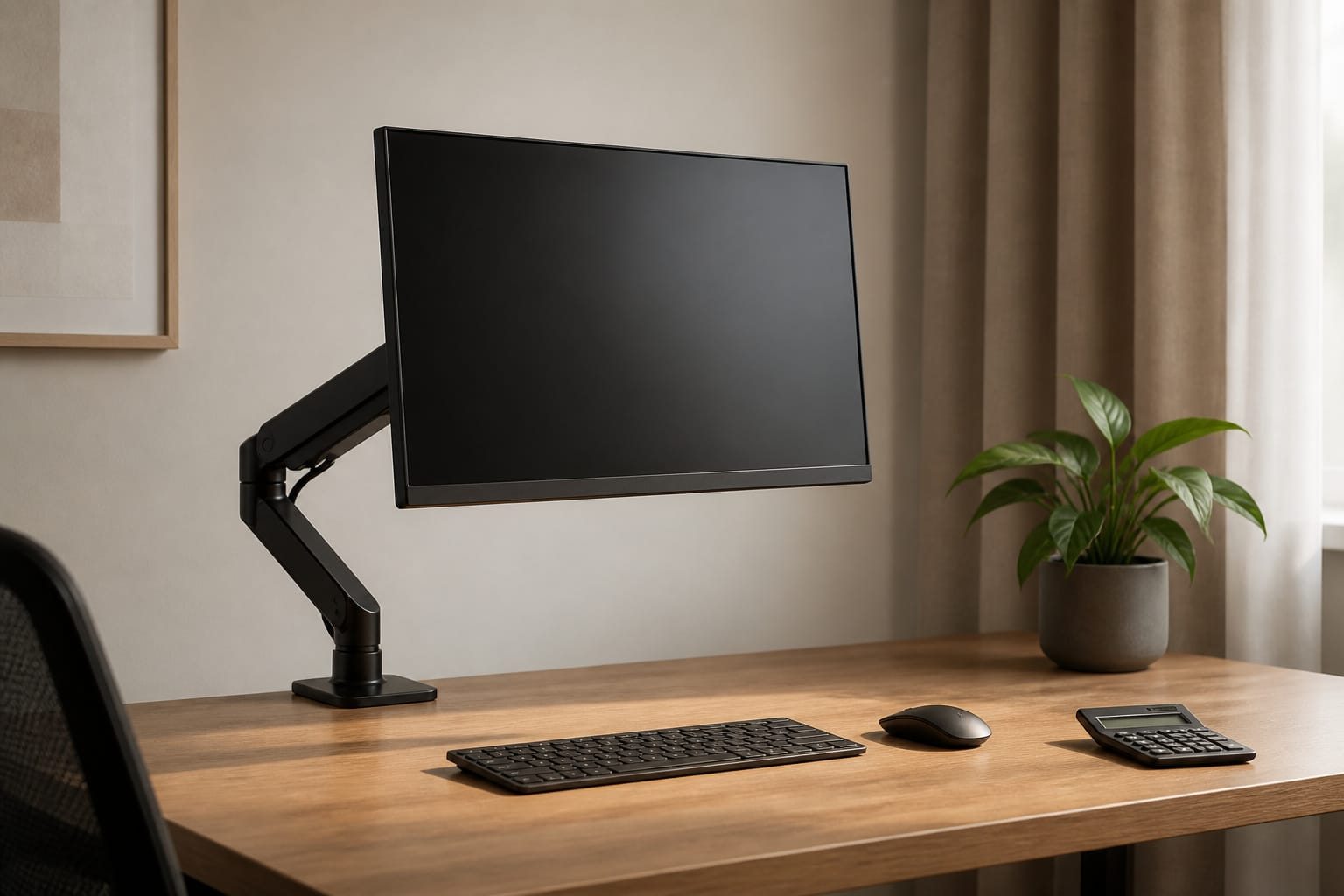
Spend first on what you will notice every day: a sharp panel at a size that suits your desk, a stand that adjusts, and the ports you need. Extras such as speakers, RGB lighting, and very high refresh rates can wait unless they fit your use. Monitors often outlast the computers they are connected to, so a good one can move to your next setup. If you are building a setup on a budget, our guide on what to look for when buying a computer on a budget covers where to save.
Recommended Products

Convenient Charging Hub: This Huanuo dual monitor stand features a built-in 3-in-1 power strip with 2 AC outlets, 2 USB 3.0 ports, and a 59″ power cord. Connect your printer, shredder, scanner, headphones, tablets, and other devices all in one place for convenient power and charging.

5 Light Modes & Dimmable Brightness – 15W bright desk lamp has 10 brightness levels and 5 lighting modes, from 3000K to 6000K; To provides ideal lighting for working, studying, reading, crafting and task Lighting

🚀 All-in-One Connectivity with USB 3.0 Hub & Type-C Port Solve the hassle of limited ports in a single step. This monitor riser features a built-in high-speed USB 3.0 Hub and an extra Type-C data port, allowing you to easily connect your flash drives, keyboards, mice, or other peripherals directly to your desktop. It keeps your essential devices within arm's reach and significantly reduces cable clutter, making your workspace neat and efficient.
Frequently Asked Questions
Can I use these monitors for console gaming?
Yes, if the monitor has the right inputs. For 4K at 120 Hz on a current console you need an HDMI 2.1 input, and the monitor must support that mode. A 1080p or 1440p monitor with a 60 to 120 Hz refresh rate works well for many console players. Check the spec sheet for supported modes.
Does my monitor need HDR10 support?
Not for office or school work. HDR10 is a signal format, and a monitor that accepts it may not display HDR well. For real HDR improvement, look for a certified tier such as DisplayHDR 600 or higher and read independent reviews.
Are monitors compatible with VESA mounts?
Most are. Check the back of the monitor or the spec sheet for the VESA pattern, usually 75 by 75 mm or 100 by 100 mm, and make sure the mount supports your monitor’s weight. Some monitors need an adapter plate, especially curved or very slim models.
How long do monitors last?
Many monitors last for years of daily use, though backlights dim gradually and failures happen. Power it down when you are away, keep it out of direct heat, and check the manufacturer’s warranty, which varies by model.
Can I run more than one monitor?
Often yes. Check how many outputs your computer or dock supports and at what resolutions. Matching sizes and resolutions makes two monitors easier to use together, but mixed monitors work with some scaling adjustments.