You use a keyboard more than almost any other part of your computer, yet it is often the last thing people think about. The right one depends on how much you type, where you work, and what you connect it to.
This guide explains switch types, layouts, wireless options, and comfort, so you can choose a keyboard that fits you instead of a spec sheet.
Start With How You Type

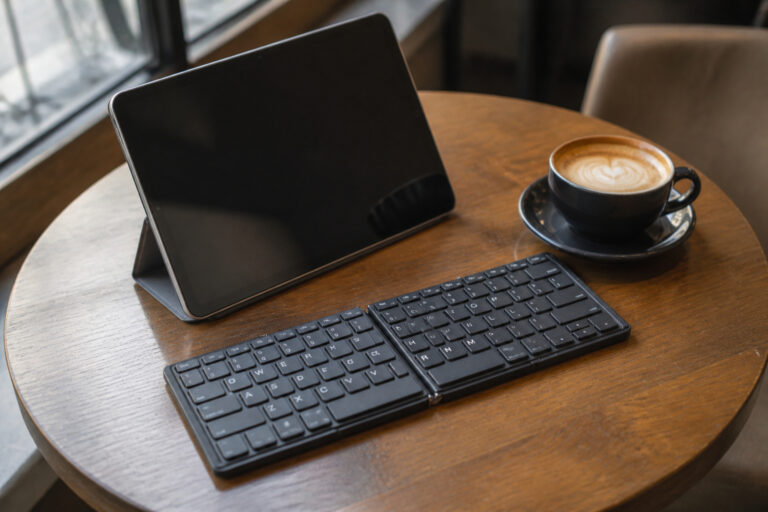
A writer, a programmer, a gamer, and a data-entry clerk need different things. Heavy typists care about key feel and comfort, gamers care about response and durability, and people who work in shared spaces care about noise. People who move between a laptop, a tablet, and a desktop need a keyboard that pairs with several devices.
Think about where it will live: a home office, a shared desk, or a bag. That choice often decides the layout and the connection type before you consider the keys.
Membrane, Scissor, and Mechanical Switches
Most inexpensive keyboards use membrane switches, where pressing a key pushes a rubber dome onto a circuit layer. They are quiet and cheap, but the feel is softer and less precise. Laptop-style keyboards use scissor switches, which have a short travel and a stable, low-profile feel, and many slim desktop keyboards use them too.
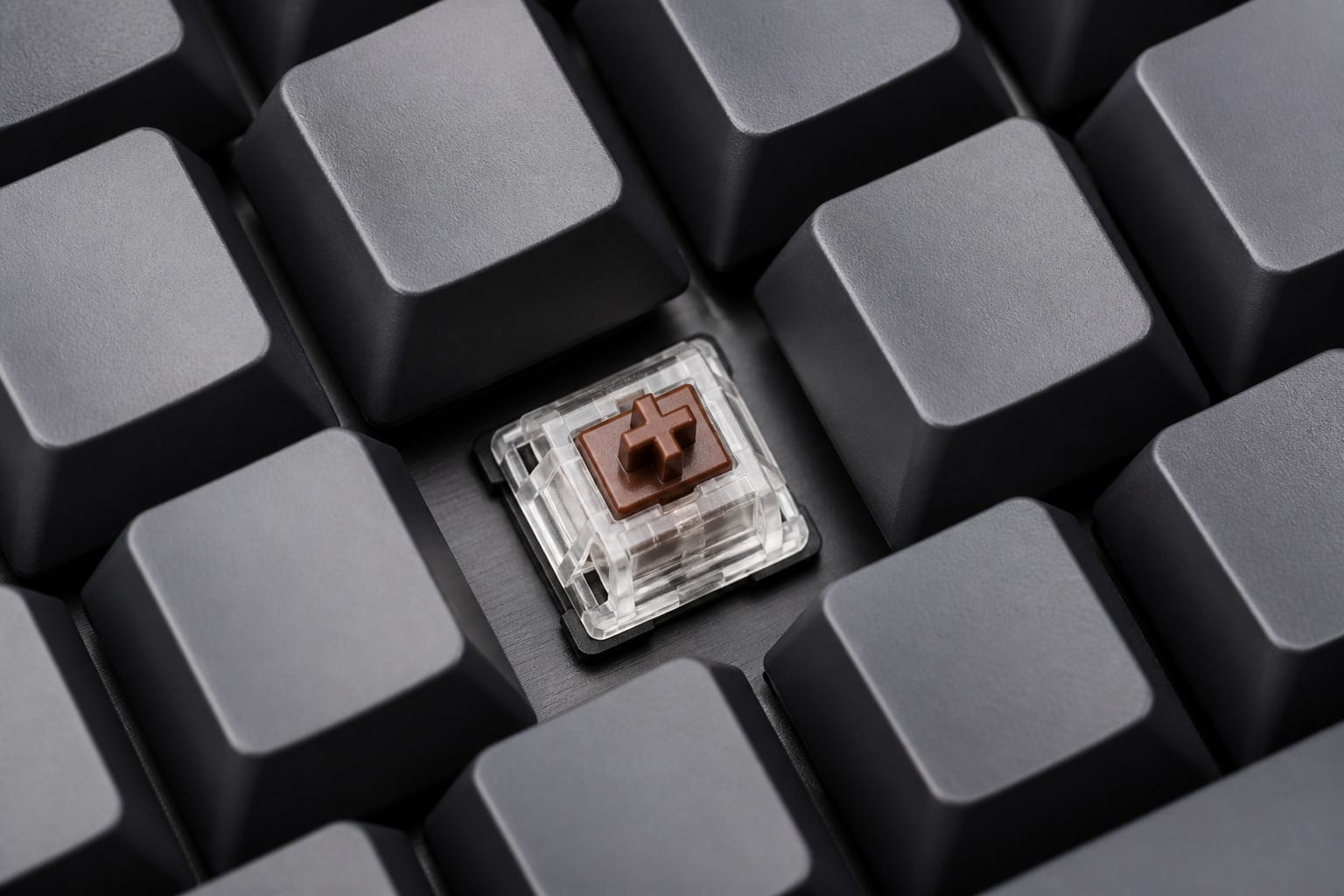
Mechanical keyboards give each key its own switch. Linear switches press smoothly with no bump, tactile switches have a bump you can feel at the point the key registers, and clicky switches add an audible click. Manufacturers often rate mechanical switches for tens of millions of keystrokes, but those figures are lab ratings, not guarantees. Mechanical keyboards cost more, and some are loud, though quiet or silent switches exist. If you share a space, check noise levels before you choose.
Recommended Products
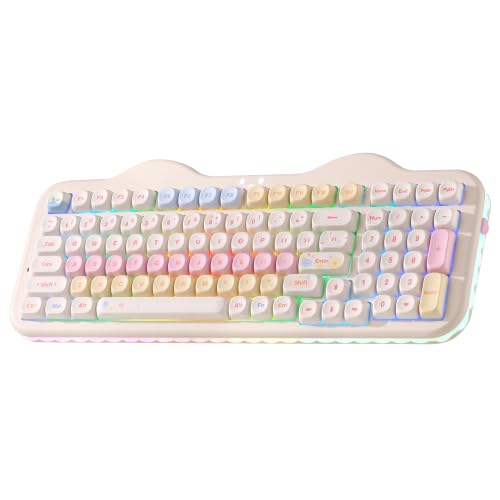
Premium Aesthetic 96% Layout C98 Cake Keyboard: Building on the beloved cute C75 keyboard "cake-themed" design, the YUNZII C98 99-key mechanical keyboard adds a dedicated numeric keypad while keeping its adorable cake theme. Blends aesthetic charm with professional specs, colorful dye-sub PBT MOA keycaps and an ergonomic profile for smooth typing, it's both cute and practical. Ideal as a present or for enhancing any setup—home, office, or gaming station. Incomparable for all skill levels and versatile for work, play, or casual used

Big Features on a Small Screen - Is there anything it can't display? Custom gif image, date. connection mode, WIN/MAC layout, battery status, etc.

Take your gaming skills to the next level: The Logitech G413 SE is a full-size keyboard with gaming-first features and the durability and performance necessary to compete
Layout and Size: Full-Size, Tenkeyless, and Compact
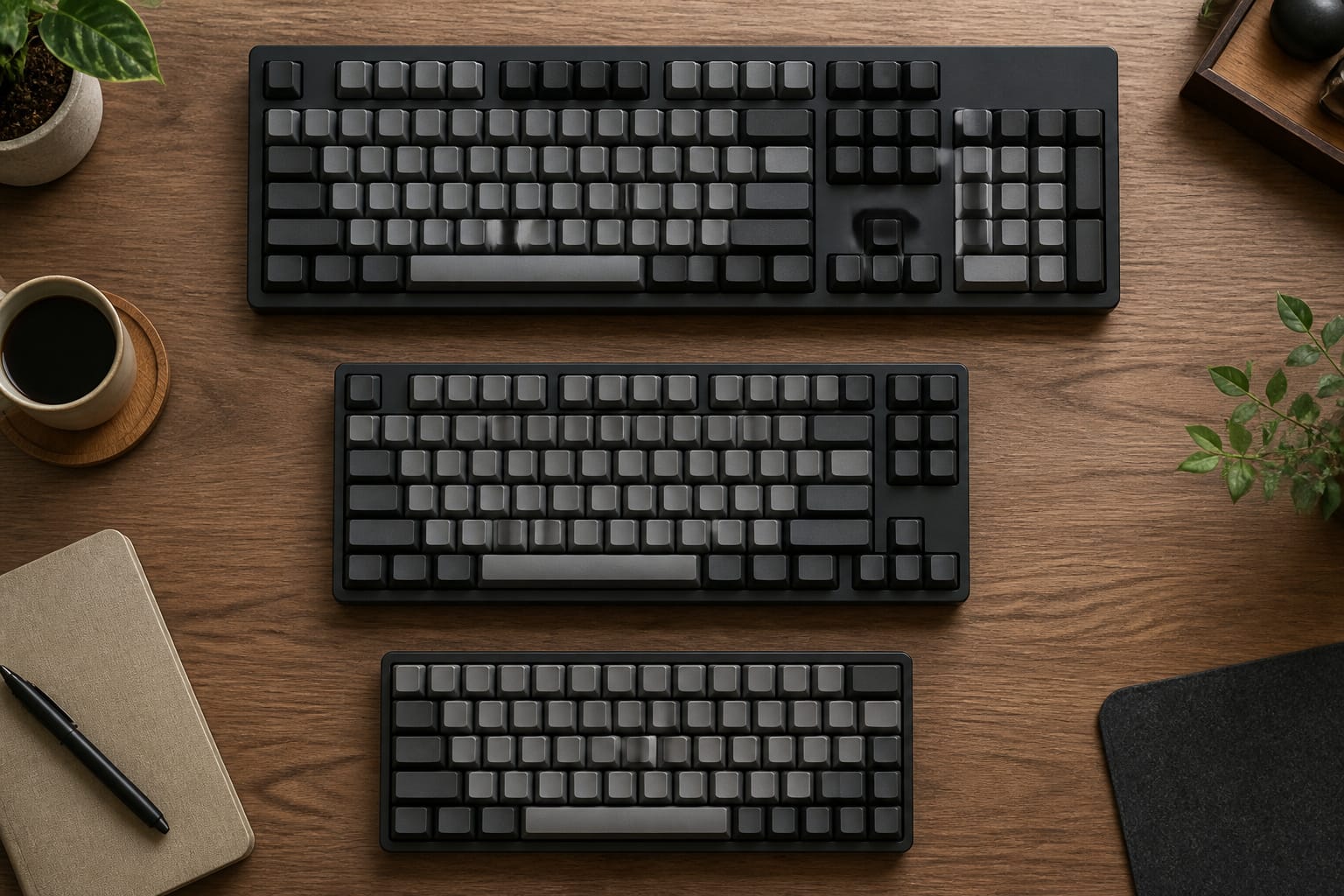
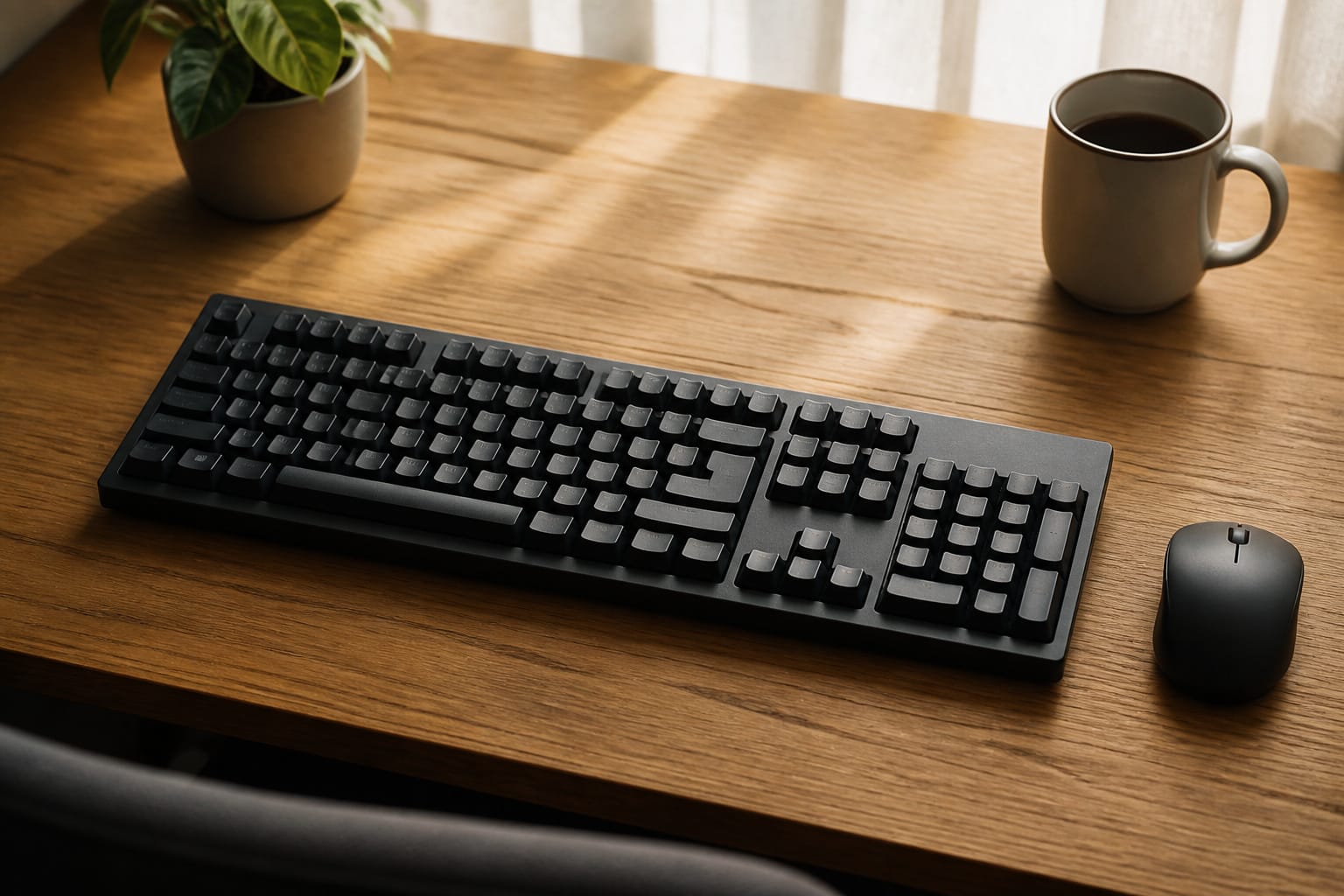
A full-size keyboard has about 104 keys, including the number pad, which is helpful for spreadsheets and data entry. A tenkeyless layout drops the number pad, which frees desk space and lets your mouse sit closer to your body. Compact layouts such as 75 percent and 65 percent trim further, and some move arrow keys or function keys onto layers, which takes some learning.
Choose the smallest layout that still has the keys you use every day. If you rely on the number pad or on function keys, a compact board may cost you speed even though it saves space.
Recommended Products

【75% Space‑saving Layout】The KN85 series is a compact 85‑key keyboard (13.68" × 5.51" × 1.77") that keeps all the essentials (F1–F12, arrows, shortcuts) without the number pad. It frees up 25% of desk space for better mouse movement. Designed for small desks, laptop setups, gamers and minimalists. For frequent number‑pad input, choose our full‑size KN104 with a complete dedicated numpad, or opt for our new KN98 model — compact 99‑key that retains the numpad while saving desktop real‑estate

Compact 96% Layout AK96 Mechanical Keyboard: PBT keycaps resist fading, retain arrow keys and numpad for work and gaming versatility

HyperX Mechanical Switches rated for 80 million keystrokes
Wired, Wireless, and Bluetooth
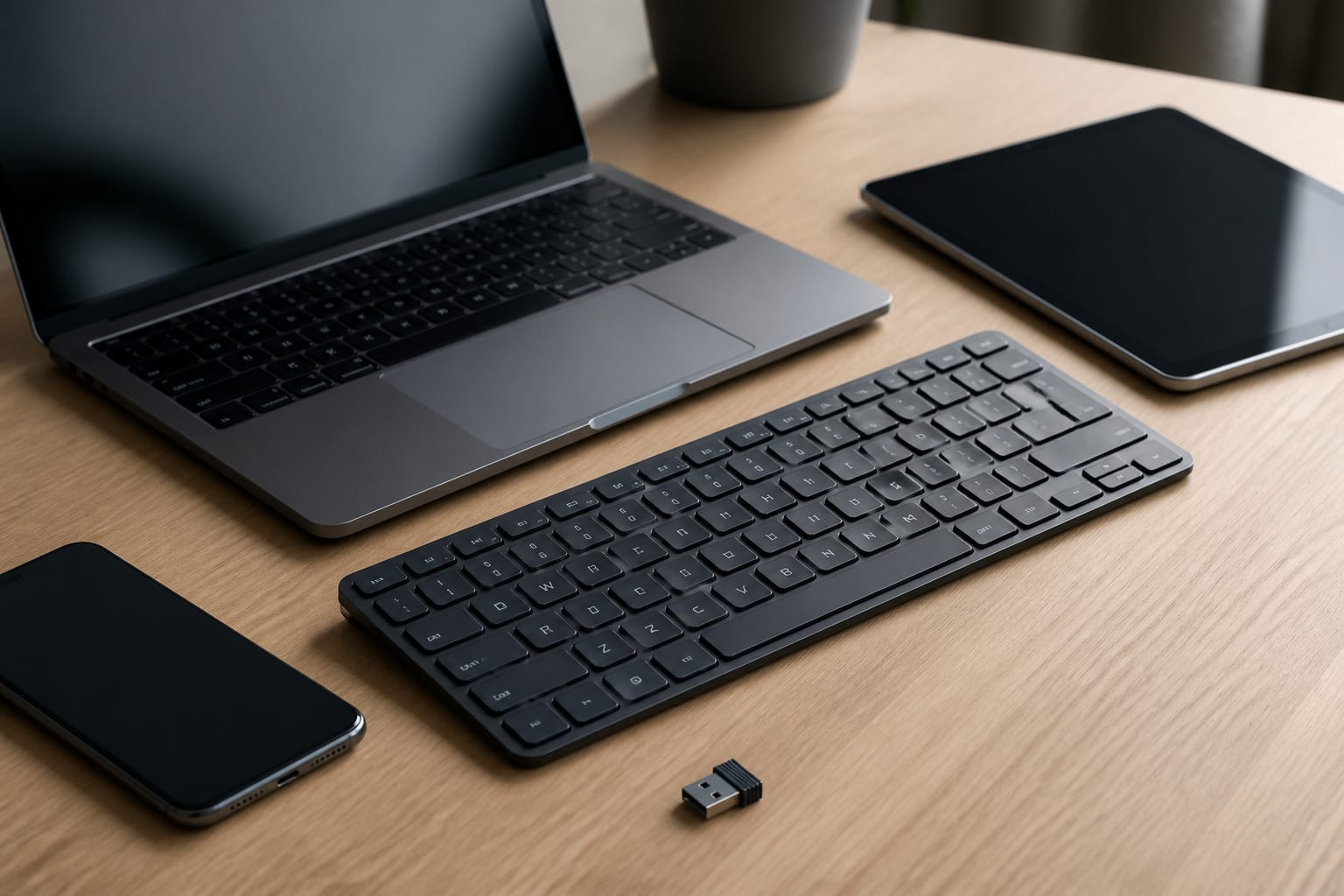
Wired USB keyboards need no batteries and have no pairing, which makes them reliable for a desk setup. Wireless models using a 2.4 GHz receiver cut the cable and are generally responsive, while Bluetooth models pair directly with laptops, tablets, and phones without using a USB port. Many recent keyboards offer all three modes, which lets you switch between devices.
Check how the keyboard is powered, either replaceable batteries or a rechargeable battery with USB-C charging, and whether it works while it is charging. If your computer lacks Bluetooth, choose a keyboard with a receiver. For gaming or any task where lag matters, a wired or 2.4 GHz connection is the safer option.
Recommended Products
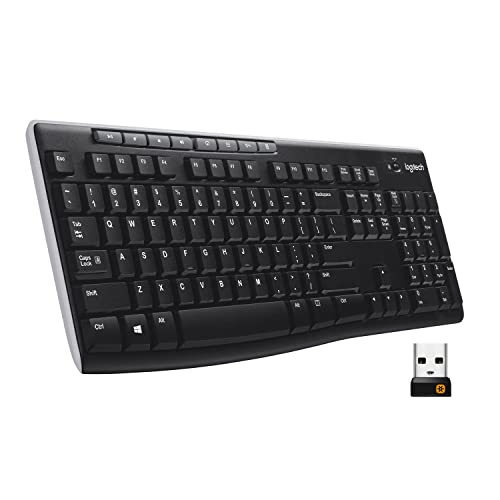
All-day Comfort: This USB keyboard creates a comfortable and familiar typing experience thanks to the deep-profile keys and standard full-size layout with all F-keys, number pad and arrow keys

【3-Mode Connection】Geared with Redragon innovative tri-mode connection technology, USB-C wired, BT 3.0/5.0 & 2.4Ghz wireless modes which make your workflow upgrade with the physical switch on top.

【Plug & Play 2.4G Wireless Connection】One 2.4 GHz USB receiver can connect both the keyboard and mouse, can also be used separately, plug & play, no need to download any software. 2.4 GHz wireless provides a powerful and reliable connection up to 33 feet(10m) without any delays.(Wireless USB receiver is at the bottom of the mouse). No Delay, No Dropout.
Ergonomics and Comfort
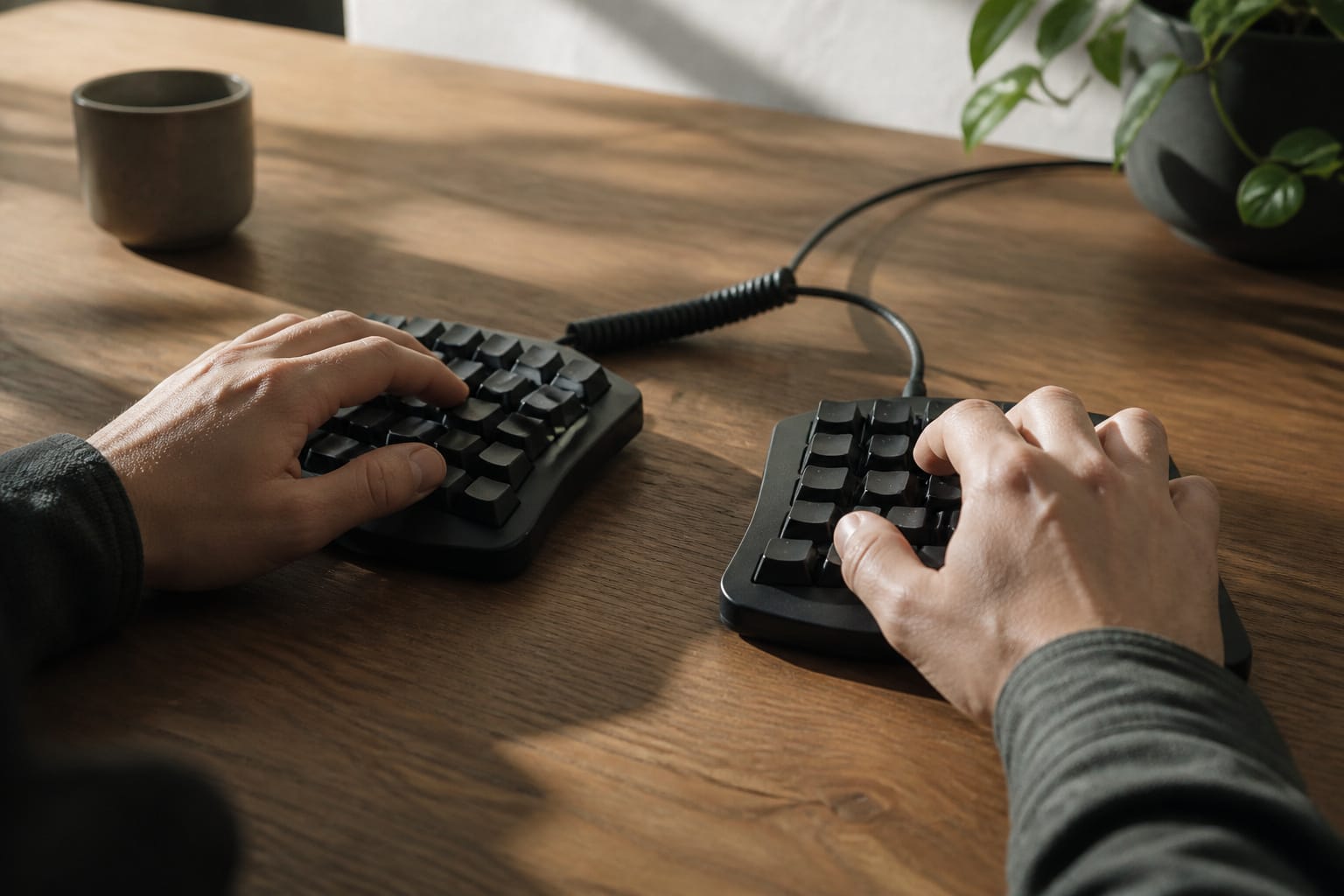
OSHA’s guidance recommends keeping the keyboard directly in front of you, elbows close to your body, and wrists straight and in line with your forearms. It adds that split and tented keyboards can promote neutral wrist postures, though research has not definitively shown they prevent injury. In practice, a split or curved keyboard is worth trying if you type for long periods and feel wrist or forearm strain, and it takes a short adjustment period.
Your desk setup matters as much as your keyboard. Keep your desk at a height that lets your shoulders relax, and avoid bending your wrists upward or sideways. Take breaks often. A palm rest can help you rest your hands between typing bursts, but it should not hold your wrists in a bent position while you type. If pain or numbness continues, talk to a health professional.
Recommended Products

Split-Key Ergonomic Design: One-piece split layout separates keys into left and right zones to reduce wrist bending and support a natural hand position, helping minimize strain during long hours of typing.

Split Design Ergonomic: Split design helps to position wrists and forearms in a natural, relaxed position.

Improved Typing Posture: Type more naturally with a curved, split keyframe and reduce muscle strain on your wrists and forearms thanks to the sloping keyboard design
Compatibility: Windows, Mac, Chromebook, Linux, and Tablets
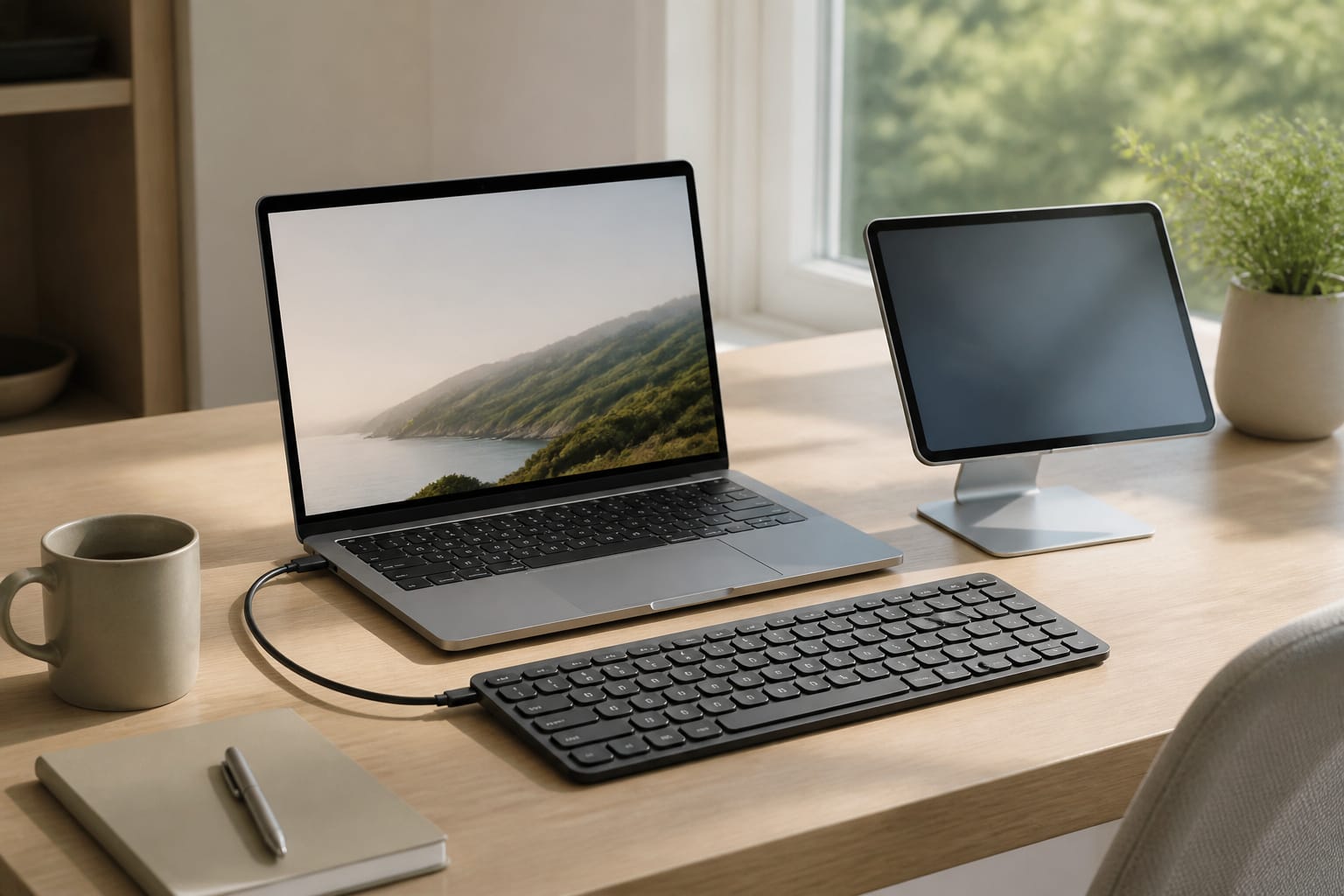
Most keyboards work with any computer over USB or Bluetooth, but some features do not carry over. Windows and Mac keyboards differ in modifier keys, and Mac-labeled keyboards map the Command and Option keys correctly. Chromebooks have a search key instead of Caps Lock, and some function keys differ by system. Linux generally supports standard keyboards, though the manufacturer’s configuration software may be available only for Windows or Mac.
If you switch between systems, look for a keyboard with a Windows and Mac switch, or one that supports remapping. Check that the dedicated media keys and any special buttons work on your system, because they sometimes need software.
Recommended Products

Connect in seconds: Fast, easy Bluetooth wireless technology simply connects without the need for a dongle or USB port
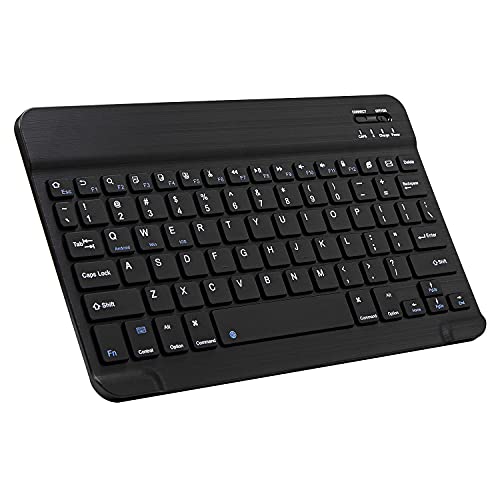
Excellent Compatibility: The Bluetooth keyboard compatible with iOS, Android and iPad OS system. It is perfect for Apple iPhone, iPad, iPad Mini, iPad Pro, iPad Air, Android Samsung LG tablet smartphone cell phone.

3 Devices Switch with A Single Clicking: This keyboard is able to connect to 3 devices at the same time. You can switch between 3 devices with a single key clicking.
Build Quality, Noise, and Care
Check the details that last: sturdy housing, stable keys with little wobble, and keycap legends that will not wear off. PBT keycaps resist shine and wear better than ABS, though many good ABS keyboards exist. Spill resistance, usually from drain channels or sealed layers, helps in a home office, but it is not a guarantee, so keep drinks away from the keyboard when you can.
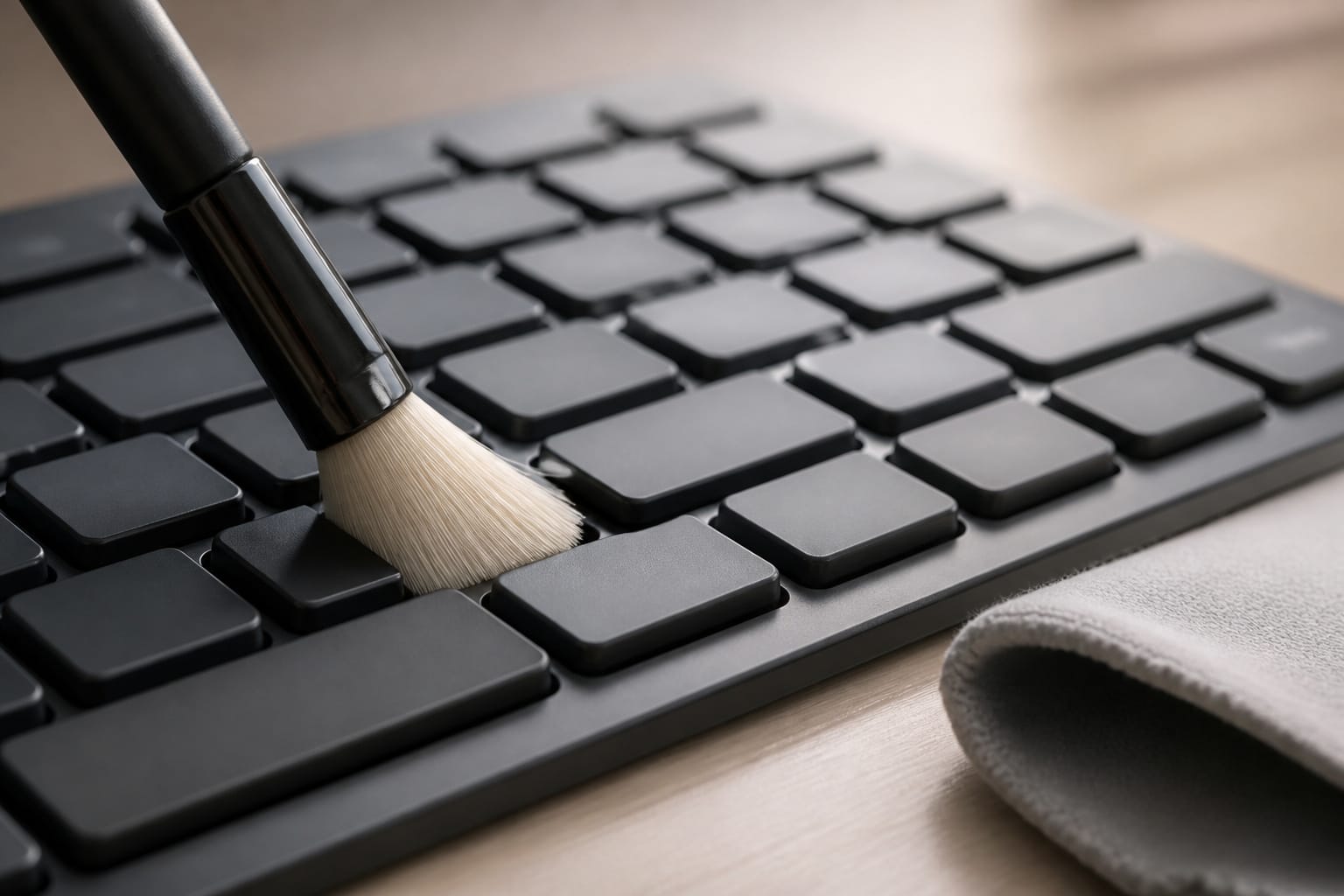
Clean it regularly. Unplug or switch it off, tip it upside down and tap out crumbs, use compressed air or a soft brush between the keys, and wipe the surface with a slightly damp cloth. Do not spray liquid directly on the keyboard. Our guide on how to make your computer last longer covers care for the rest of your setup.
Backlighting, Large Print, and Accessibility Features

Backlit keys help if you type in dim rooms. White backlighting is the simplest, while RGB adds color effects that matter mostly to gamers. For people with low vision, large-print keyboards use bigger legends, often with high-contrast colors and backlighting, and some work with Windows, Mac, and Chromebook systems.
Other helpful features include adjustable tilt, a wrist rest, and programmable keys for shortcuts. If you have specific accessibility needs, such as one-handed use or limited range of motion, look at keyboards designed for them, and try one in person if you can. Pair your keyboard choice with a comfortable monitor setup for the best result.
Frequently Asked Questions
Can I use one keyboard with multiple devices?
Yes, if it supports multi-device Bluetooth or a switchable receiver. Many models can pair with two or three devices and switch with a key press. Check the number of devices and whether each pairing needs separate setup.
Are keyboards compatible with Linux?
Most standard keyboards work on Linux without extra drivers, over both USB and Bluetooth. Special features such as lighting control, macros, and firmware updates often need software that may be available only for Windows or Mac, so check the maker’s support page if you need them.
Do keyboards come with a warranty?
Usually, but the length depends on the brand and model. Check the product page for the specific warranty terms and exclusions, since liquid damage and physical abuse are often not covered. Keep your receipt.
How do I clean a keyboard safely?
Unplug it or turn it off, tip it to shake out debris, and use compressed air or a soft brush between the keys. Wipe the keycaps with a slightly damp cloth, and avoid spraying liquid directly onto the keyboard. Let it dry fully before using it again.
Can I replace the keycaps?
On many mechanical keyboards, yes. Many use a cross-shaped MX-style stem, but not all do, and key sizes and layouts vary, so check that a keycap set matches your layout and stem type. Most membrane and scissor keyboards do not support swapping keycaps.