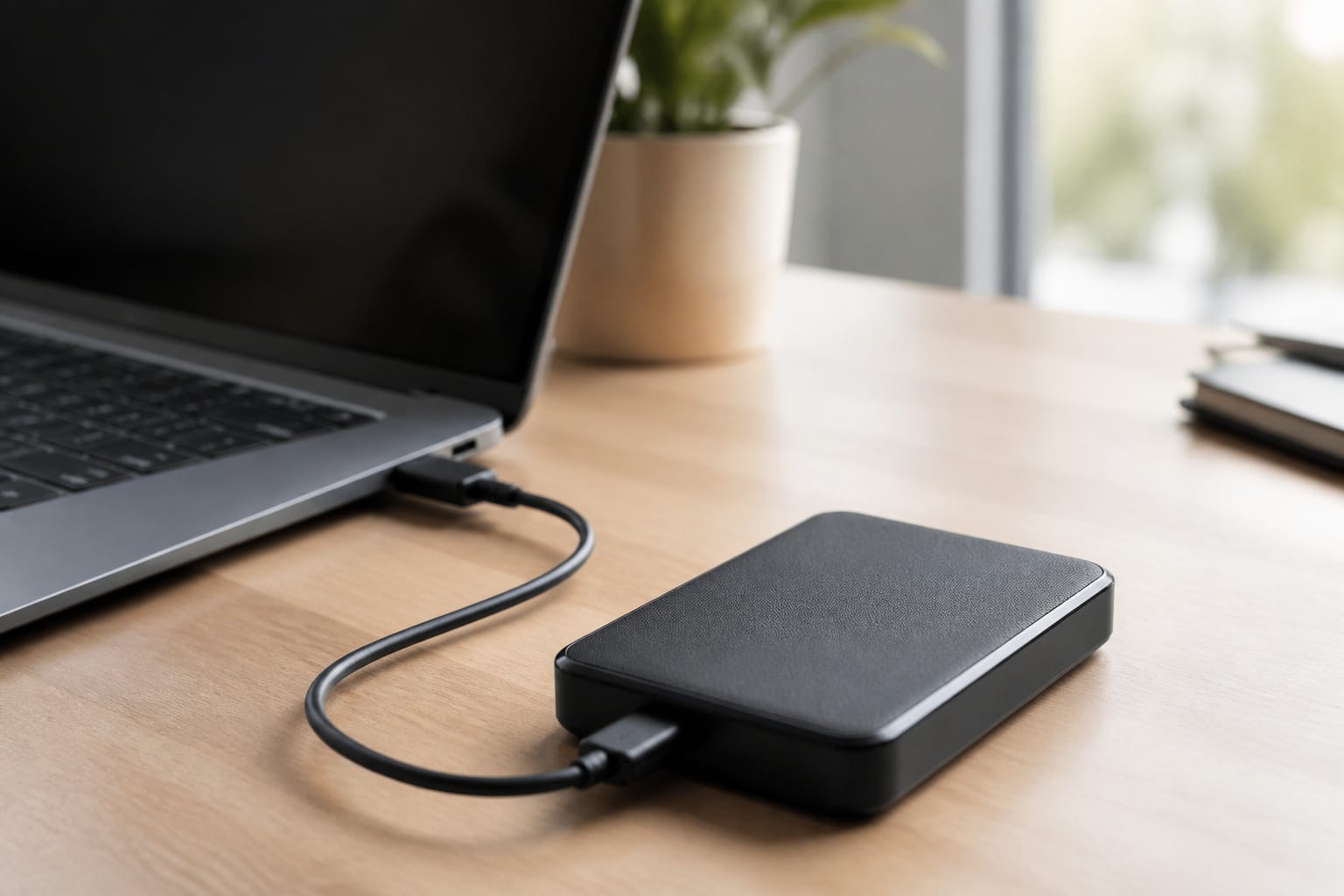
An external drive is one of the cheapest ways to protect your files, but the wrong one can be slow, too small, or unreliable.
This guide explains how to choose between a hard drive and an SSD, how much capacity you need, what the USB labels mean, and how to use the drive for a backup that actually protects you.
Hard Drive or SSD?
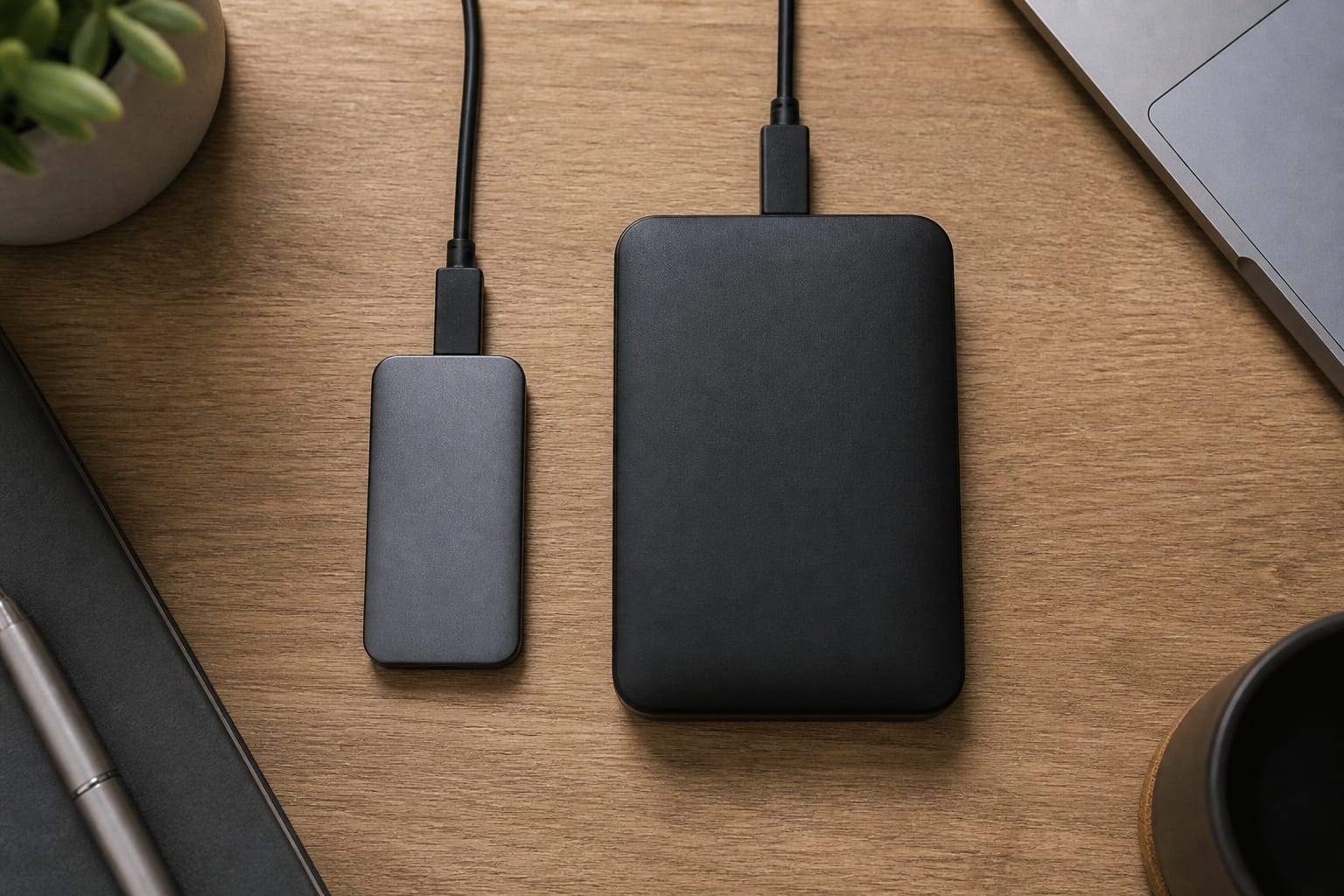
External hard drives (HDDs) store data on spinning platters. They give the most capacity per dollar, making them a good fit for backups and archives, but they are slower and can be damaged by drops while running.
External SSDs have no moving parts, so they are faster, quieter, and more shock-resistant, but they cost more per terabyte. In 2026, AI-driven demand for memory and flash has pushed up storage prices, so compare current prices before you decide.
As a rule, choose an HDD when you need lots of space for a low price and speed does not matter, such as for a home backup. Choose an SSD when you edit files directly from the drive, move large files often, or carry it around. Our guide to SSD versus HDD covers the differences in more detail.
Recommended Products

Easily store and access 2TB to content on the go with the Seagate Portable Drive, a USB external hard drive
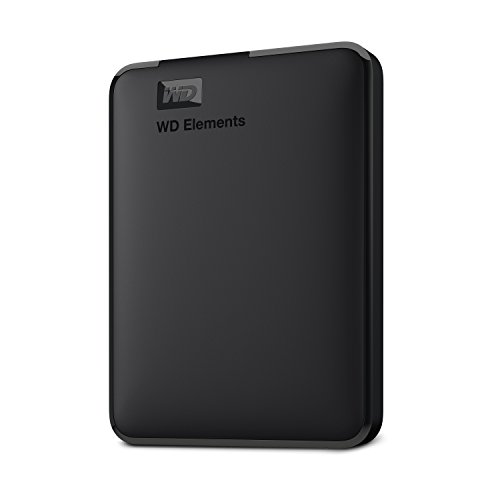
World’s First 6TB 2.5” Portable Hard Drive

NEARLY 2X FASTER THAN OUR PREVIOUS GENERATION(8) – move 1,000 high-res photos in under 60 seconds(6) with up to 2000MB/s transfer speeds(2).
How Much Capacity You Need

Look at how much space your files use now, then plan for growth. A backup drive should be at least as large as the data it protects, and a larger drive lets you keep several versions of your files. If you shoot video or keep large photo libraries, you will need more than you expect, so consider moving up a size.
Remember that the capacity on the label is less than what your computer shows. Manufacturers count a terabyte as 1,000 billion bytes, while Windows reports in binary units, so a 2 TB drive shows up as about 1.8 TB before any space used by formatting.
Recommended Products

High-capacity add-on storage.Compatibility : Windows 10 plus, Reformatting required for use with MacOS.
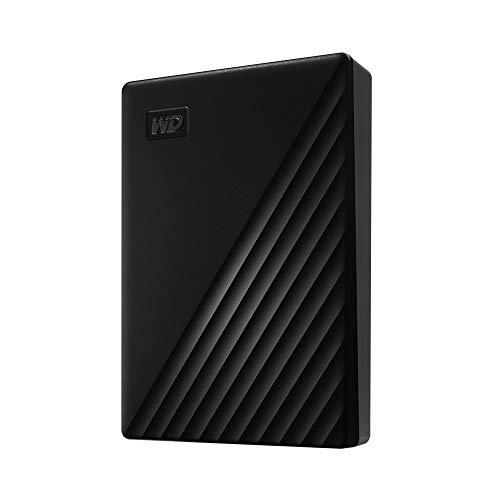
Slim durable design to help take your important files with you

Dual Interface (USB 3.0 + Type-C) – Works smoothly with TV, laptop, desktop PC, Mac, gaming consoles (PS4, Xbox), tablets, iPad, and mobile phones.
Interfaces and Speed: USB-A, USB-C, and Thunderbolt
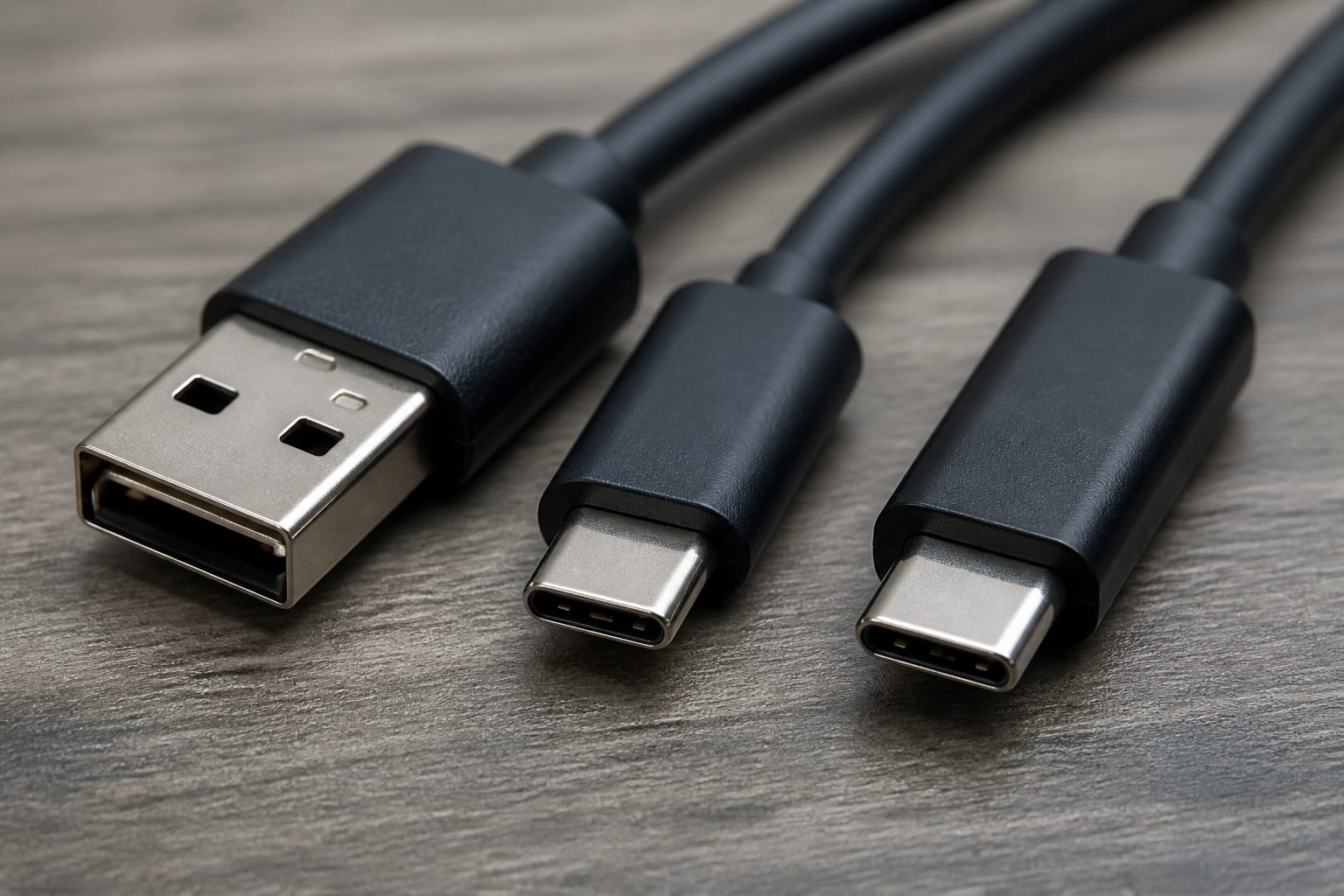
USB naming is confusing. USB 3.0, USB 3.1 Gen 1, and USB 3.2 Gen 1 are the same 5 Gbps standard. USB 3.1 Gen 2 and USB 3.2 Gen 2 offer 10 Gbps, and USB 3.2 Gen 2×2 offers 20 Gbps. USB-C is the connector shape, not the speed, so a USB-C drive may still run at 5 Gbps. Thunderbolt and USB4 ports can carry much more data and suit fast SSDs.
A single hard drive typically cannot fill even a 5 Gbps connection, so a faster port helps SSDs far more than HDDs. The slowest part sets the speed, whether it is the drive, the cable, or the computer’s port, so use the cable that came with the drive and plug it into the fastest compatible port you have.
Recommended Products

Flip-Open Tool-Free Design: Open the cover, insert your NVMe SSD, lock it in place, and close—no screws or tools required. Fast and simple for upgrades, cloning, troubleshooting, and portable tech work.
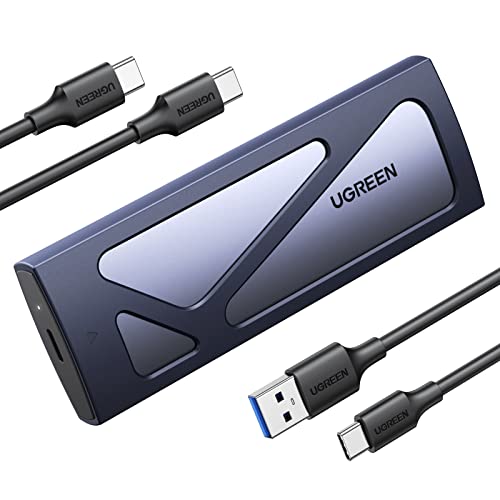
10Gbps NVMe Enclosure: With the latest USB 3.2 Gen2, this M.2 enclosure can achieve a data transfer rate of 10Gbps. Backward compatible with USB 3.1 and USB 3.0. Note: 10G speeds need to be matched with a USB C 3.2 GEN2 data cable
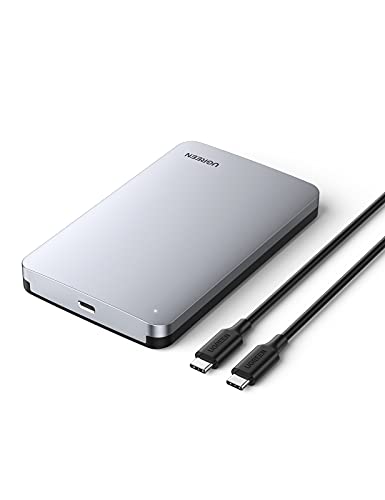
6Gbps High-Speed SSD Enclosure: UGREEN hard drive reader supports 6Gbps max transfer speed and UASP accelerated transmission protocol, 70% Faster than traditional USB 3.0. The USB-C port is standard USB 3.1 Gen 2 which supports 10Gbps and (7+15)Pin SATA III supports max 6Gbps. (USB-C to USB-C Cable included)
Portable or Desktop Drives
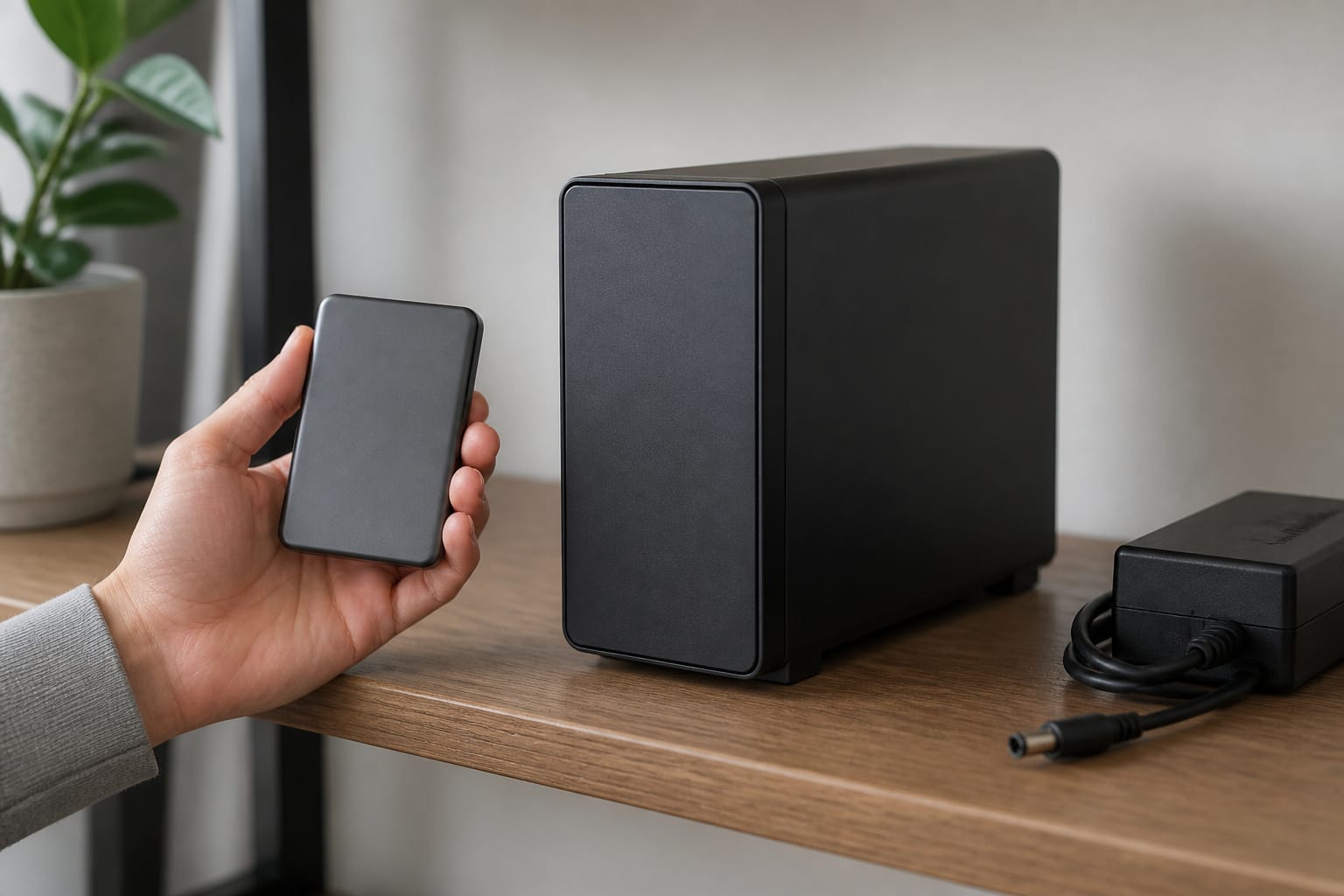
Portable drives use a 2.5-inch drive and draw power from the USB port, so they are small and need no power adapter. Desktop drives use a larger 3.5-inch drive and a wall adapter. They usually offer more capacity for the money and sturdier cooling, but are not meant to be carried around.
Use a portable drive for travel, school, and quick copies. Use a desktop drive for a home backup that stays in one place. If you plan to use a drive with a laptop that has few ports, you may need a separate power adapter.
Recommended Products

[Upgraded Version] - This external hard drive features a mirrored logo stripe combined with a striped anti-slip design, and the rounded corners of the casing make it easier to grip. The stripes also have a heat dissipation function, ensuring stable and fast data transfer.
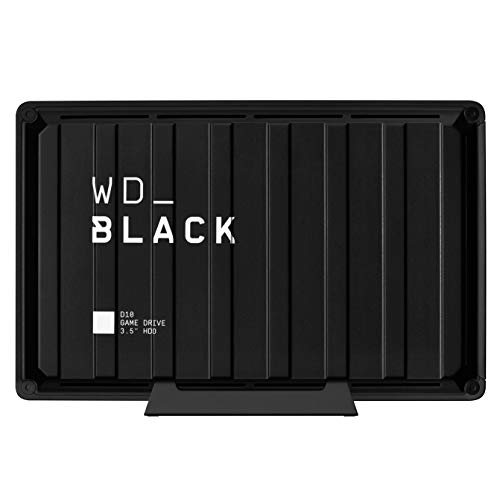
Extra storage to capture and collect your best in-screen game captures.Specific uses: Gaming

【Upgraded version】 - The mirror logo strip is combined with the striped non-slip design. The rounded corners of the shell are more suitable for holding. The strips play a heat dissipation function to ensure a stable and fast transmission process.
Formatting and Compatibility
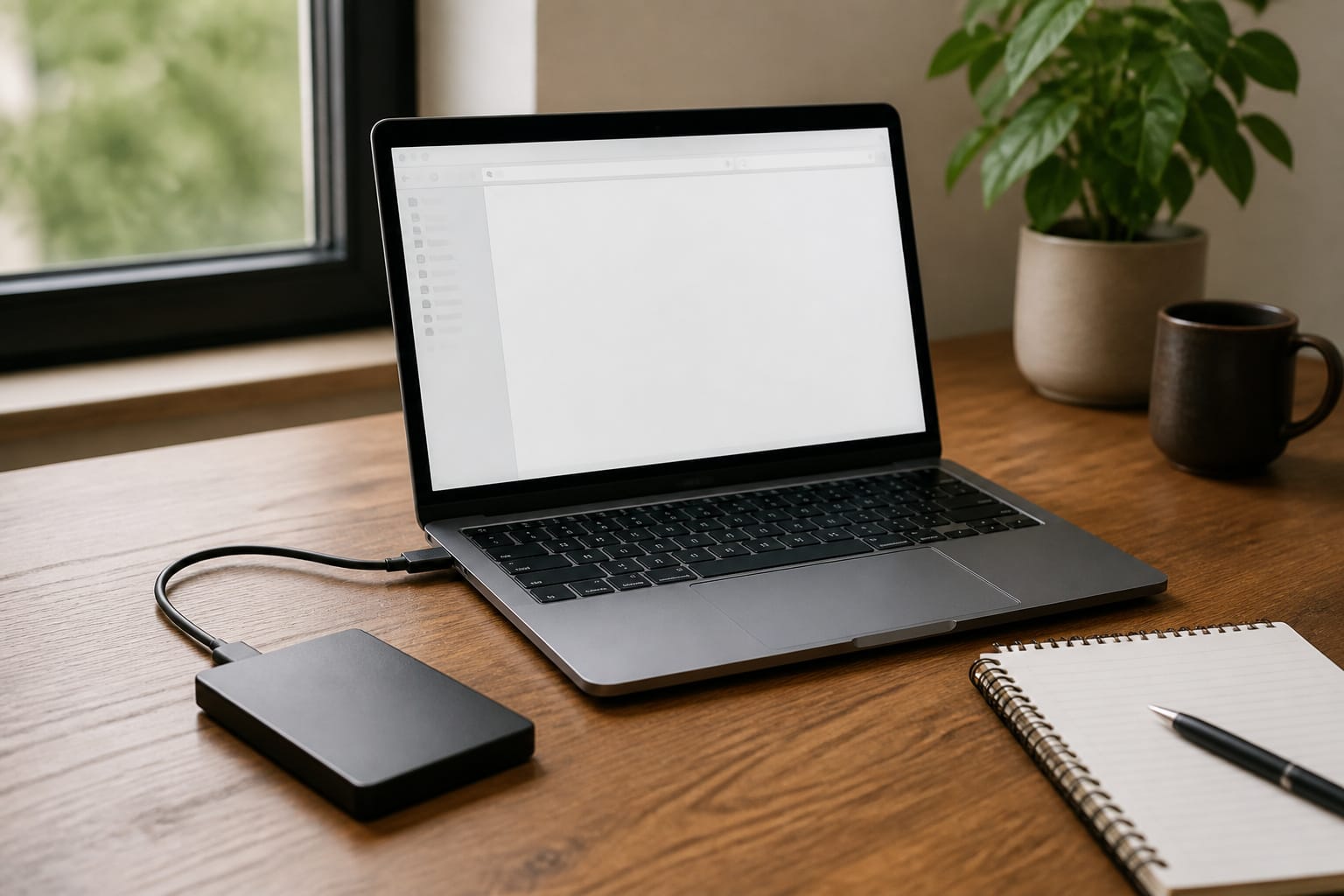
Drives come formatted for a specific system, and that format determines where you can use them. NTFS works with Windows. A Mac can read an NTFS drive, but it can’t write to it without extra software. Macs use APFS or Mac OS Extended, neither of which Windows can read by default.
The exFAT format works on both Windows and Mac, making it a good choice for a drive you share between them, though it lacks some safety features of the other formats.
Many drives can be reformatted in a few minutes, but reformatting erases everything on the drive, so do it before you save files. If you plan to use a drive with a game console, check the console maker’s requirements for supported formats and sizes. Most Linux systems can read both NTFS and exFAT drives.
Durability and Security
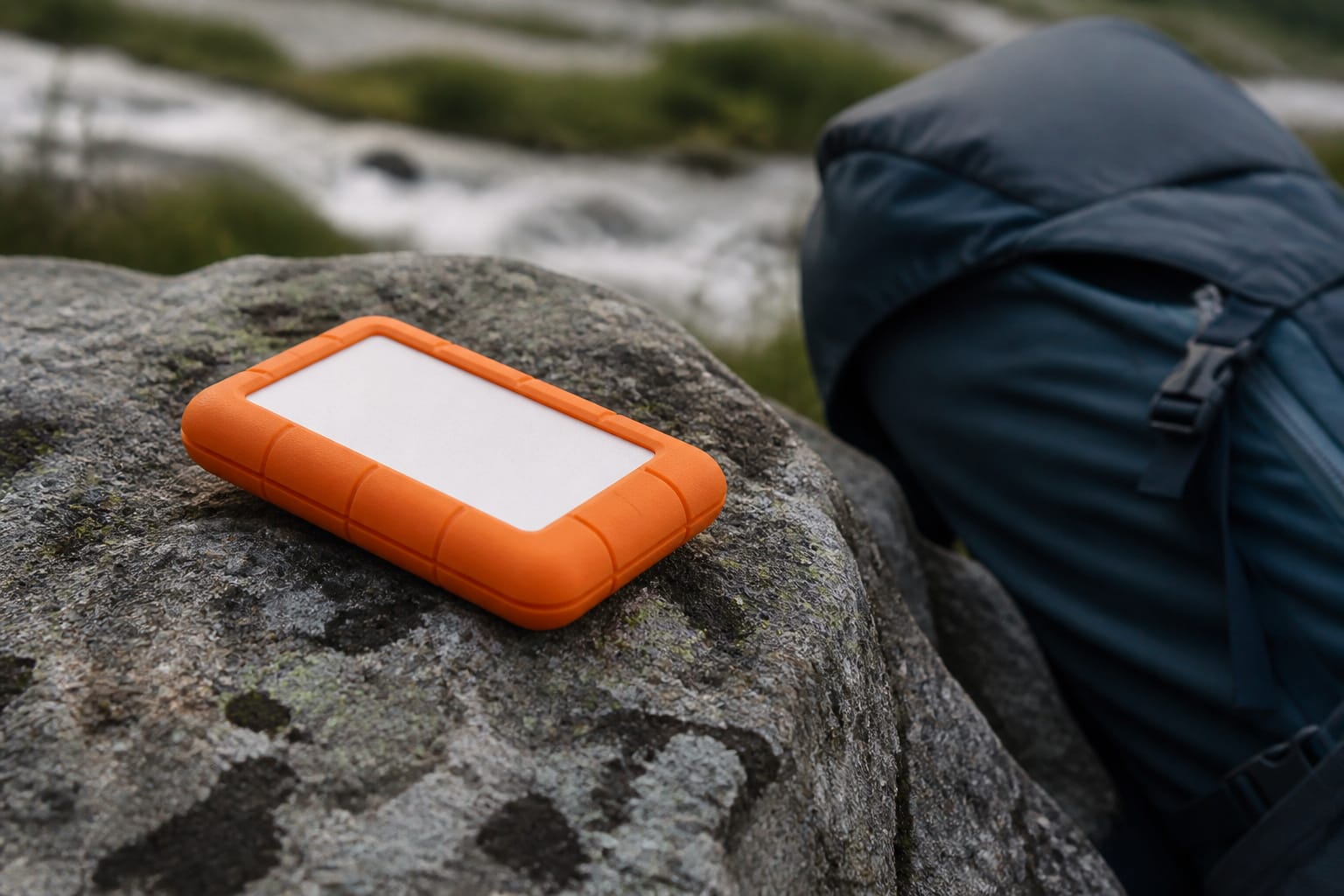
Every drive eventually fails. Backblaze, which runs a large fleet of data center hard drives, reported an annualized failure rate of 1.36 percent across 344,196 drives in 2025.
Those drives run in controlled conditions, so a portable drive that is dropped, bumped, or carried around may fail more often, but the figure shows that failures are rare and unpredictable, which is why you should not rely on a single copy.
Rugged drives add rubber bumpers and sealed cases to survive drops, dust, and splashes, which is useful if you travel or work outdoors. For security, look for a drive with hardware encryption, or use your computer’s built-in tools, such as BitLocker on Windows or FileVault and encrypted APFS volumes on Mac.
Encryption protects your files if the drive is lost, but you must remember the password, because the data usually cannot be recovered without it.
Recommended Products

Slim durable design to help take your important files with you

Slim durable design to help take your important files with you
Backups That Actually Protect You
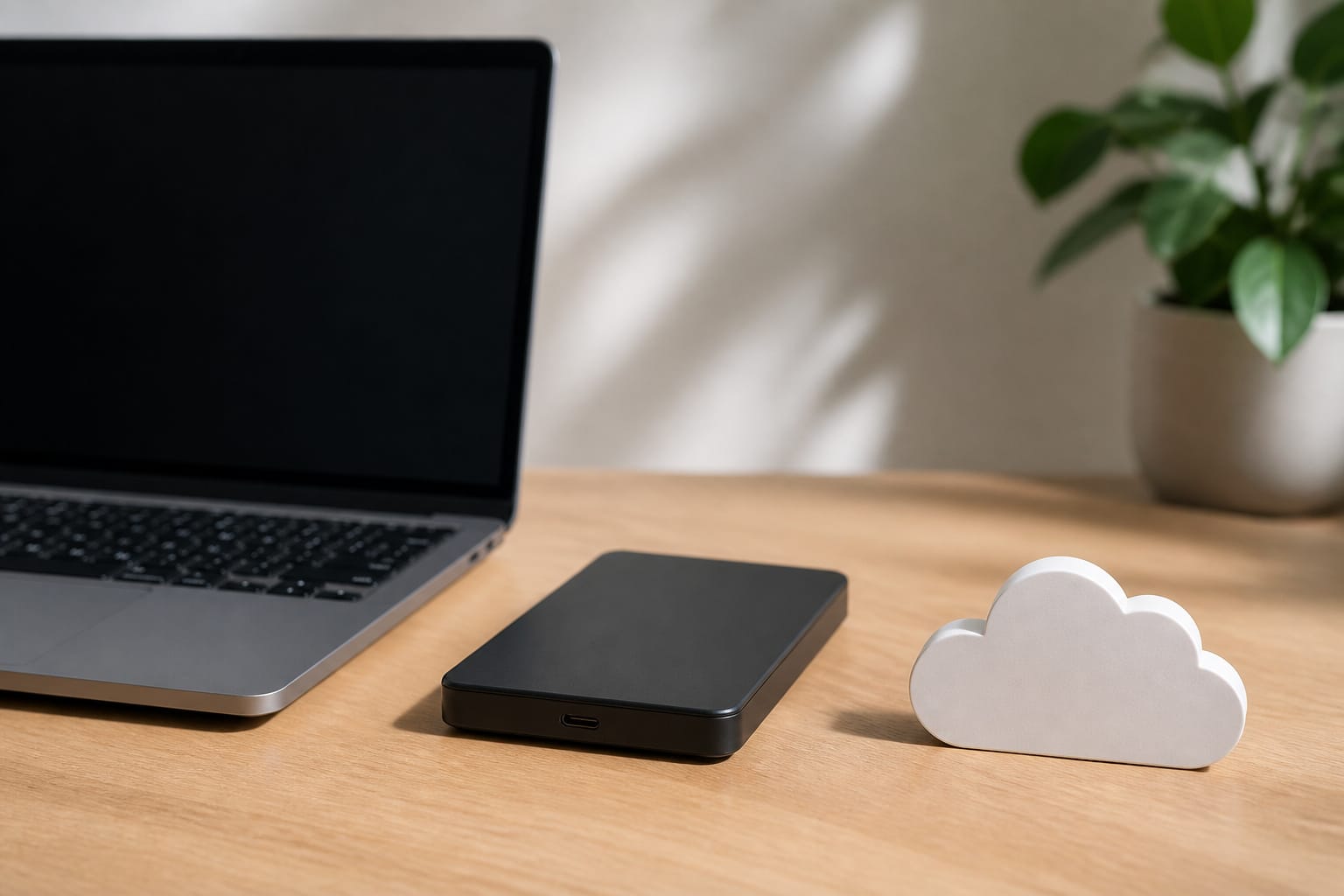
A drive that holds your only copy of a file is storage, not a backup. CISA recommends the 3-2-1 approach: keep three copies of your data, on two different types of storage, with one copy stored offsite. For most people, that means the original on your computer, a copy on an external drive, and a copy in the cloud or on a drive kept somewhere else.
Set up automatic backups with the tools built into your computer, such as File History on Windows or Time Machine on Mac, and test that you can restore a file. Disconnect the drive when it is not in use, because ransomware can also encrypt a connected backup drive.
Our guides on making your computer last longer and upgrading an old computer both cover backing up before you make changes.
Buying Tips: Warranty, Specs, and Counterfeits
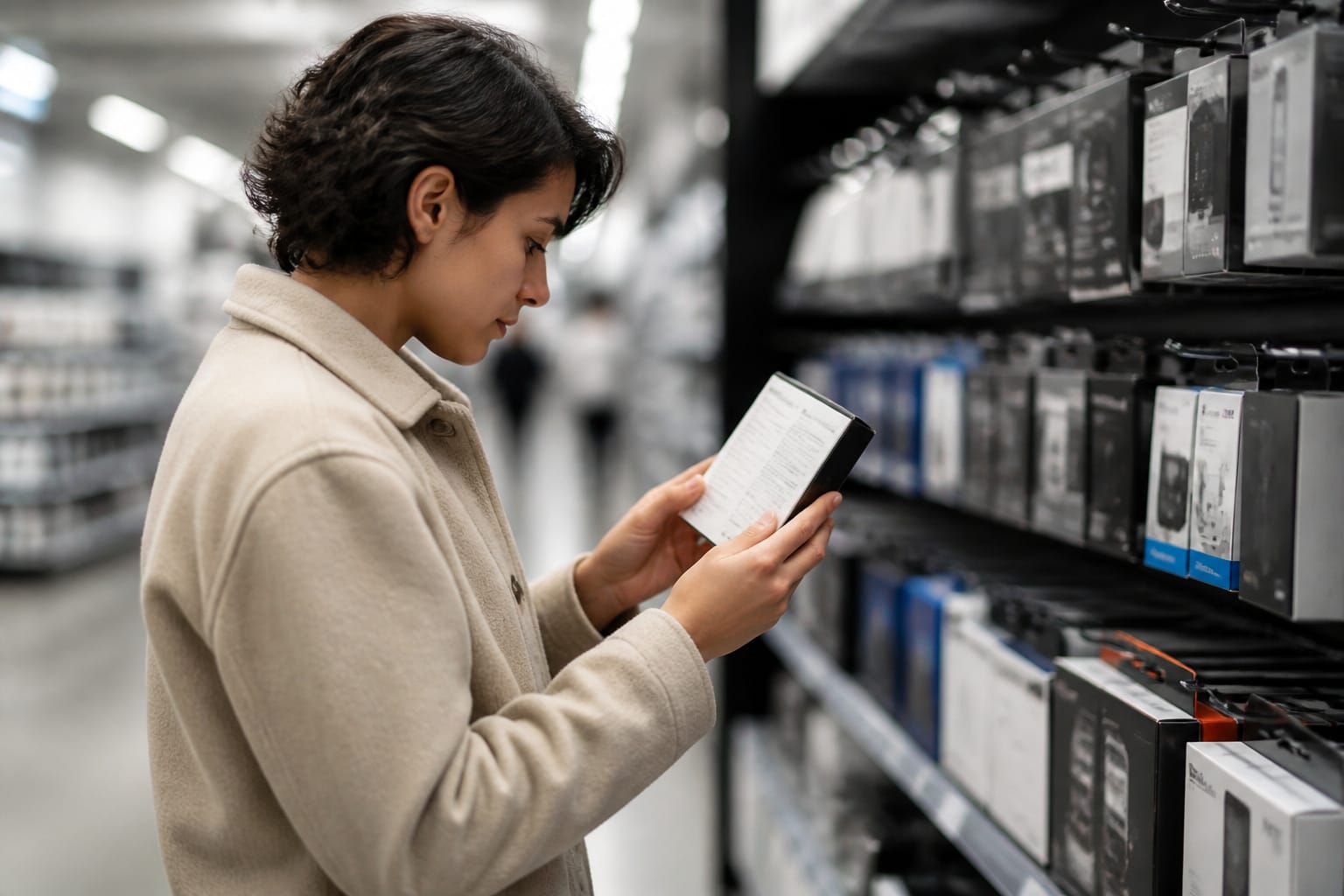
Check the warranty length and what it covers, since these differ by brand and model, and compare it with the price. Look at the spec sheet for the interface, the drive type, and the included cable.
Some hard drives use shingled magnetic recording, which can slow down sustained large writes, and makers do not always highlight this, so read reviews before buying a drive for big backups.
Buy from a reputable seller, because fake drives that report more capacity than they hold do exist. When you receive a drive, test it by copying a large amount of data and confirming that the files read back correctly, using a capacity-testing tool.
Frequently Asked Questions
Can I use an external hard drive with a gaming console?
Often yes, but the rules differ by console and by drive type. Check the console maker’s support page for supported interfaces, formats, and maximum sizes. Some consoles format the drive when you connect it, which erases the contents, and some games must run from internal or specific storage.
Do external hard drives work on Linux?
Yes. Most Linux systems recognize external drives automatically and can read NTFS and exFAT. If you need to reformat, use a disk tool such as GNOME Disks or GParted, and back up first, since reformatting erases the drive.
Do external drives need their own power supply?
Most portable drives draw power from the USB port and need nothing extra. Larger desktop drives usually have a wall adapter. Check the product listing before you buy, especially if you plan to use it with a tablet or a laptop with limited power output.
How do I securely erase an external drive?
A quick format does not remove your files. Use your system’s full erase option, or an encryption method: enabling encryption and then discarding the key makes the data unreadable. For SSDs, use the maker’s secure erase tool or encrypt the drive first, because overwriting is less reliable on flash storage. Back up anything you need before erasing.
Can I connect more than one external drive to a laptop?
Yes. Plug them into available ports, or use a powered USB hub if you need more ports. Each drive appears separately, so name them clearly, and eject each drive safely before unplugging it.