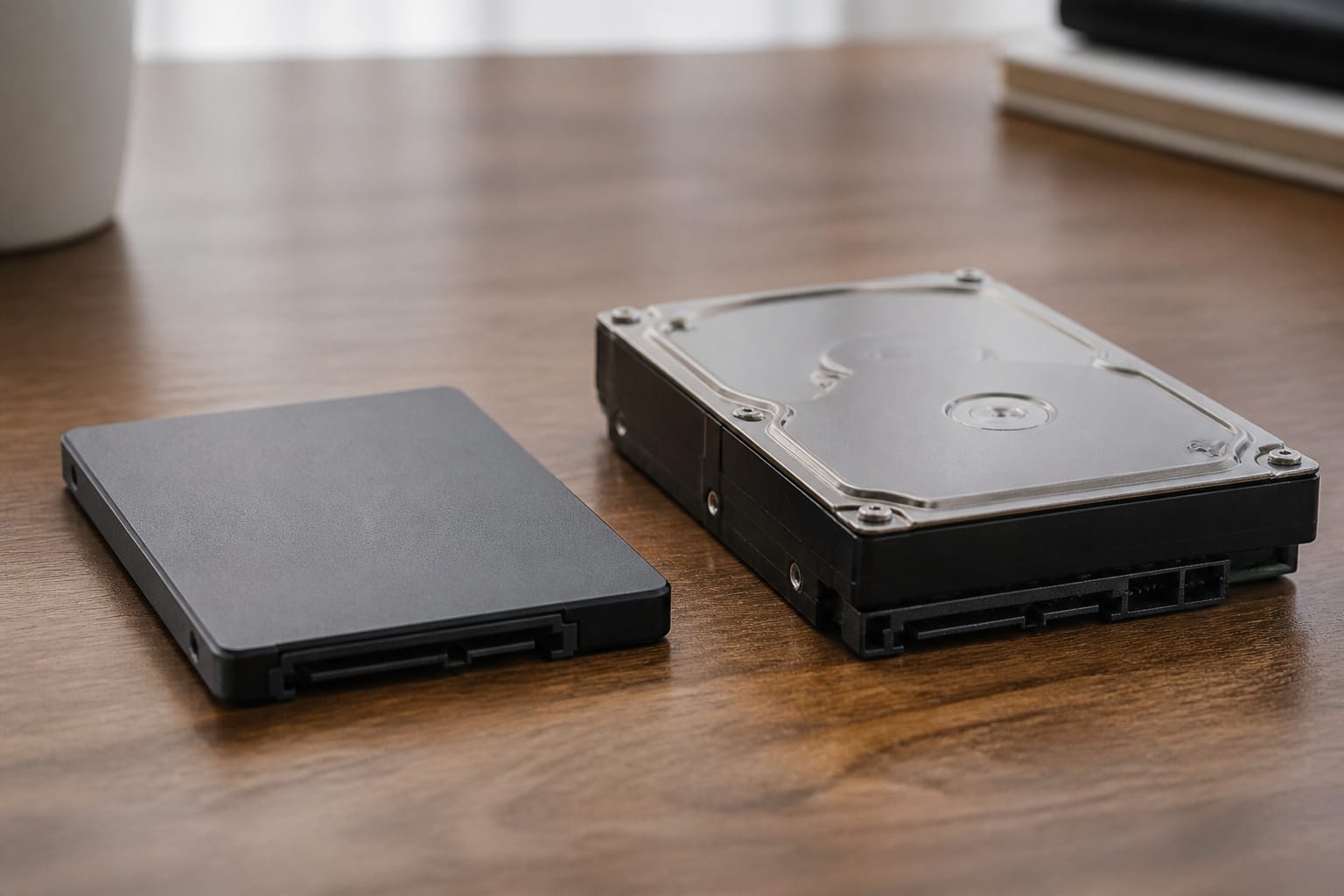
Storage type is one of the biggest factors in how a computer feels. A solid-state drive starts and loads files quickly, while a hard drive stores lots of data cheaply, but is slower and more fragile.
This guide explains the differences between your options and helps you to decide which one to choose for your next computer.
How SSDs and Hard Drives Work
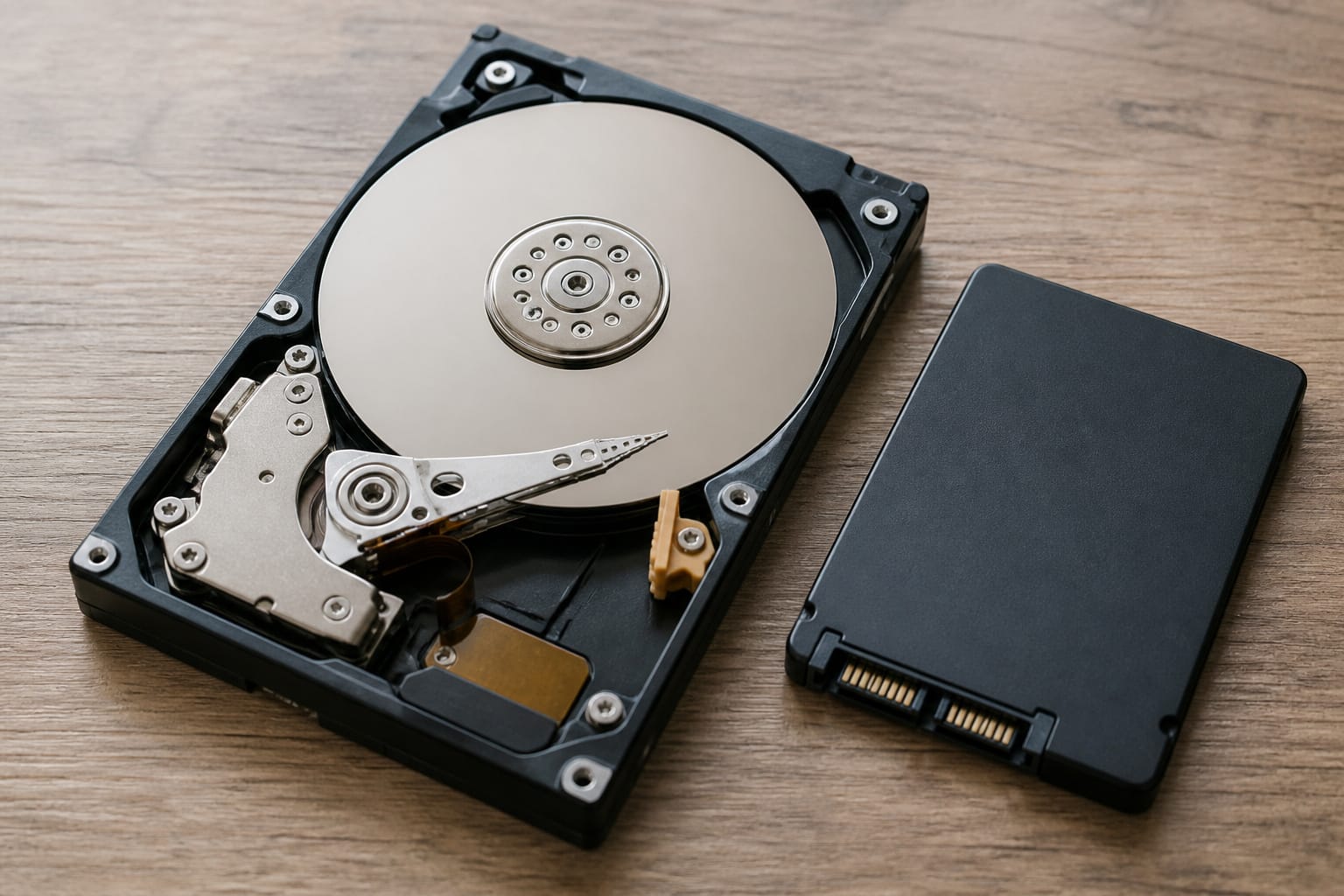
A hard drive stores data on spinning magnetic platters. A moving arm, like a record player, reads the data. An SSD stores data in flash memory chips with no moving parts.
That difference explains almost everything else: SSDs boot up and open files faster, and withstand bumps better. Hard drives, however, cost less per terabyte.
Speed in Everyday Use
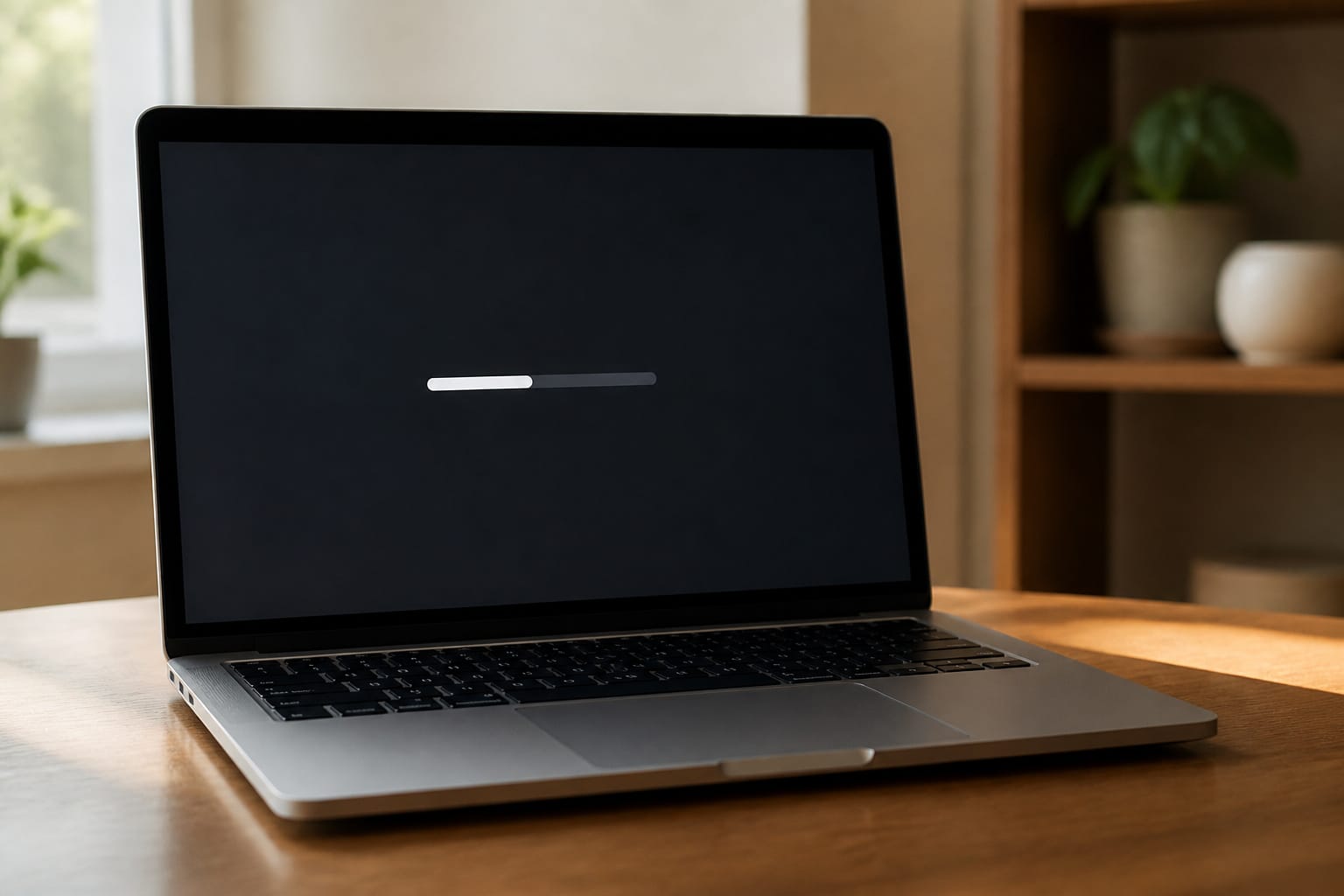
You notice the difference at startup and when opening apps. A computer with an SSD typically boots in seconds and launches programs quickly, while one with a hard drive can take far longer.
Among SSDs, SATA models are limited to roughly 550 MB per second, while NVMe models plugged into an M.2 slot are several times faster.
For everyday work, any SSD feels fast, and the jump from a hard drive to an SSD is much larger than the jump from SATA to NVMe.
Recommended Products

MEET THE NEXT GEN: Consider this a cheat code; Our Samsung 990 PRO Gen4 SSD helps you reach near max performance with lightning-fast speeds; Whether you’re a hardcore gamer or a tech guru, you’ll get power efficiency built for the final boss

Ideal for high speed, low power storage

【Fit for SSD w/ Heatsink】Most heatsinks didn't fit M.2 SSD with integrated heatsink, but this cover is made for this purpose. Combined with SSD with integrated heatsink, such as WD Black SN850P, Samsung 980 PRO, Kingston FURY Renegade, AORUS 7000s, FireCuda 530, CORSAIR MP600 PRO, PNY XLR8 CS3140, XPG GAMMIX S70 BLADE, Nextorage NEM, ADATA Premier SSD, etc. to improve cooling performance and prevent overheating.
Reliability and Care
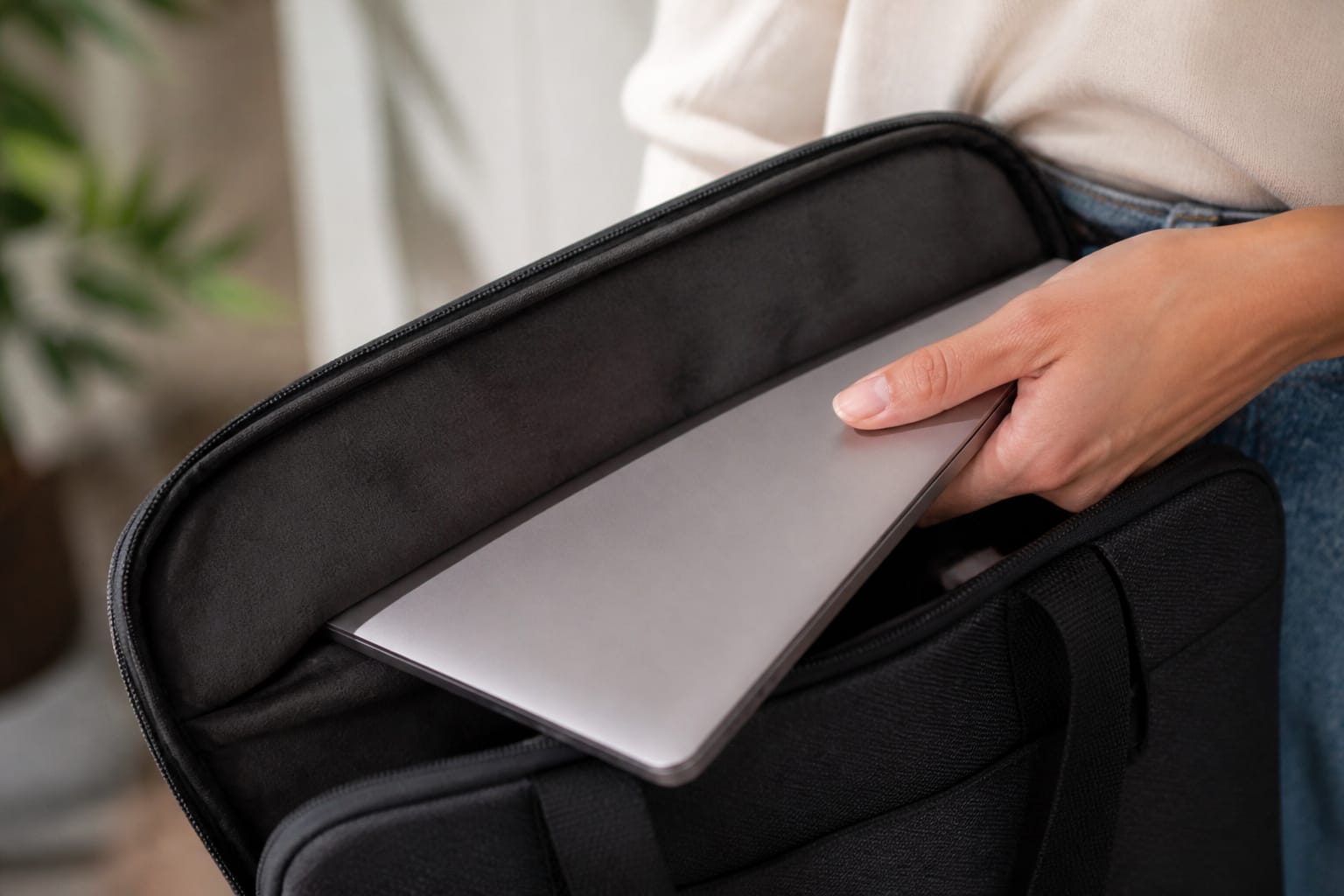
With no moving parts, an SSD is less likely to fail from drops or vibration, and hard drives are the most failure-prone parts in many older computers.
SSDs still wear out and can fail without warning, so backups matter either way. Our guide to making your computer last longer explains the 3-2-1 backup rule.
Never defragment an SSD: Windows runs a retrim operation on SSDs automatically instead, and defragments only hard drives.
Cost and Capacity
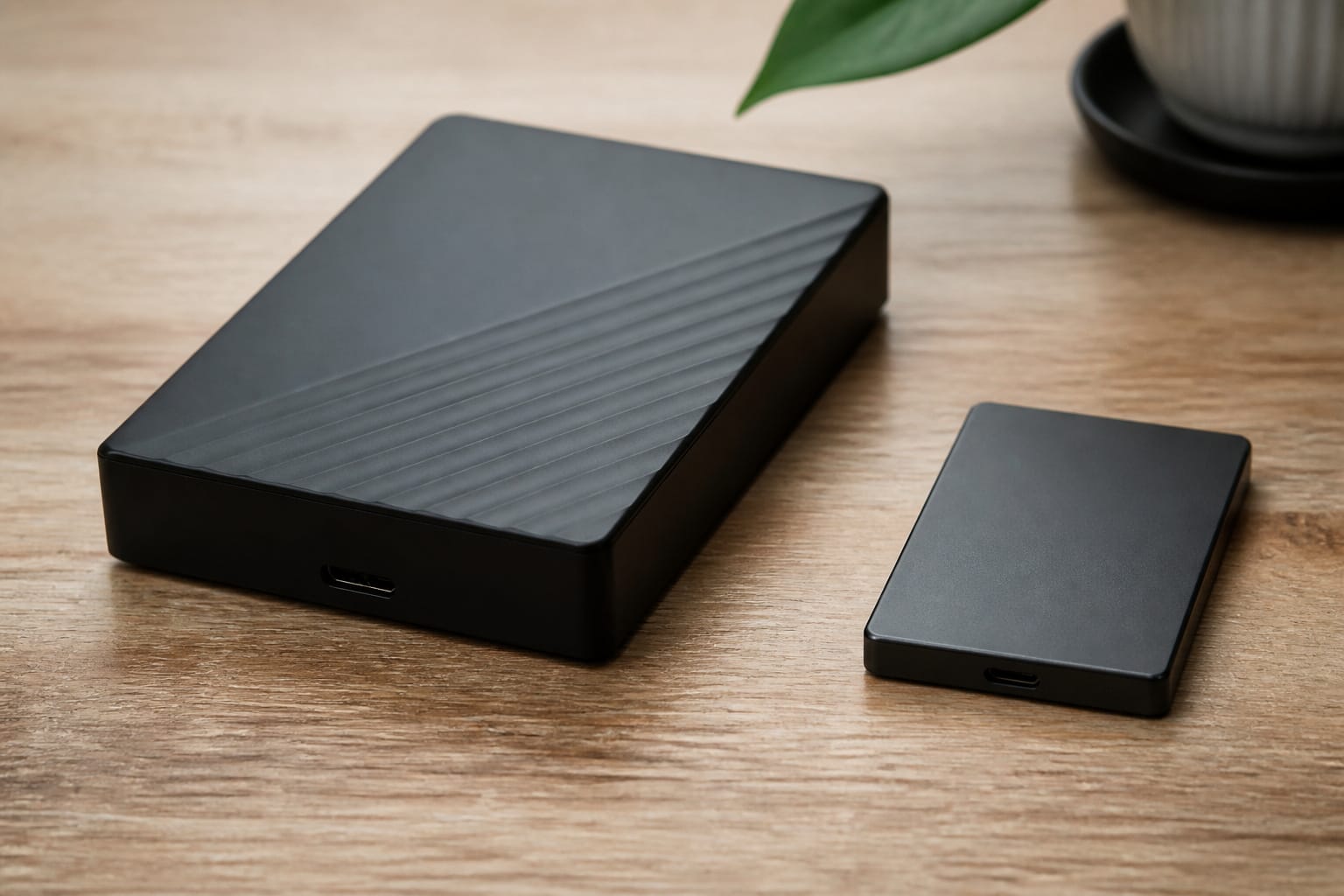
Hard drives still cost less per terabyte, making them useful for bulk storage such as backups and media libraries.
SSD prices have risen in 2026 along with memory prices, but a 256 GB or 512 GB SSD remains affordable and is the right choice for the main drive.
For extra room, pair a smaller internal SSD with cloud storage or an external drive.
Recommended Products


Capacity 256GB Latest SATA 3 Controller

【ULTRA-HIGH PERFORMANCE UPGRADE】Breathe new life into your aging computer. With sequential read speeds up to 520MB/s and write speeds up to 500MB/s, the Lufasnd Internal SATA SSD significantly reduces boot-up times, accelerates application loading, and enhances overall system responsiveness.
What to Buy
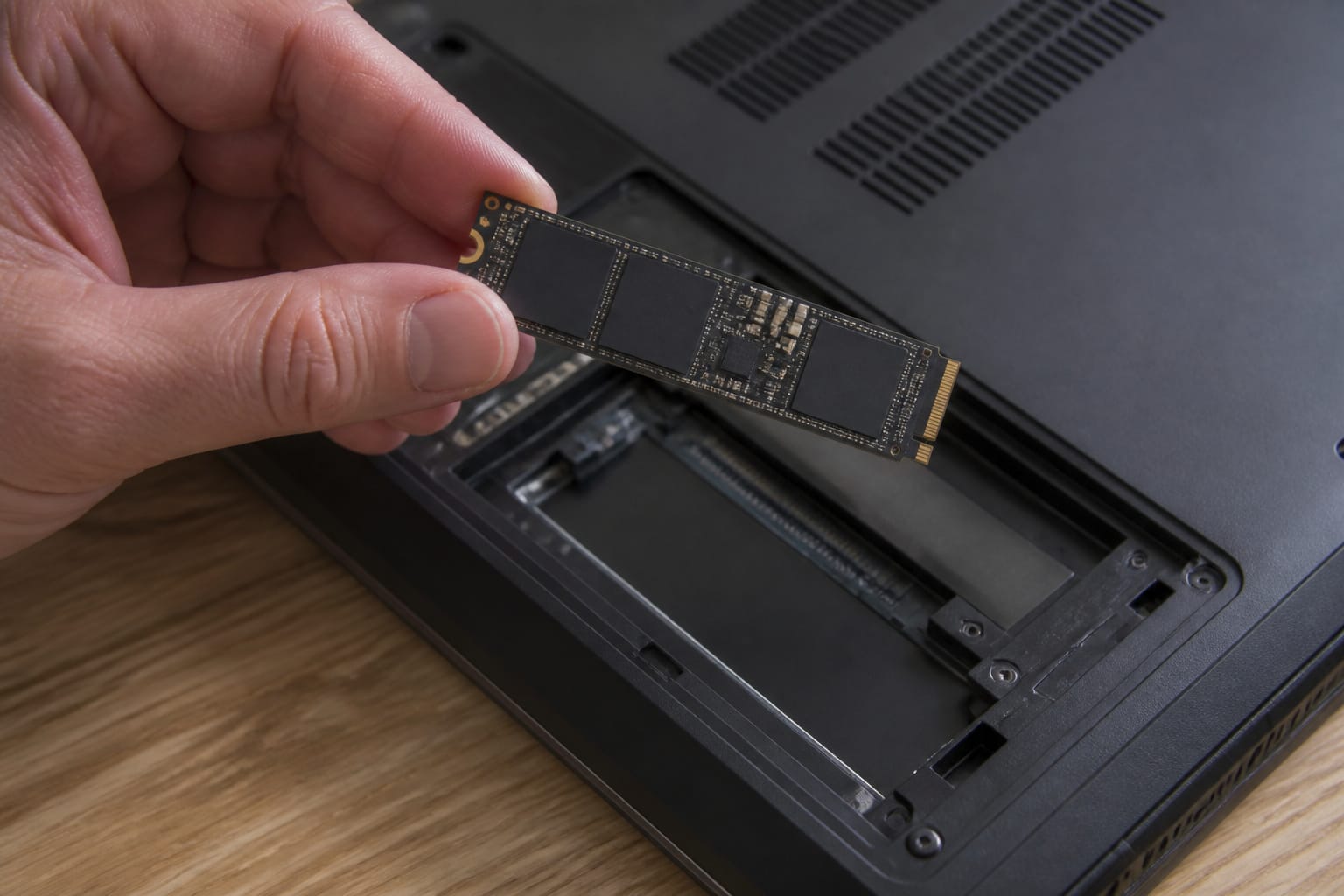
Choose an SSD for the main drive in any computer you buy today. Aim for 256 GB for light use with cloud storage and 512 GB or more for most people, since the operating system and updates take space.
Be careful with budget laptops that use eMMC storage, which is soldered flash memory that is much slower than a real SSD. If your computer still has a hard drive, replacing it with an SSD is the most noticeable upgrade you can make, as described in our guide to upgrading an old computer.
Recommended Products

Upgrade your laptop or desktop computer for faster startups, data transfers, and application loads

Capacity 512GB Latest SATA 3 Controller

SMI 2263XT Series Controller; 2280 M.2 PCIe Gen3 x 4, NVMe 1.3
Frequently Asked Questions
Is an SSD better than an HDD for a laptop?
Yes. It is faster, quieter, uses less power, and handles movement better. A hard drive in a laptop is a reason to look elsewhere unless you are replacing it.
How much SSD storage do I need?
256 GB is fine if you use cloud storage, but 512 GB gives more comfortable room for files, apps, and updates. Photographers, video editors, and gamers need more.
Do SSDs wear out?
They have a finite number of writes, but for ordinary use an SSD usually outlasts the computer’s useful life. Keep backups regardless.
Can I use both an SSD and an HDD?
Yes, on many desktops. Put the operating system and programs on the SSD and use the hard drive for bulk files and backups.
What is the difference between SATA and NVMe SSDs?
NVMe drives use a faster interface and offer much higher peak speeds, but SATA drives are still fast enough for everyday tasks. Before upgrading, check which type your computer supports.