
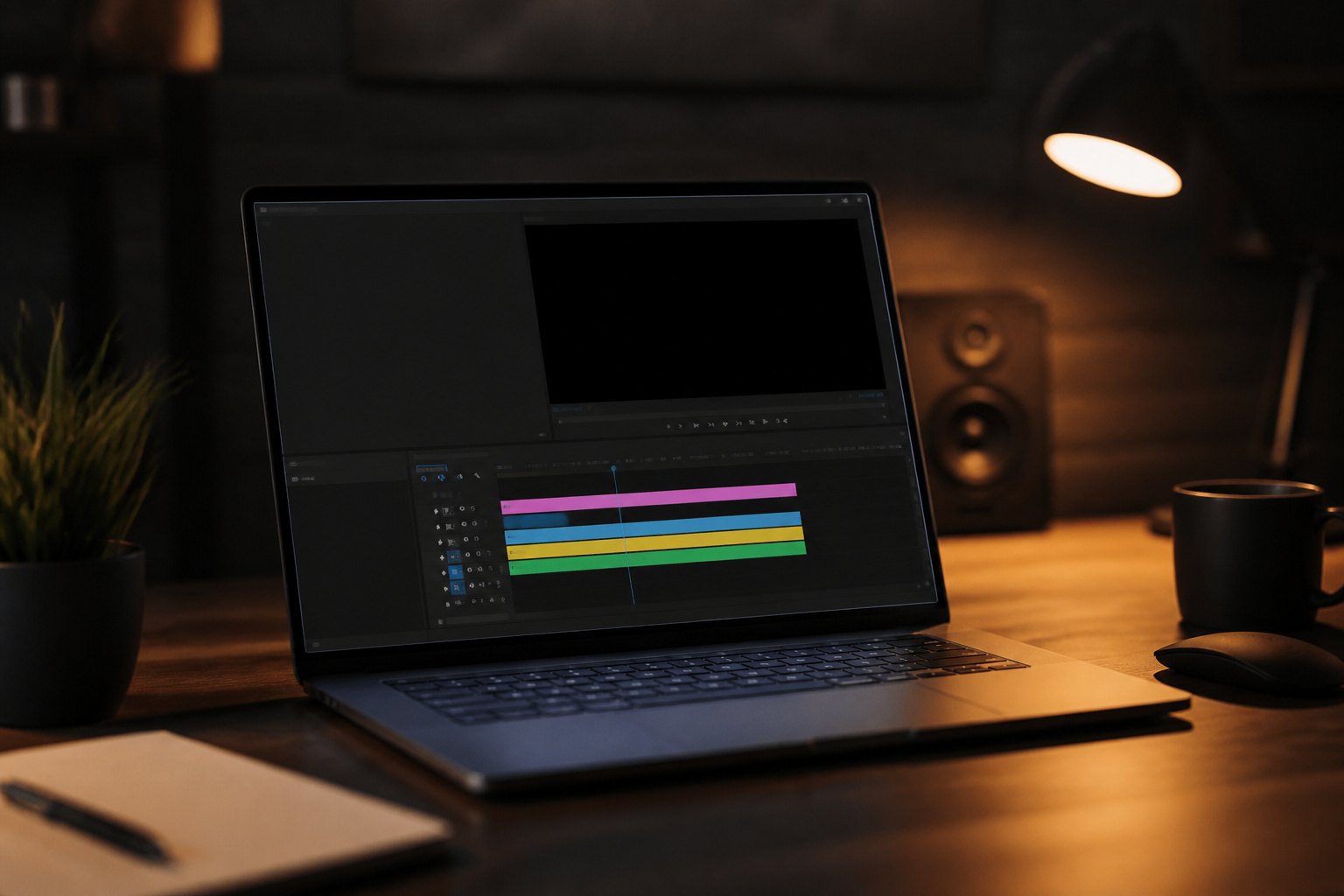
Video editing is among the most demanding tasks for a laptop, but the demands vary with what you edit. A 1080p vlog and a 4K multi-camera project call for very different hardware.
This guide explains which specs drive editing performance, how much of each you need, and how to choose between Windows, Mac, and gaming laptops.
What Video Editing Demands From a Laptop
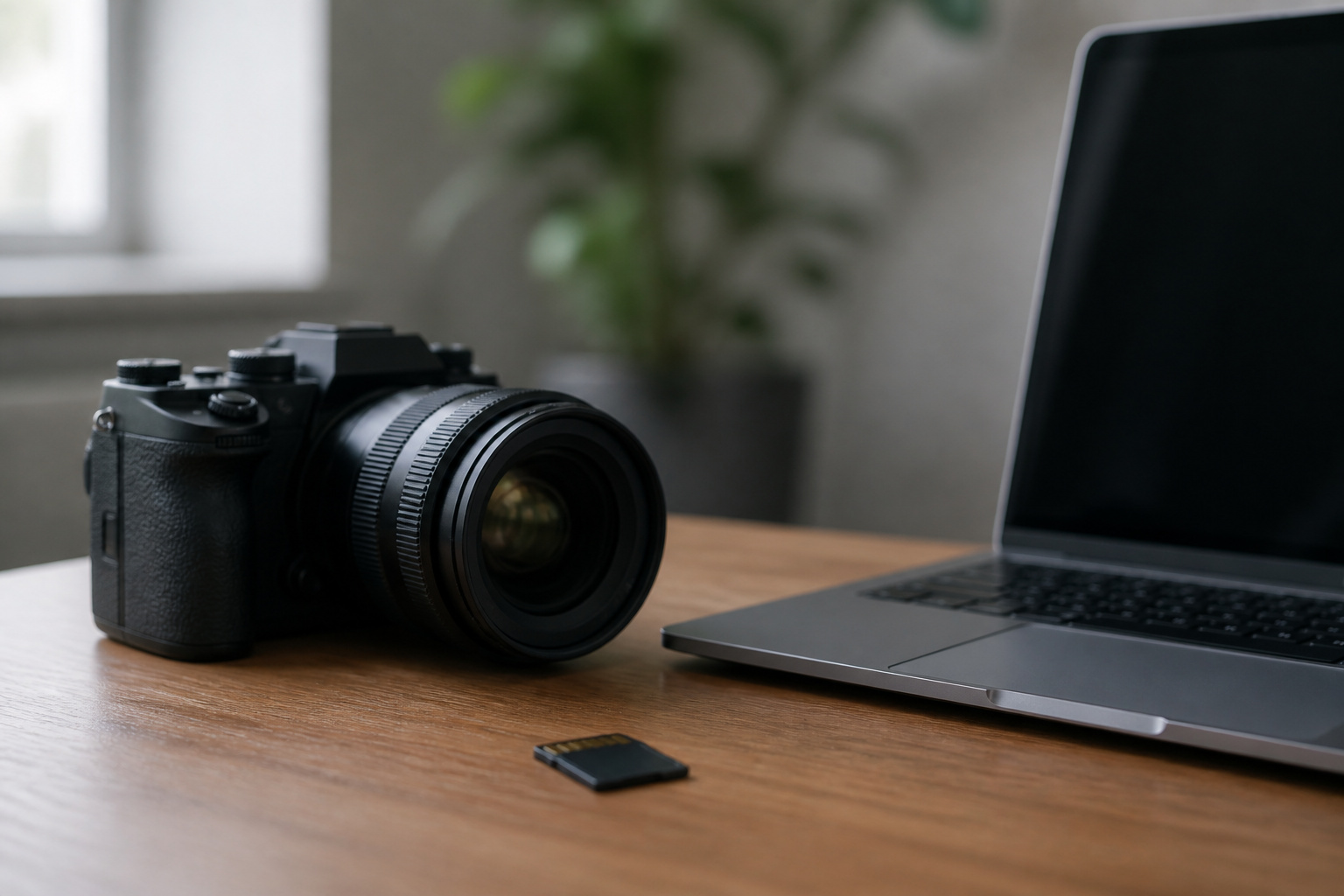
Editing software uses the processor, graphics card, memory, and storage together, and the weakest part limits the rest. Four things set the load: your footage resolution, the codec it was recorded in, the number of layers and effects on the timeline, and your export settings.
Highly compressed formats such as H.264 and HEVC, common on phones and many cameras, are more difficult to play back smoothly than lightly compressed editing formats. Many editors create smaller proxy files to keep the timeline responsive on weaker machines.
Start by writing down your typical project: resolution, frame rate, camera format, and software. Then check the software maker’s current requirements, which Adobe publishes for Premiere Pro and Blackmagic publishes for DaVinci Resolve. Treat the published minimums as a floor, and plan for more if you work in 4K or add many effects.
Processor and Graphics: Where Most Performance Comes From
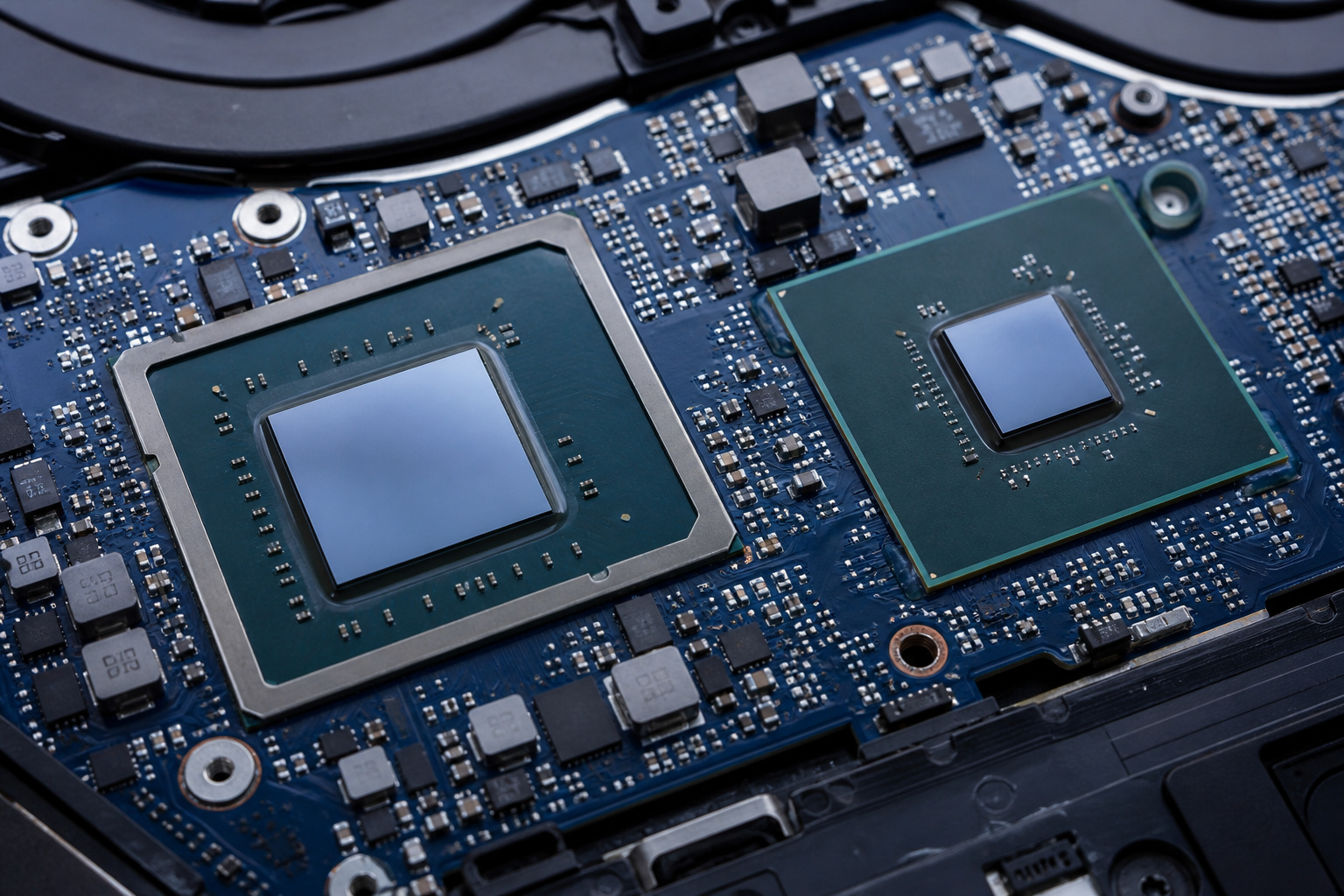
Modern editors use the graphics processor to accelerate effects, color work, and playback, and both dedicated graphics cards and the media engines built into some chips speed up encoding and decoding.
DaVinci Resolve in particular leans heavily on the GPU. For 4K work on a Windows laptop, a dedicated graphics card with 8 GB of video memory is a common recommendation, while 4 GB can be enough for lighter 1080p editing.
On a Mac, Apple silicon combines the CPU, GPU, and memory in one package, and the Pro and Max variants add more graphics cores and media engines for demanding work.
For the processor, more cores help with exports and multitasking, but a laptop’s cooling decides how long it can hold full speed. Compare reviews that test real export times, not just spec sheets. Be wary of laptops that pair a fast chip with low power limits, because they can perform below what the chip’s name suggests.
Products Worth Considering

Item Package Dimension: 19.5299999800794L x 9.7199999900856W x 4.0199999958996H inches

This Certified Refurbished product is tested and certified to look and work like new. The refurbishing process includes functionality testing, basic cleaning, inspection, and repackaging. The product ships with all relevant accessories, a minimum 90-day warranty, and may arrive in a generic box. Only select sellers who maintain a high performance bar may offer Certified Refurbished products on Amazon.com

RAM: How Much Is Enough
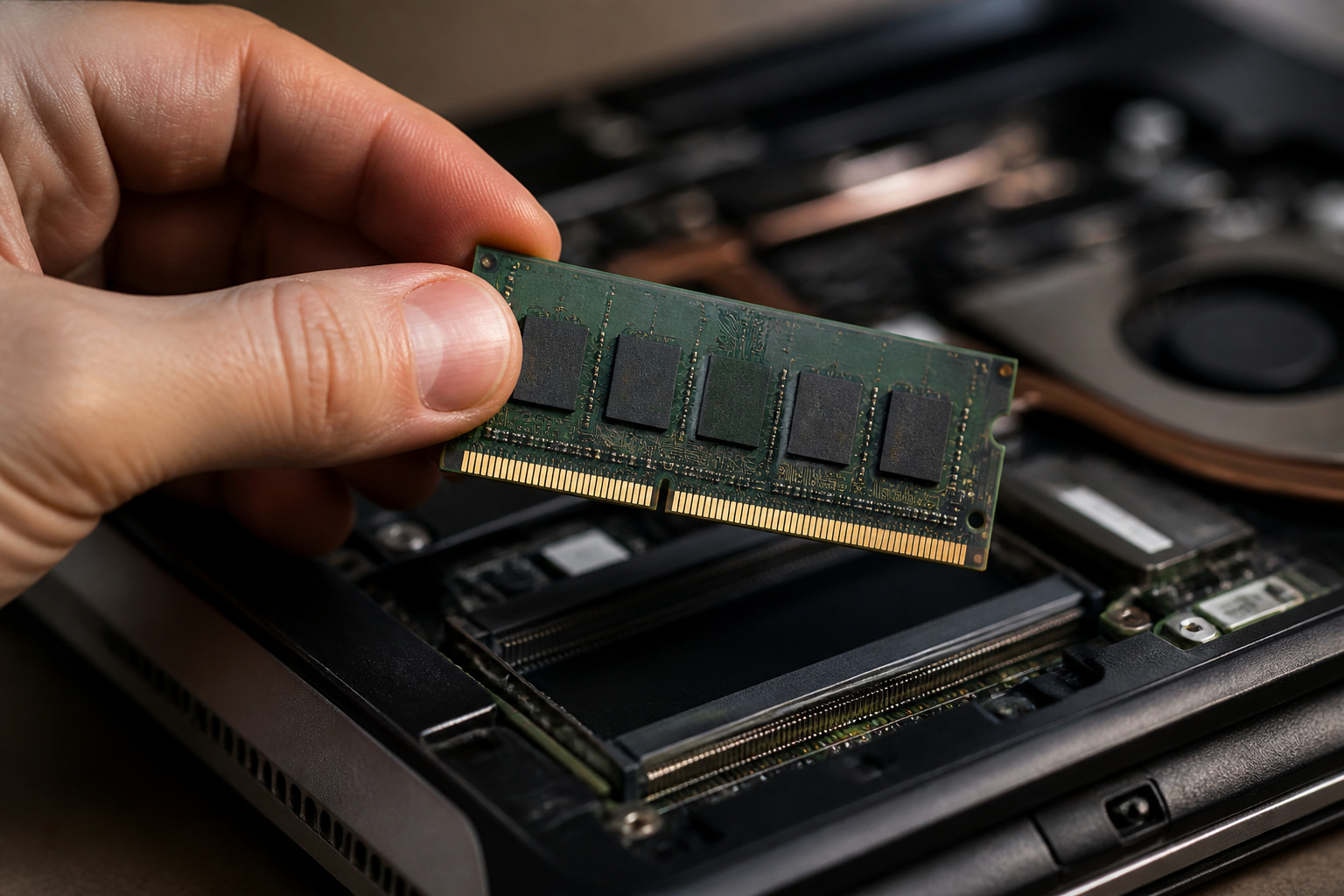
RAM holds the project, cached previews, and the editing software itself. For 1080p editing, 16 GB is a common baseline. For 4K, long timelines, or After Effects work, 32 GB is the usual recommendation, and more helps when you run a browser and audio tools alongside the editor. Our guide to how much RAM you actually need explains the general rule.
Check whether the memory can be upgraded. Many thin laptops solder the RAM to the board, and on Apple silicon Macs the memory is part of the chip package, so you must buy the amount you need on day one.
In 2026, AI-driven demand has pushed up memory and SSD prices, which makes extra RAM more expensive. But because upgrading later is often impossible, buying the right amount up front is usually the better choice.
Products Worth Considering
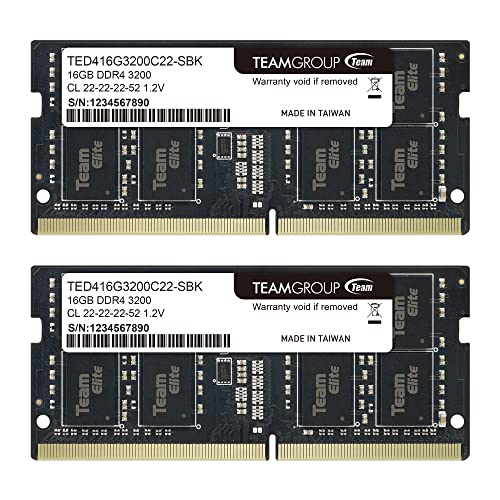
Actual memory speed may vary depending on the system, CPU, motherboard, BIOS settings, and supported memory configuration. DDR4 3200MHz modules may operate at lower speeds such as 2933MHz or 2666MHz when supported by the host system. Please check your device specifications and compatibility before purchase.

Boosts System Performance: 32GB DDR5 RAM laptop memory kit (2x16GB) that operates at 5600MHz, 5200MHz, or 4800MHz to improve multitasking and system responsiveness for smoother performance
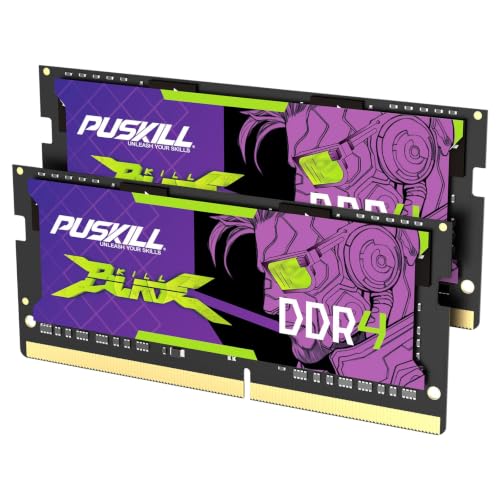
Smooth 3200MHz Gaming Performance: Give your gaming laptop the speed it deserves. With 3200MHz frequency and CL22-22-22-52 timing, this DDR4 SODIMM kit delivers responsive gameplay in AAA titles and faster level loading compared to stock 2666MHz laptop memory.
Storage: Internal SSD and External Drives
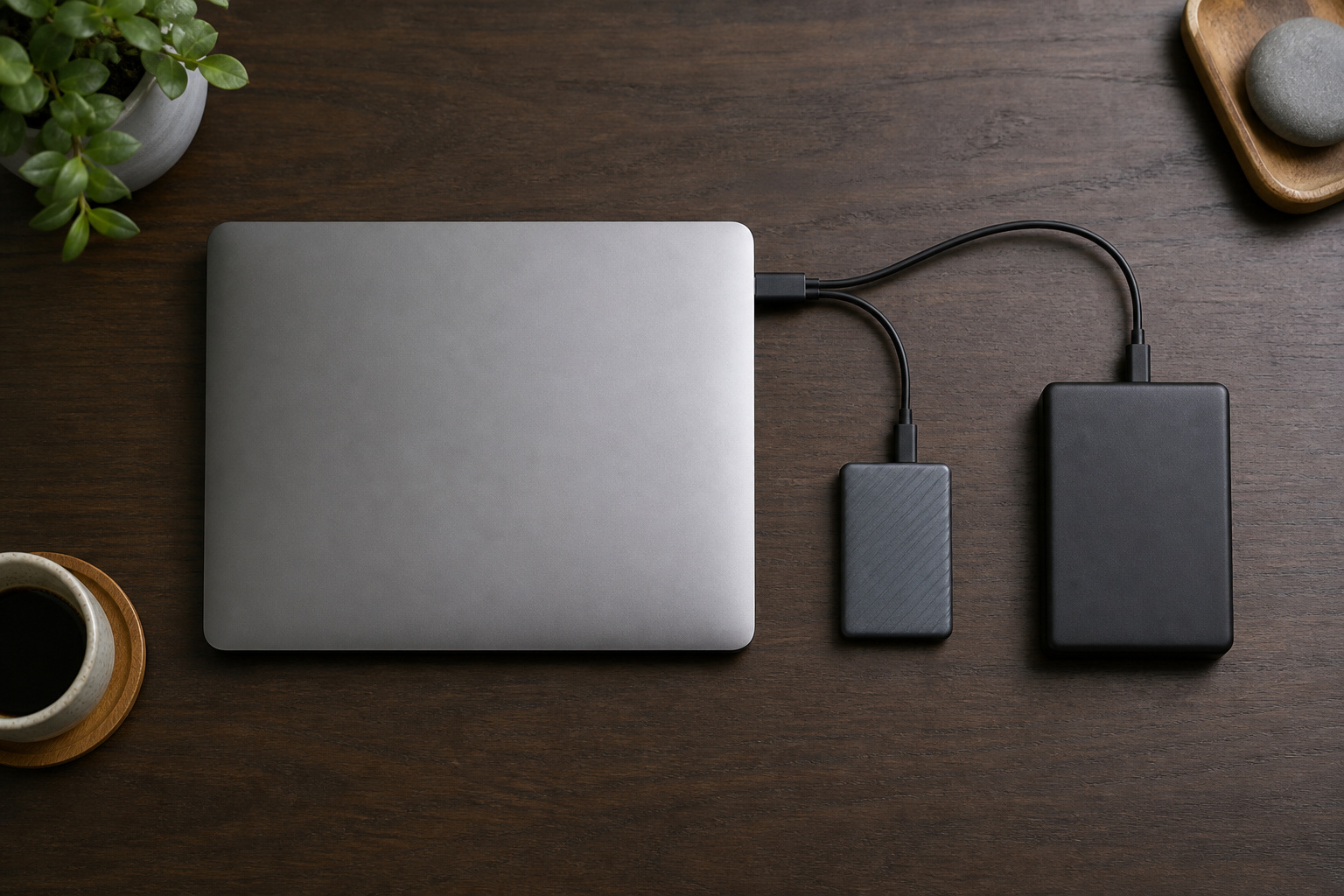
Video files are large, and an NVMe SSD keeps the system, software, and active project fast. A 1 TB internal drive is a sensible starting point for editing, and 2 TB gives breathing room. Faster PCIe 4.0 drives help with multi-stream playback and cache, but do not pay a large premium for speed you will not use.
Most editors also keep raw footage and finished projects on external storage. Fast external SSDs work well as working drives, and large hard drives are cheaper for archives. Keep important footage on at least two drives, because it is hard to recreate. Our guides to SSD versus HDD and choosing an external hard drive help with that choice.
Products Worth Considering
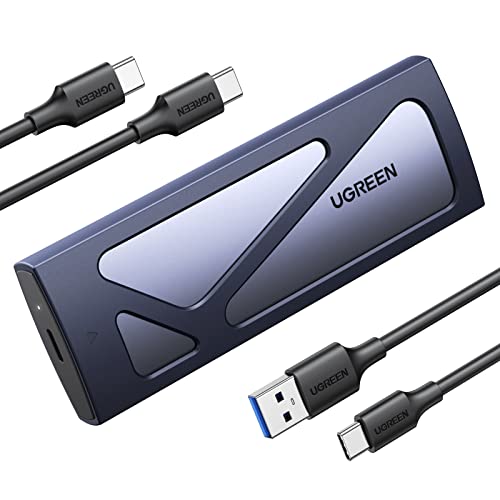
10Gbps NVMe Enclosure: With the latest USB 3.2 Gen2, this M.2 enclosure can achieve a data transfer rate of 10Gbps. Backward compatible with USB 3.1 and USB 3.0. Note: 10G speeds need to be matched with a USB C 3.2 GEN2 data cable
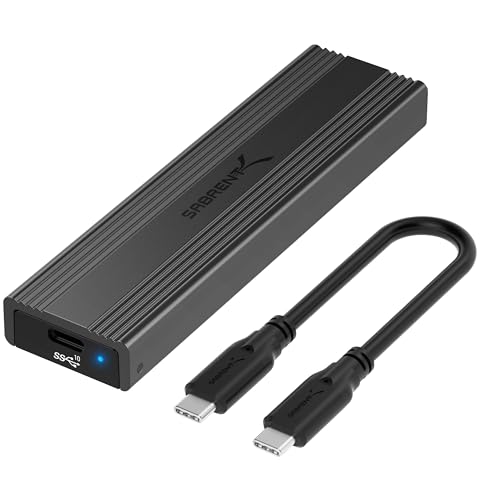
ENCLOSURE ONLY, SSD NOT INCLUDED: This is the case you put your own M.2 SSD into, not a drive with storage inside. 100% tool-free, so the SSD installs and comes out in seconds with no screwdriver.
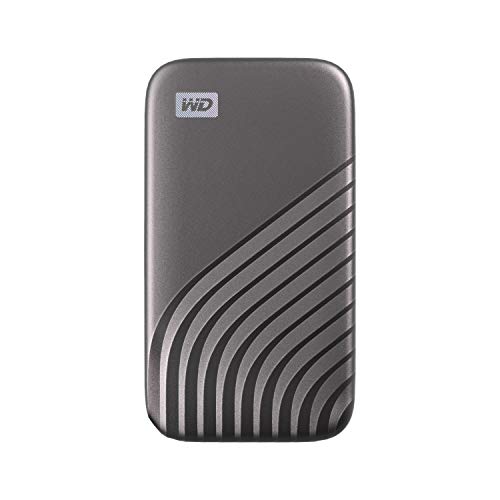
Blazing fast NVMe technology with speeds of up to 1050MB/s and write speeds of up to 1000MB/s. | Based on reading speed unless otherwise stated. As used for transfer rate, 1 MB/s = one million bytes per second. Based on internal testing; performance may vary depending upon host device, usage conditions, drive capacity, and other factors
Display and Color Accuracy
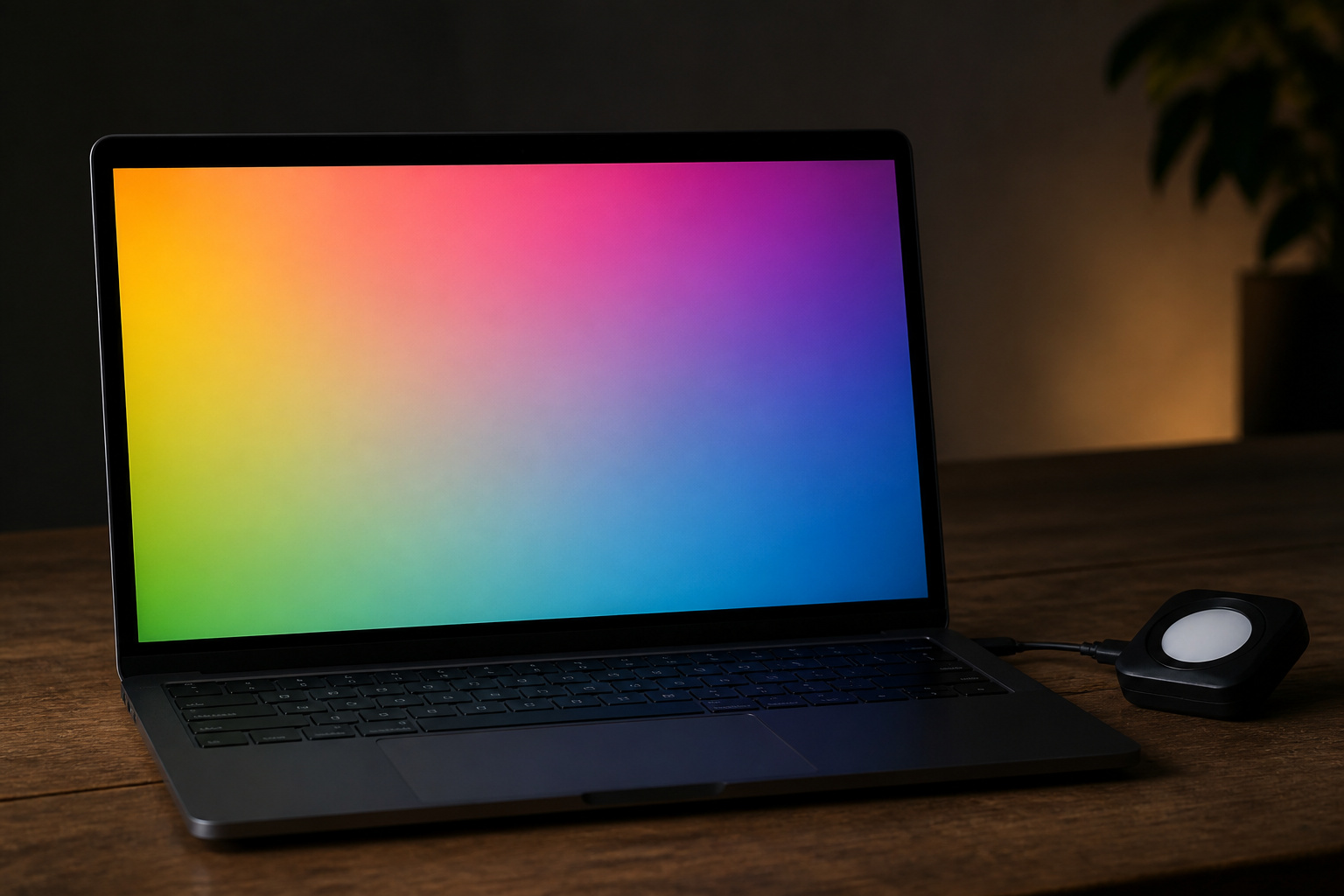
A laptop display is your window into the footage, so check its quality, not only its resolution. A 1080p panel is fine on a 15-inch laptop, and a 4K panel costs battery life and money without always helping. Look for an IPS or OLED panel with wide viewing angles, good brightness, and strong sRGB coverage for web video. If you deliver for HDR or film, look for wider coverage such as DCI-P3, and read reviews that measure color accuracy, because a coverage claim on a spec sheet means little unless it is tested.
For serious color grading, a laptop screen is rarely enough. A calibrated external monitor is the usual answer, and our guide to choosing a computer monitor covers panel types, color, and ports.
Products Worth Considering

2026 Innovative 4K Touch Portable Monitor: The innovative 4K touchscreen combines ultra clear 4K resolution with responsive 10-point touch, all within a frameless ultra-thin frame. This is the first product to bring desktop level clarity and finger precision control into a mobile workspace, redefining the way you interact with high-definition content anywhere

[Features]: 24-inch FHD IPS (1920x1080), 1x HDMI 1.4, 1x VGA, -5 to +25 degrees Adjustable Tilt, Flicker Free, Anti-glare, No VESA Support, Brightness 300 nits.

SANSUI 24 Inch 180Hz Refresh Rate FHD 1080P Gaming Monitor
Cooling, Ports, and Battery Life
Editing keeps the processor and graphics chip busy for long periods, so cooling matters. Thin laptops can throttle, meaning the chips slow down to stay cool, while thicker gaming and workstation laptops often perform better at the cost of fan noise. Expect fans to run loudly during long exports on powerful Windows laptops. A hard desk surface or a stand helps airflow.
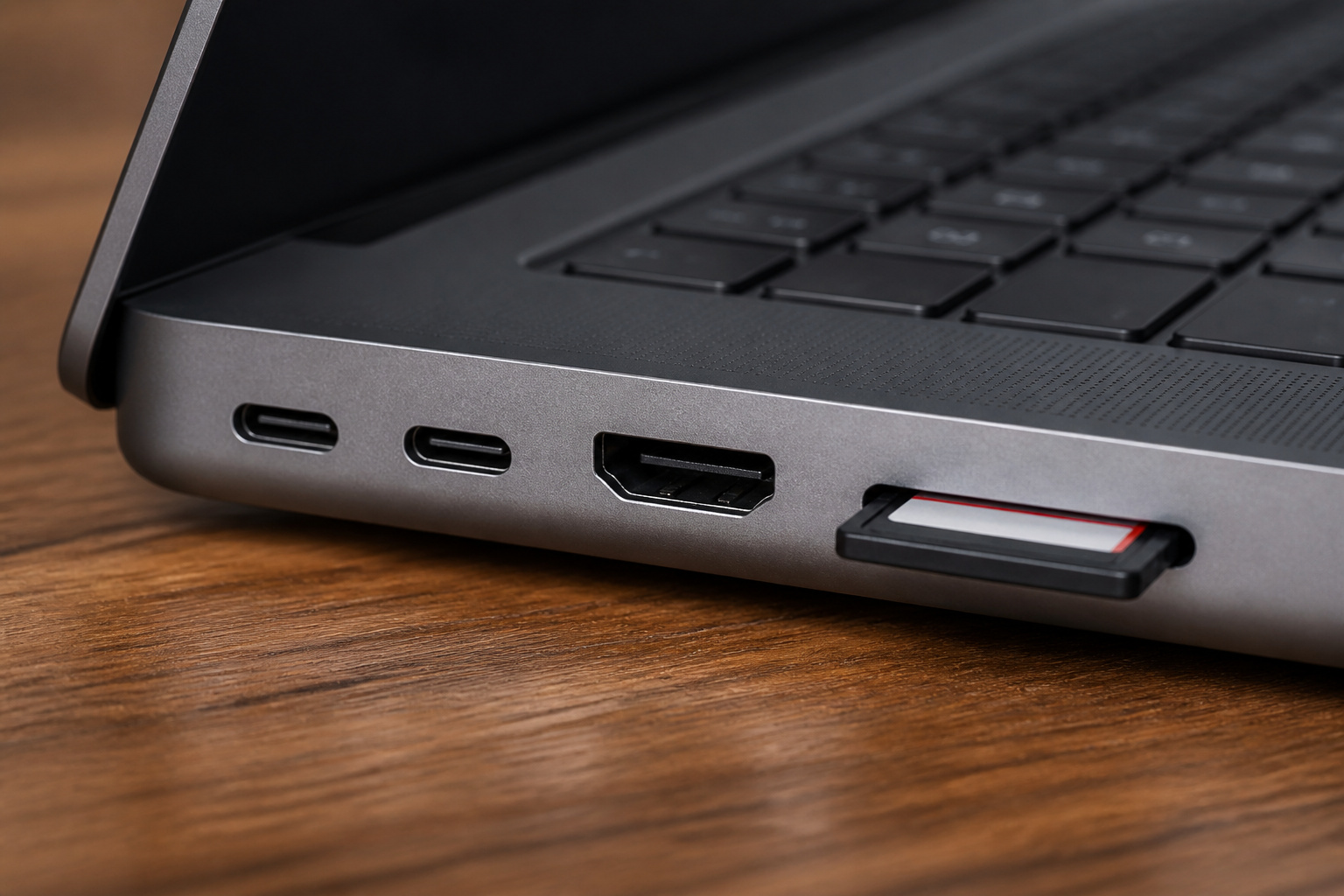
Check the ports you will use every day: an SD card reader for camera cards, Thunderbolt or USB4 for fast drives, and HDMI or DisplayPort for external monitors. Many Windows laptops reduce performance when running on battery power, so plan to edit while plugged in and treat battery life as a travel bonus.
Mac, Windows, or a Gaming Laptop?
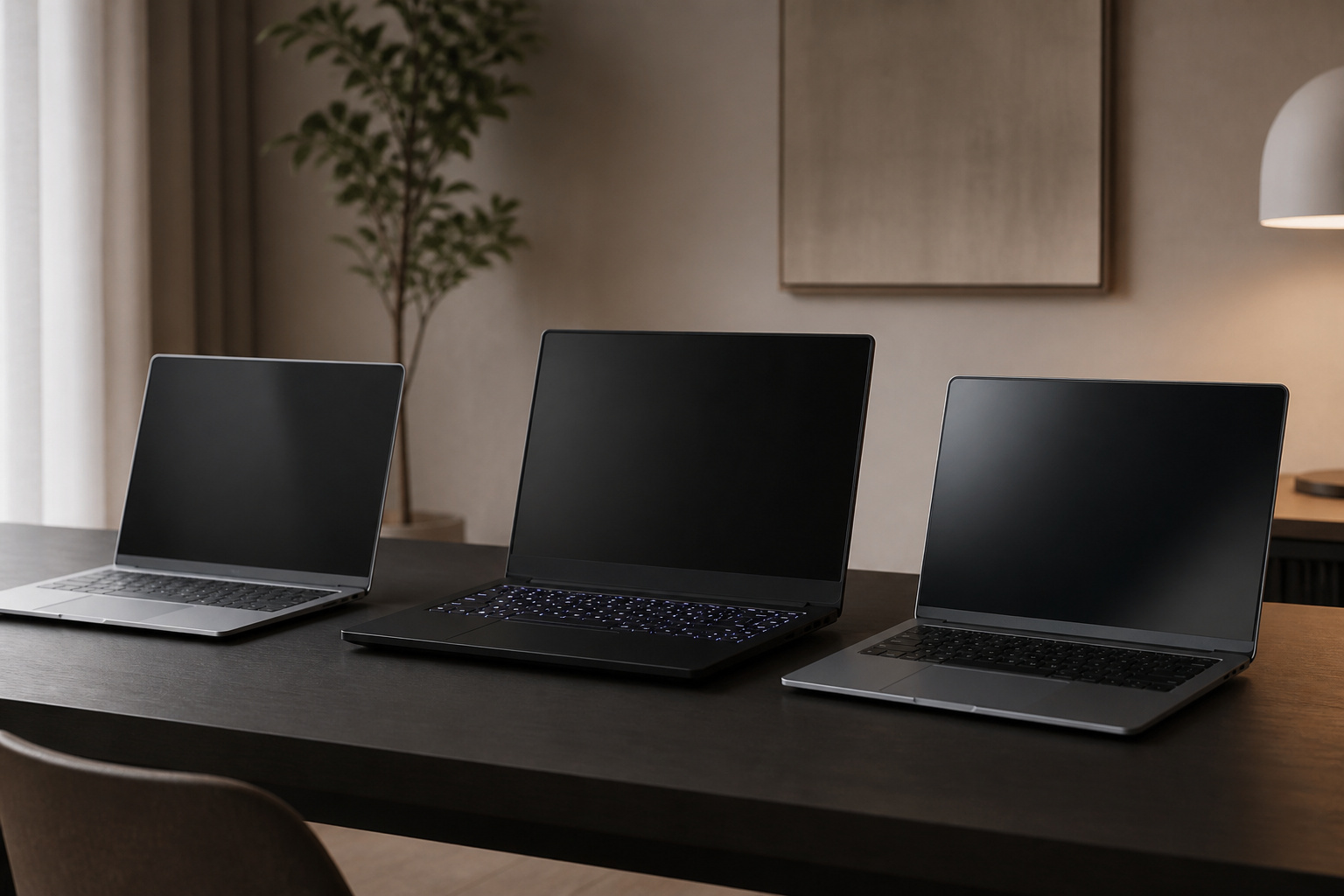
Mac laptops pair well with Final Cut Pro and Premiere Pro, run quietly, and keep their performance on battery. They cost more at higher memory and storage tiers and cannot be upgraded later.
Windows creator laptops offer more choices, including upgradeable models and stronger NVIDIA graphics, which Premiere Pro and DaVinci Resolve can use for acceleration.
Gaming laptops often deliver the best GPU performance for the price, but they tend to be heavier and louder, have shorter battery life, and sometimes come with less accurate displays.
Software matters here. Final Cut Pro runs only on Mac, while Premiere Pro and DaVinci Resolve run on both. DaVinci Resolve has a free version that, according to Blackmagic, works with most 8-bit formats at up to 60 frames per second in resolutions as high as Ultra HD.
The paid Studio version, listed at $295, adds 10-bit support up to 120 frames per second, resolutions beyond 4K, and extra tools. Prices change, so check the current listing. For general advice on picking a platform, see our guide to choosing a laptop computer and how to choose the right computer for your needs.
Products Worth Considering

CUTTING-EDGE PERFORMANCE – Experience next-level performance with Windows 11 Home, an Intel Core Ultra 9 Processor 275HX, and an NVIDIA GeForce RTX 5070 Ti Laptop GPU powered by the NVIDIA Blackwell architecture and featuring DLSS 4 and Max-Q technologies.
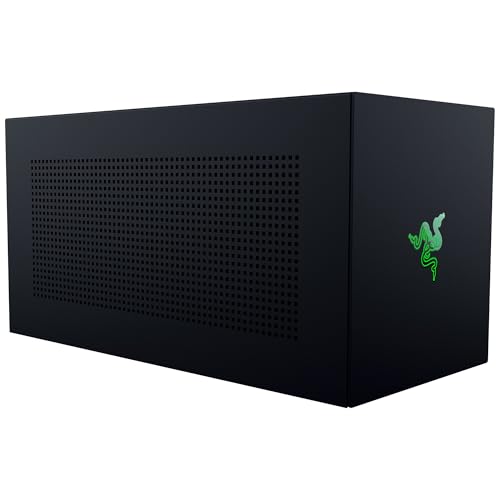
NVIDIA & AMD DESKTOP GPU READY — Designed to fit PCIe desktop graphics cards up to 4 slots wide, give any compatible laptop a massive boost in power by connecting the latest NVIDIA GeForce and AMD Radeon GPUs (GPU & power supply not included)

PEERLESS PROCESSING POWER - Speed through laptop gaming, streaming, and creating with the 12th Gen Intel Core i9-12900H Processor (6 P-cores and 8 E-cores) with 24M Cache and up to 5.0GHz clock speed.
Buying Smart

Prices vary widely for similar-looking laptops, so compare the full configuration: RAM, SSD size, GPU model, and display. Manufacturer’s refurbished professional laptops can cut the price while keeping a warranty, and our guide to refurbished computers covers what to check.
Buy from a seller with a clear return window, and test the laptop with your own footage in the first few days: play a typical timeline, run an export, and listen to the fans. See how long a computer should last to judge how many years of support to expect.
Frequently Asked Questions
Can I upgrade the RAM on a video editing laptop later?
Sometimes. Some laptops have accessible memory slots, but many thin models and all Apple silicon Macs have soldered or integrated memory. Check the manufacturer’s spec page or a teardown review before you buy.
Can these laptops run two external monitors?
Many can, but it depends on the ports, graphics hardware, and operating system. Check the model’s spec page to see how many external displays it supports and at what resolutions. Thunderbolt or USB4 ports and docks often make multi-monitor setups easier, and some entry-level chips support fewer external displays than higher-end ones.
Are laptops good for 8K editing?
8K is far heavier than 4K. Most laptops struggle with it unless you use proxy files and high-end hardware. If you do not shoot or deliver 8K, do not buy for it.
How loud are the fans during rendering?
Powerful laptops can get loud under sustained load, such as long exports. Look for reviews that measure fan noise, keep the vents clear, and use headphones for editing sessions if the fans bother you.
Do video editing laptops have HDMI 2.1?
Some do, but many have HDMI 2.0 or send video through USB-C or Thunderbolt instead. HDMI 2.1 matters mainly if you want 4K at high refresh rates on a monitor or TV. Check the spec sheet, because the port shape alone does not tell you the version.