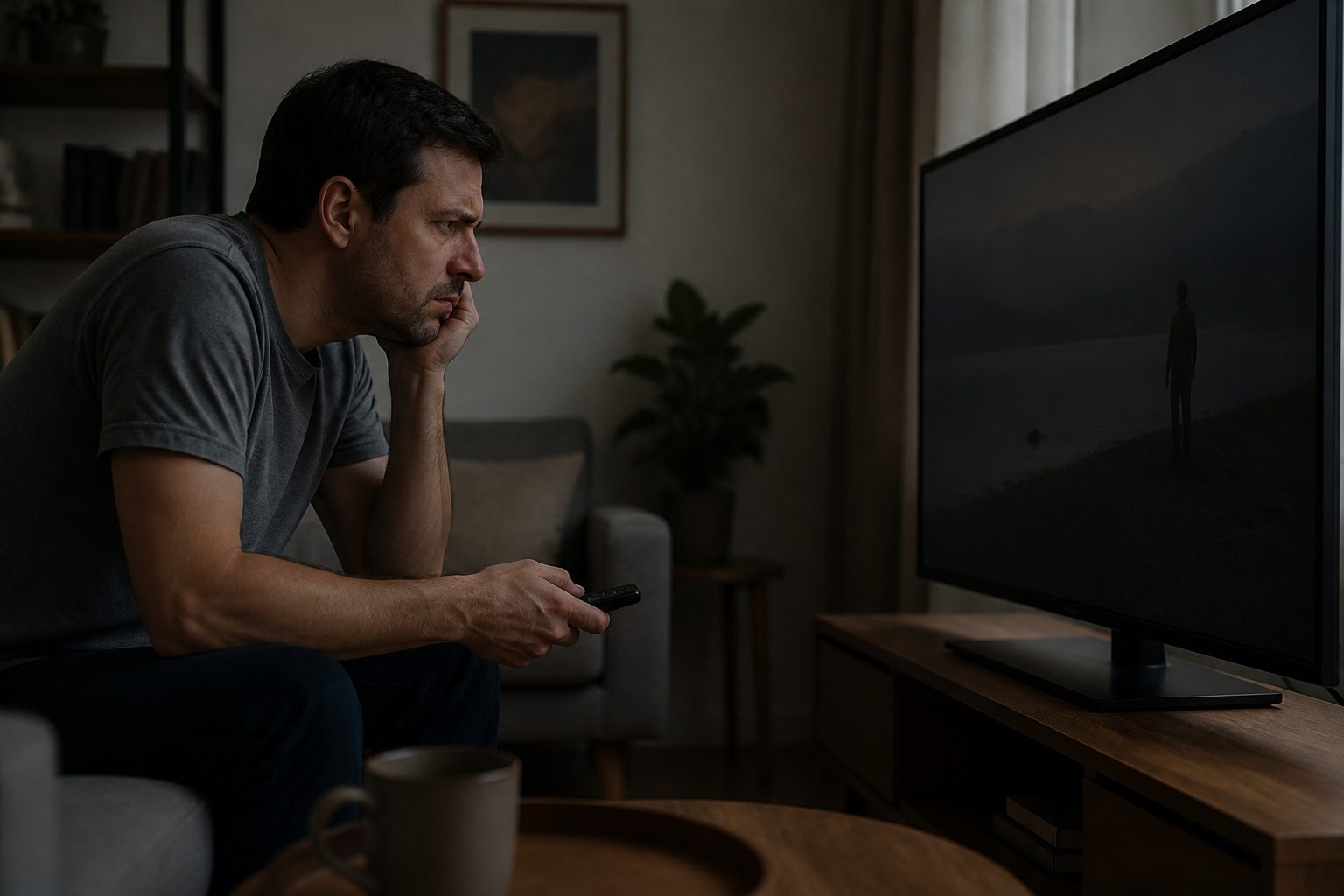
A TV that looks too dark usually results from an improper setting, not a defect. Eco modes, HDR content, and room lighting all affect brightness.
Work through these steps in order.
Check the Picture Mode and Backlight
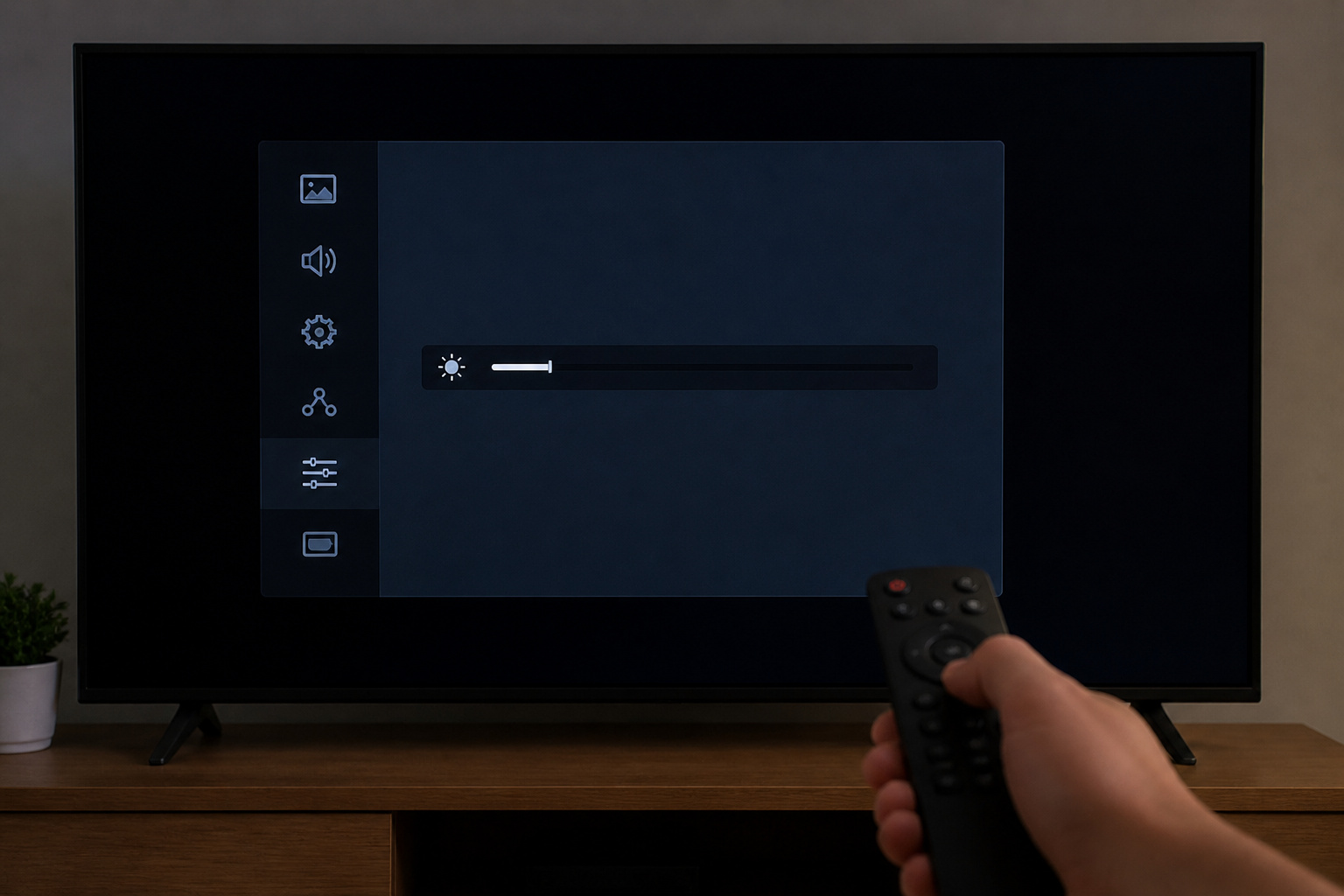
Open the picture settings. Energy-saving modes, auto-brightness, and low backlight settings can dim the picture. Choose a mode like Standard or Movie, raise backlight or OLED brightness, and turn off power-saving features.
Avoid Vivid mode, which looks harsh. See our TV settings guide for a good starting point.
Products Worth Considering

**Voice Control for TCL Smart TVs** Enable hands-free voice commands for TCL TVs equipped with Bluetooth 4.0+/5.0+/5.3+, upgrading basic infrared remotes to full voice operation. Voice control works on TCL Google, Android and Fire OS televisions; pairing steps differ by model, one TV supports pairing up to 4 remotes total.
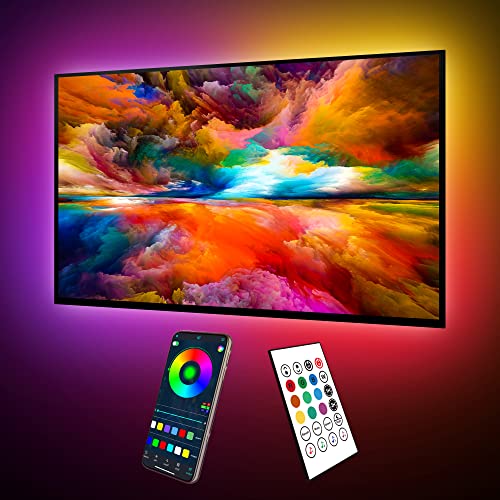
Upgraded ICRGB TV Backlight Effects: Maylit ICRGB TV lights can display multiple colors on a line at a time, compared with traditional RGB TV lights. More vibrant and dynamic to light up the TV, improve your TV watching experience.
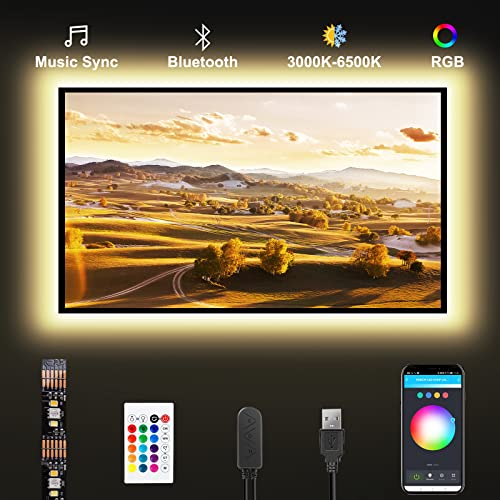
RGB+Tunable White 3000K-6500K: RGBWW TV led strip light kit with RGB color and pure white color, RGB color makes the TV area more colorful, and the adjustable pure white makes your eye more comfortable when you watching TV for a long time.
HDR Content Looks Dim on Many TVs
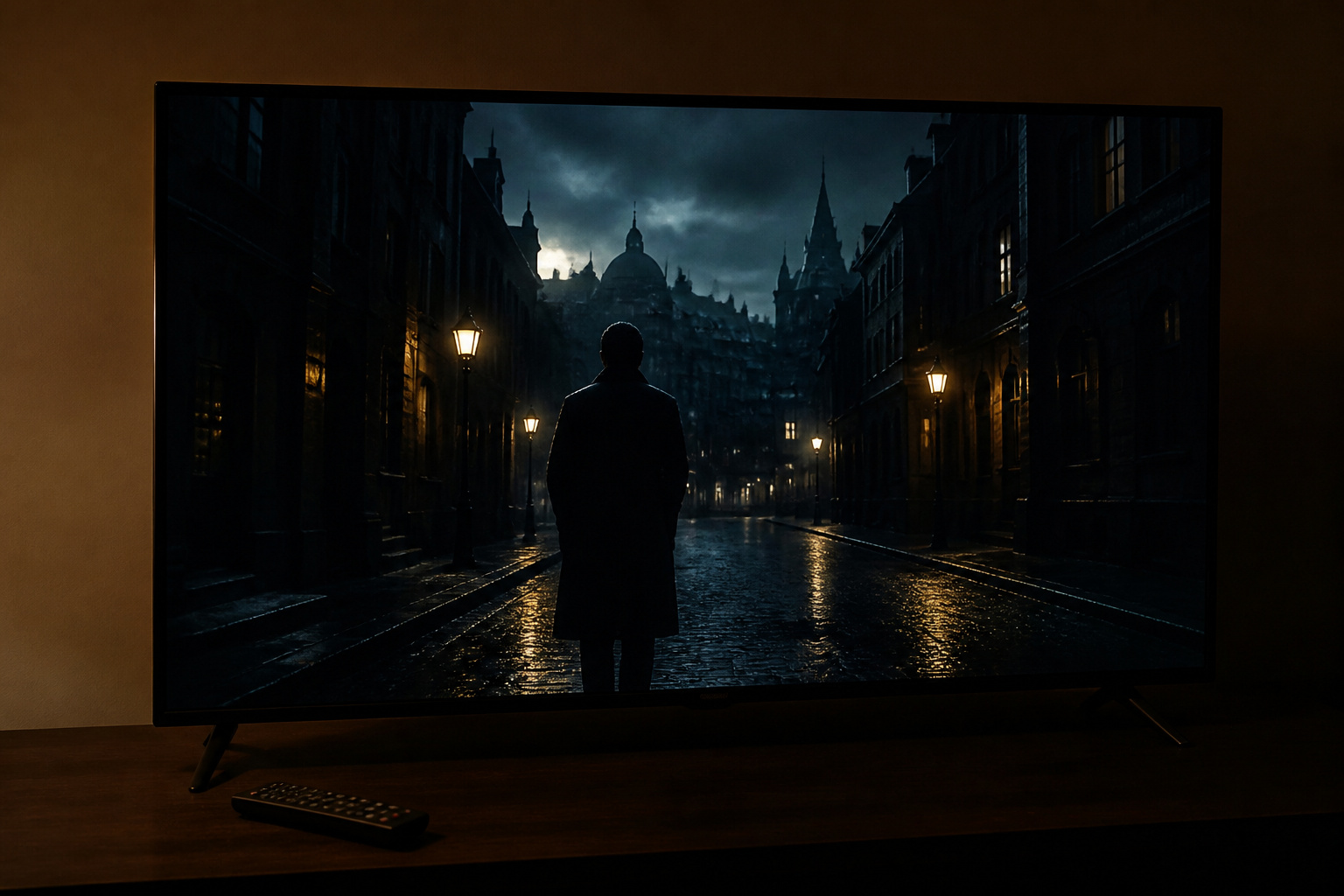
HDR video expects a much brighter display than standard video. On a TV that cannot reach those brightness levels, HDR can look darker than regular video.
Turn up the backlight and contrast, use an HDR-specific picture mode, and view in a dim room. If the TV is a budget model, this may be a hardware limit; see HDR explained and are cheap TVs worth it.
Adjust Brightness, Contrast, and Local Dimming
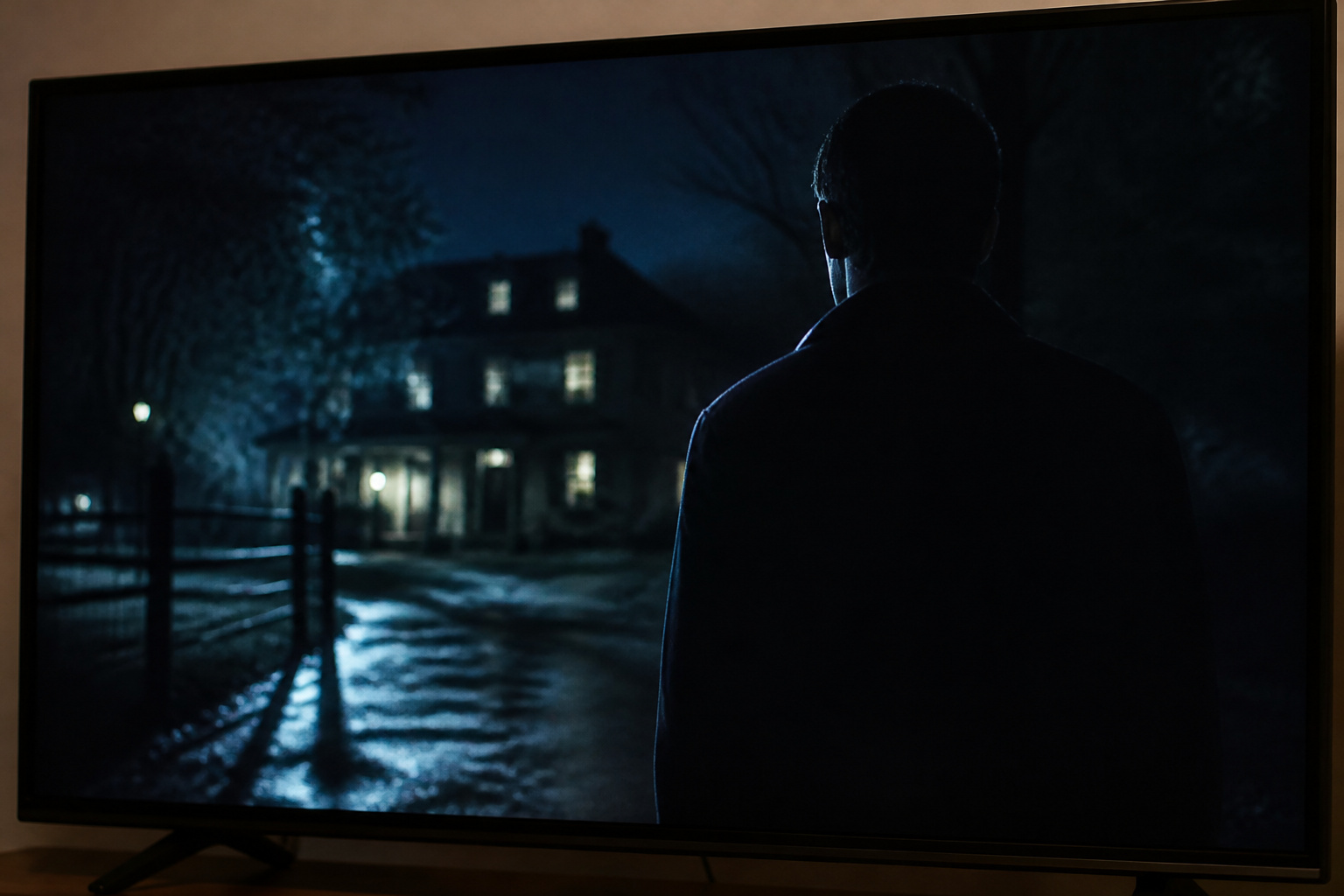
Brightness controls black level, and contrast controls highlights. If shadows are crushed, raise brightness slightly.
If the whole picture looks dim, raise contrast and backlight. If your TV has local dimming, it can darken scenes; try a lower or higher setting and compare.
Our guide to optimizing picture settings without calibration tools shows how to set these by eye.
Products Worth Considering

Upgraded Material: Enhanced from 10mm to 12mm thickness for superior stability and durability, eliminating sagging or breaking issues common with other picture hanging tools

Multi-in-One Design: This picture hanger tool incorporates measuring, level calibration, and wall marking into one compact device, providing a comprehensive solution for all your picture and frame hanging needs.

Reliability and Consistency: The Jurgen K stud finder uses multi-sensing technology to accurately and quickly find the edges and centers of live AC wires behind metal, studs, joists, pipes, walls, floors and ceilings. Whether you're hanging a picture, installing a TV or renovating part of your home, the Jurgen K stud detector is a must-have tool!
Check the Room and Screen
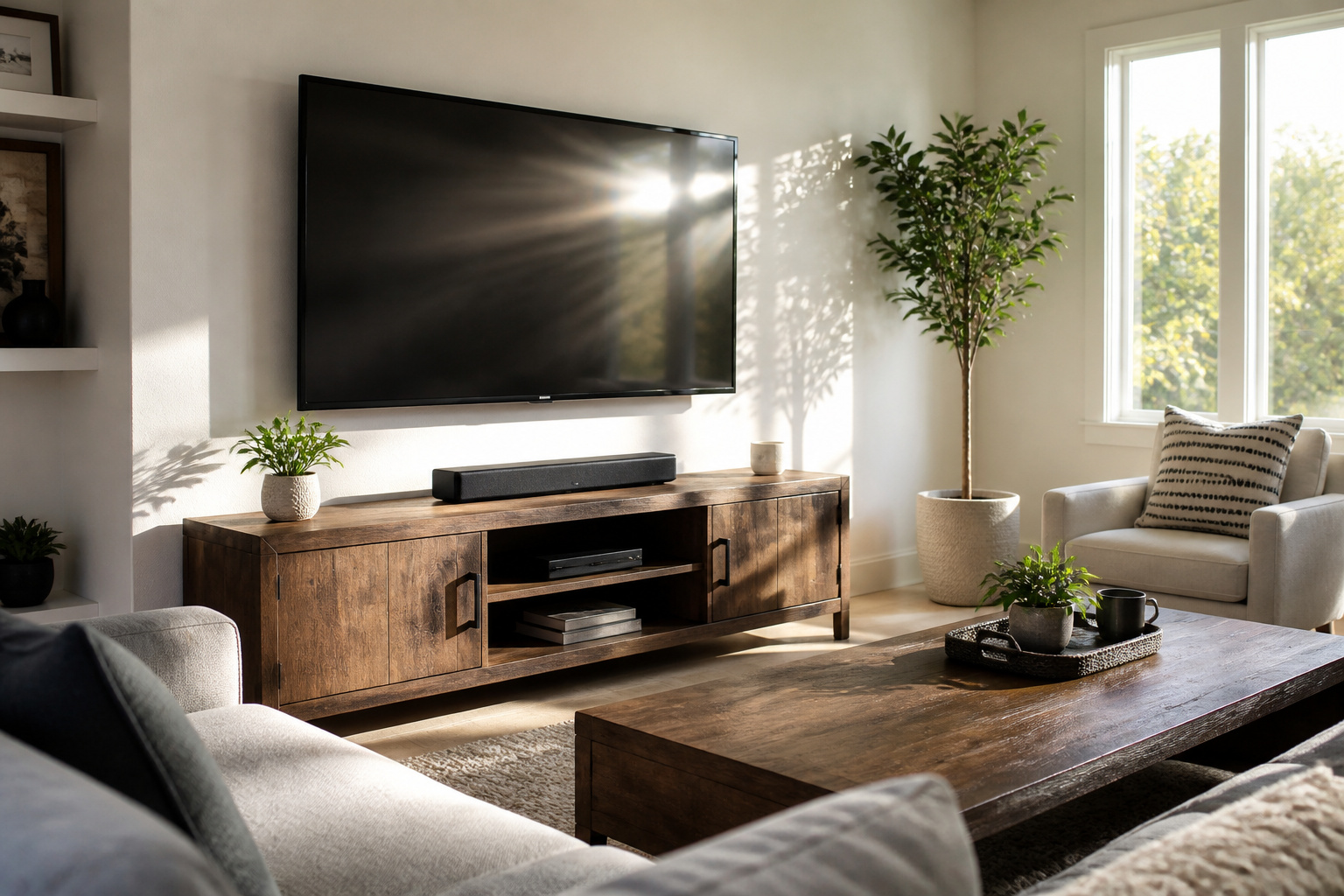
Bright rooms make any TV look dimmer. Close blinds or choose a brighter TV.
A dirty screen or a protective film left on can also dim the picture. See OLED vs QLED vs LED for which technology suits bright rooms.
Products Worth Considering

Screen Cleaner is Your Screen’s New Bestfriend! - EVEO is proud to present a screen cleaner that’s perfectly suited for your TV. Meet your new screen cleaner, computer screen cleaner, laptop cleaner, iPad cleaner, Macbook,tv cleaner or any other electronic device. Our screen cleaner spray and wipe along with the included plush microfiber cloth, easily removes dust, fingerprints & other smudges on the screen’s surface. Clean effectively for a streak-free screen
STREAK FREE FORMULA FOR CRYSTAL CLEAR SCREENS: Screen Mom tv cleaner spray and cloth advanced streak-free screen cleaner formula leaves screens looking brand-new with every clean. Unlike typical monitor cleaners that leave streaks or smudges, our computer screen cleaner spray and wipe ensures spotless clarity enhancing your viewing experience and screen longevity. Each spray works efficiently, requiring no second passes and leaving no residue behind.

What You'll Get: One pack of 25 Windex Electronic Pre-Moistened Cleaning Wipes
Check the Source and Cables
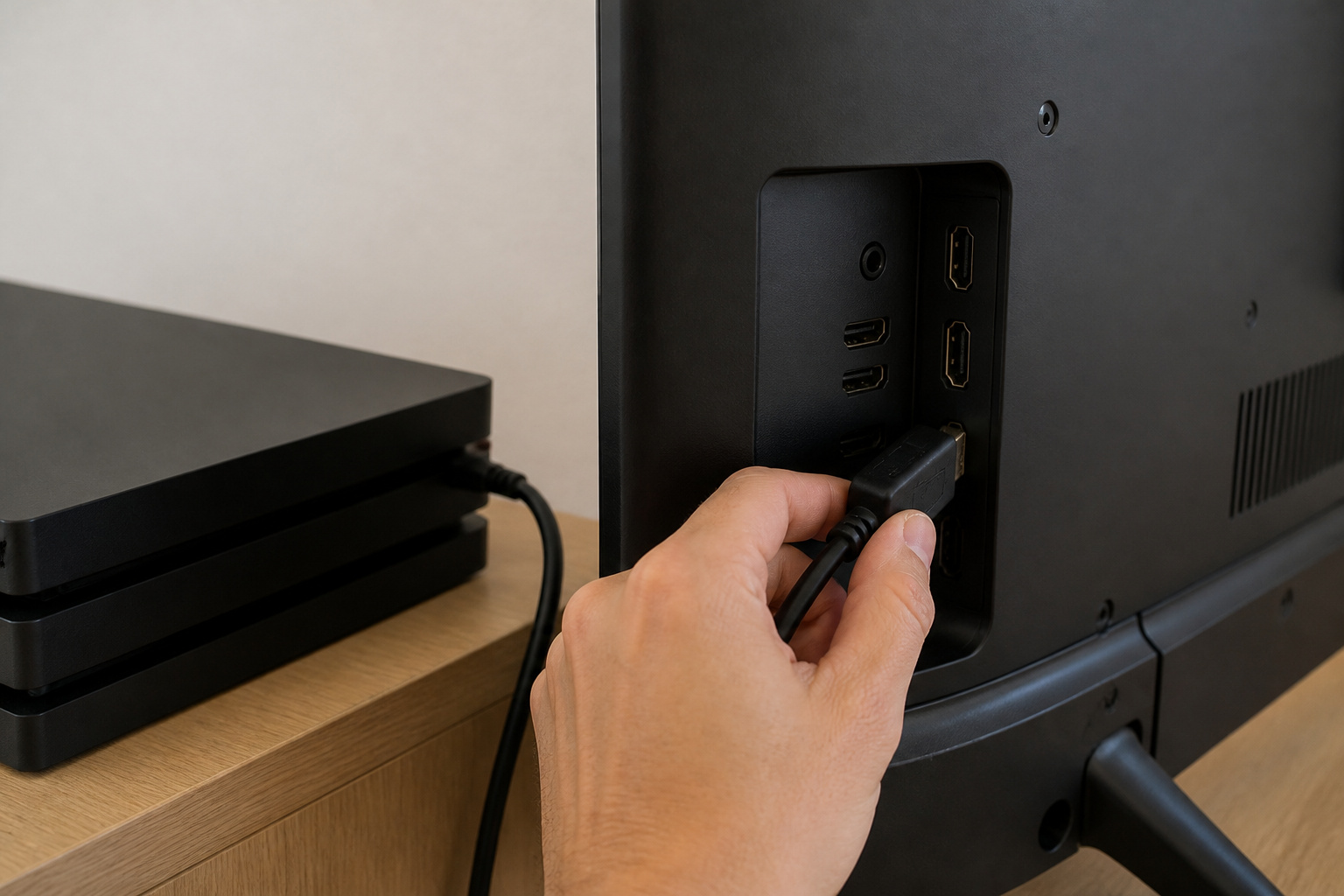
Some devices output a limited video range, which makes blacks look gray or the picture dim. Make sure your console or streaming box and the TV are set to the same range, usually Full or Auto.
A faulty cable can also cause dimness; try a different one. See HDMI cables explained.
When It May Be Hardware
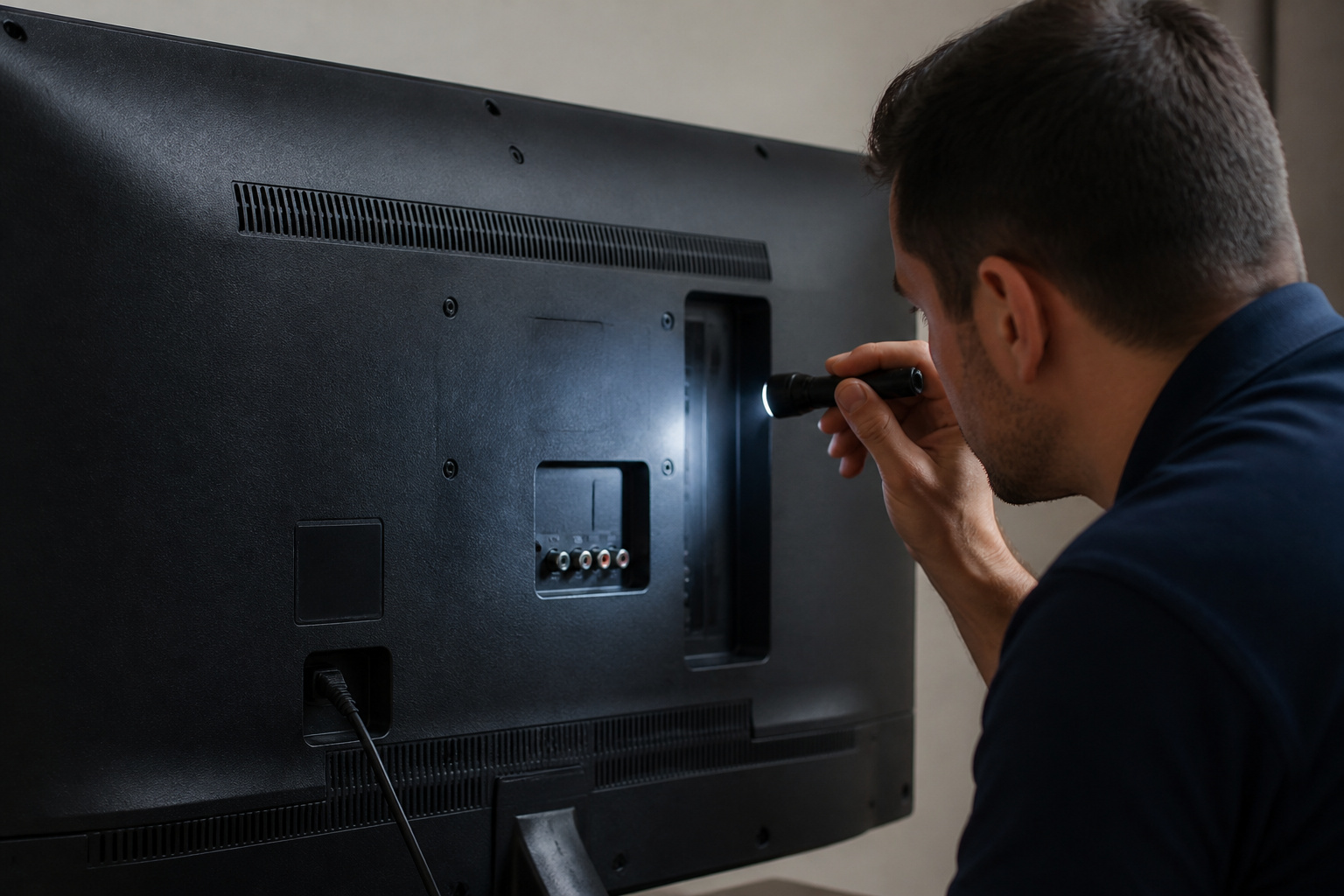
If the picture is dark on every source and setting, or the backlight flickers, the backlight may be failing. Contact the manufacturer if the TV is under warranty.
For more context on lifespan, see how long modern TVs last.
Frequently Asked Questions
Why is my TV dark in HDR?
Many TVs cannot reach the brightness HDR expects. Raise the backlight and view in a dimmer room.
Why does my TV get darker?
Auto-brightness and power-saving features may be lowering the backlight. Turn them off.
Is a dark picture a sign of a failing backlight?
Possibly, if it is dark on all sources and settings and may flicker. Check settings and cables first.
Should I use Vivid mode?
Not usually. It boosts brightness but distorts color. Try Standard or Movie.
Why do dark scenes look gray?
On non-OLED TVs, the backlight shows through. Local dimming, a dark room, and proper brightness settings help.