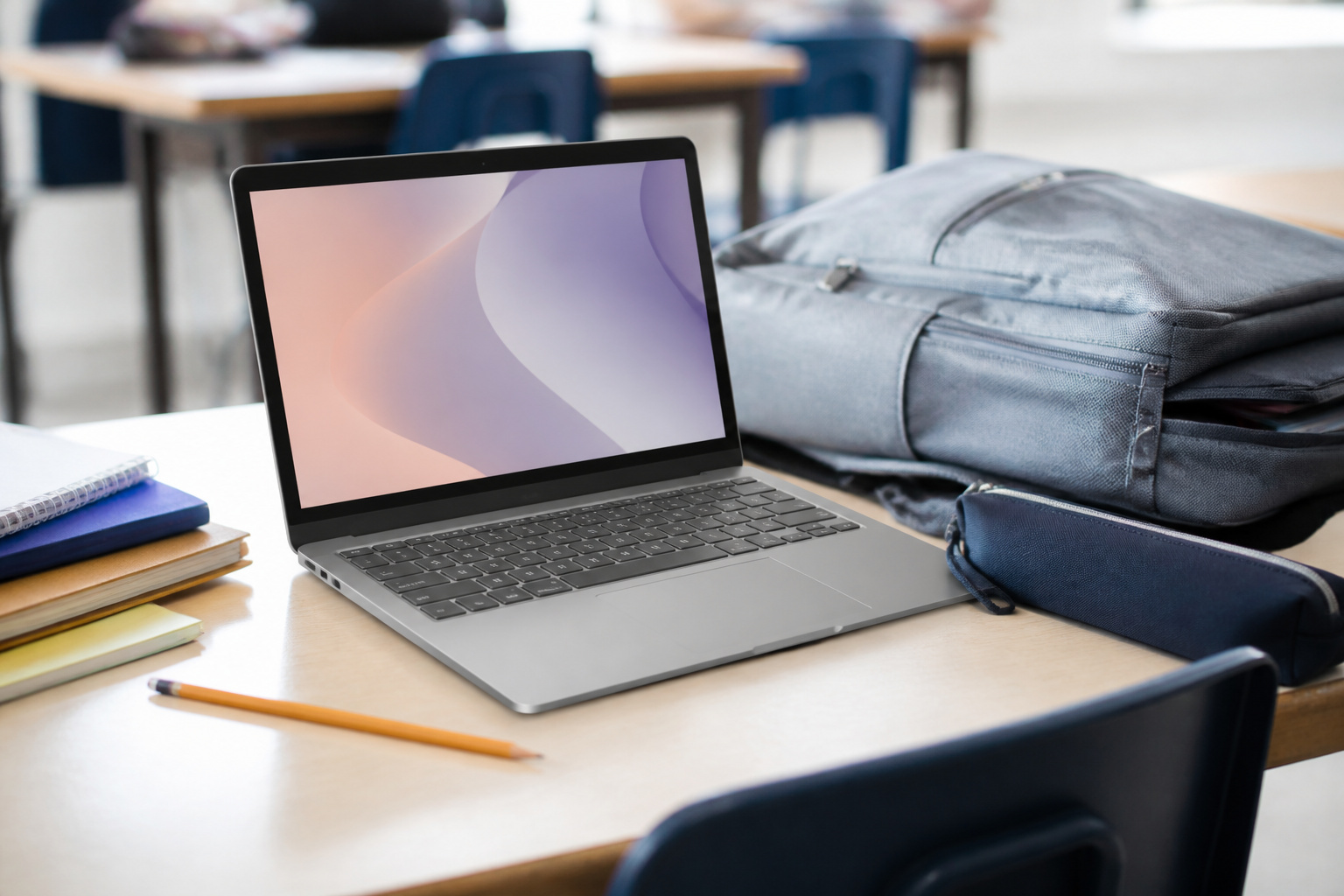
A Chromebook can be the right laptop for a student, but only if the school’s software runs on it and the model still has years of updates left.
This guide covers how to check both, which specs matter, and when a Windows laptop is the safer choice.
Is a Chromebook the Right Choice for Your Student?

Chromebooks run ChromeOS, which is built around the Chrome browser, web apps, and Google services. That covers what most school coursework needs: Google Workspace, Microsoft 365 in the browser, video calls, online textbooks, and school learning platforms. Many models also run Android apps from Google Play, and many support Linux apps for coding.
They are a weaker fit when a course requires Windows-only or Mac-only desktop software, such as some engineering, architecture, or video production programs. Before buying, ask the school or department which software and operating systems are required, and whether the school issues or manages devices.
Some districts supply a Chromebook, and some colleges publish minimum laptop requirements. Our guide to the best computer specs for students and online learning covers the general requirements across platforms.
Check the Auto Update Expiration Date Before You Buy
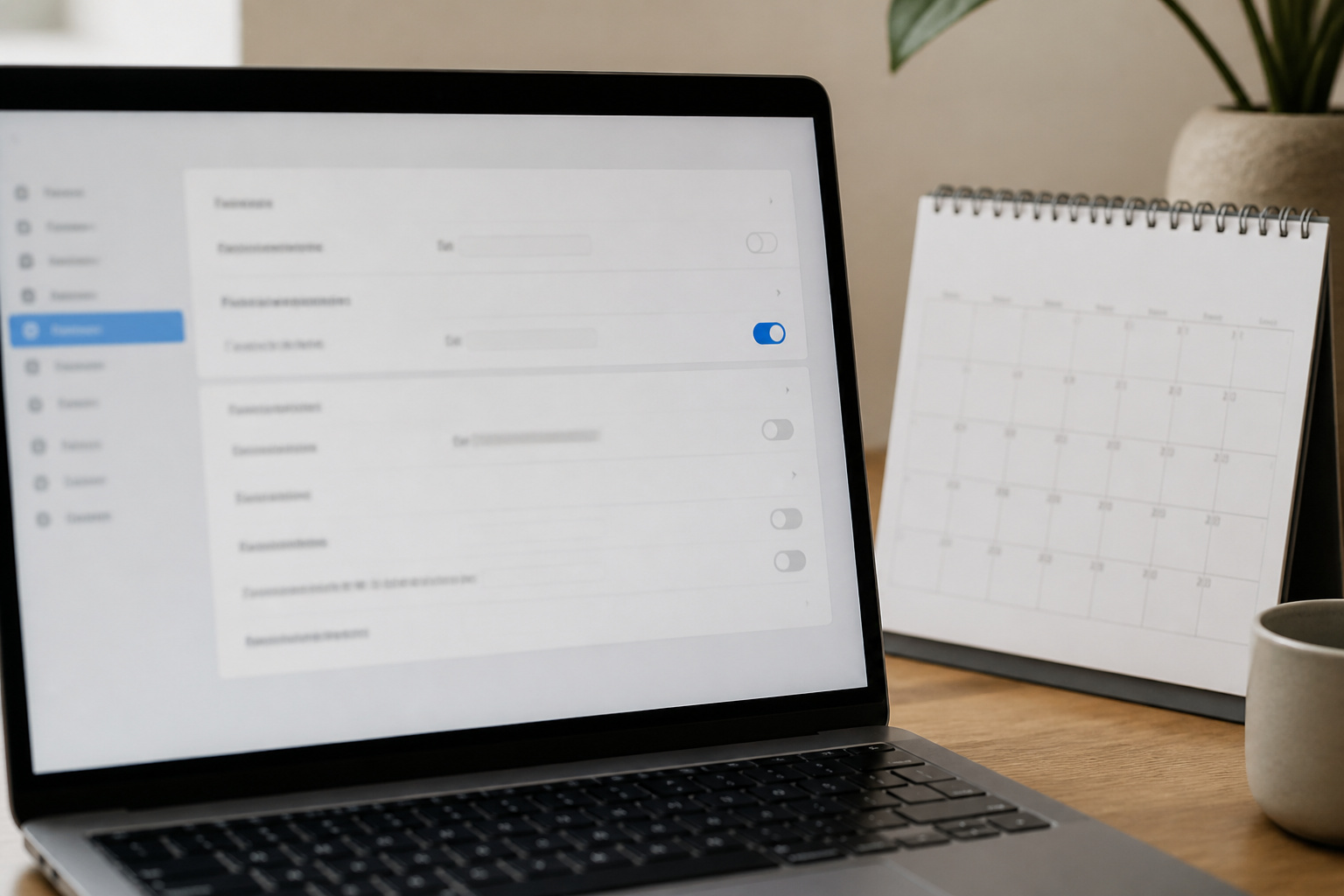
Every Chromebook has an Auto Update Expiration date, after which it stops receiving ChromeOS and security updates. Google states that Chromebooks released from 2021 onward get 10 years of automatic updates, counted from when the hardware platform was released, not from the day you buy it. Older models may be eligible to extend updates to 10 years, but Google notes that some features and services may not be supported on them.
That distinction matters most with discounted and refurbished models. A Chromebook sold new this year can be built on a platform that launched a few years ago, so it may have fewer years left than the 10 you might assume.
Google’s Auto Update policy page lists the expiration date by model, and on a Chromebook you already own, it appears in Settings under About ChromeOS. Aim for a model that will last through the student’s whole course of study. The same logic applies to any computer, as our guide on how long a computer should last explains.
Specs That Matter: Processor, RAM, and Storage
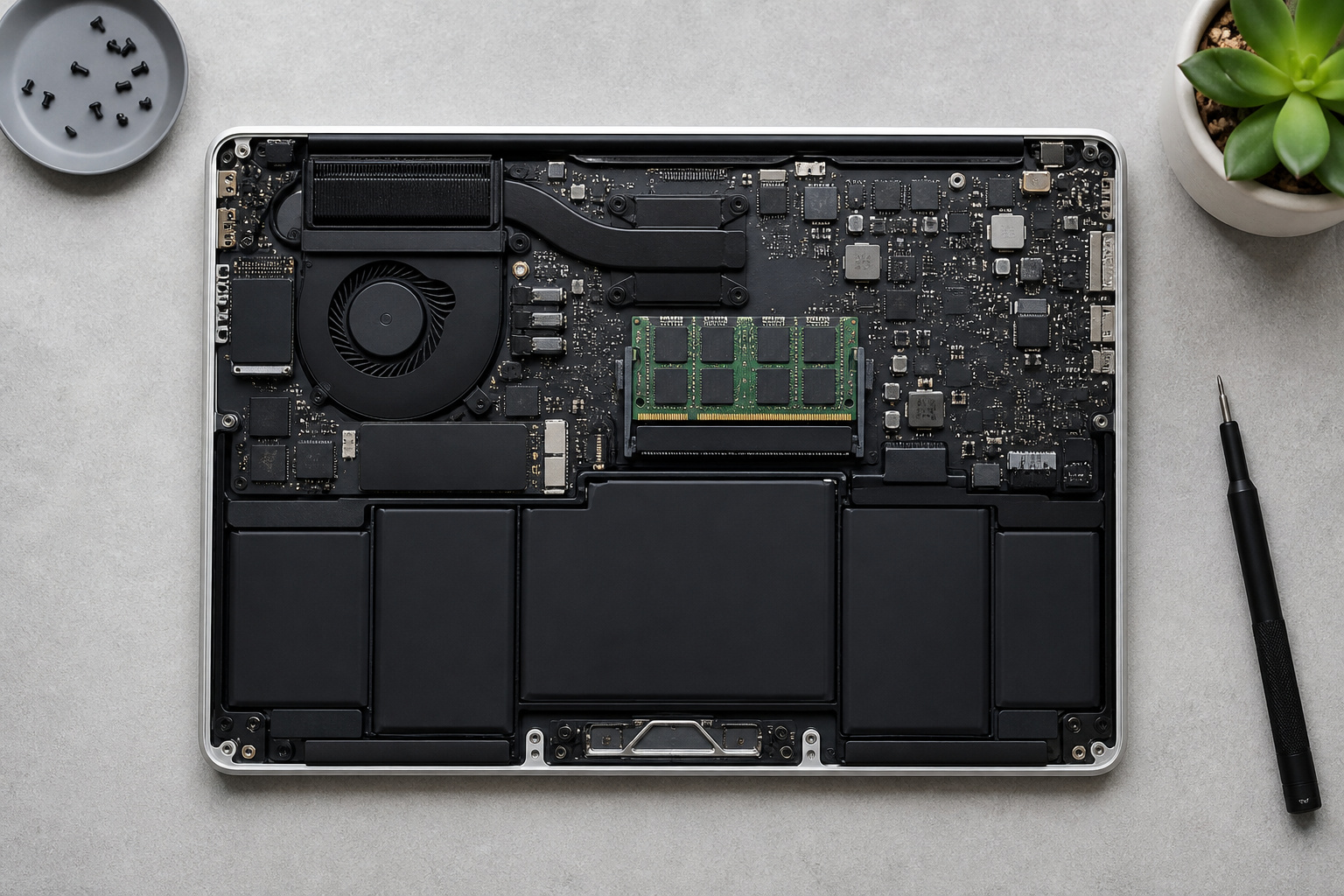
ChromeOS is light, so Chromebooks need less hardware than Windows laptops. But the cheapest models can feel slow once a student has many browser tabs, a video call, and a document open at once.
As a practical guide, 4 GB of RAM is a floor for light use, and 8 GB is more comfortable for middle school and up. For storage, 64 GB is workable because most files live in the cloud, while 128 GB leaves room for offline files and Android or Linux apps. Our guide to how much RAM you need explains how memory affects everyday speed.
Processors vary more than the names suggest. Entry-level Celeron and MediaTek chips handle documents and video, while Core i3 and Ryzen chips are noticeably smoother with heavy multitasking. If the student will code, edit video, or keep many tabs open, step up a tier.
Products Worth Considering

MICRO-EDGE HD DISPLAY - Enjoy your entertainment with the great quality and high-definition detail of 1 million pixels, plus a non-reflective anti-glare panel for less glare while you're outside

EFFICIENT CHROMEBOOK PERFORMANCE - HP 15.6 Chromebook with 8GB DDR5 Memory boots up quickly and has the power you need to meet your daily basic work, education, and entertainment needs, and you can enjoy that performance for hours with a battery that lasts all day. Compared to HP 14a Chromebook, this one features a Larger Screen and Numeric Keyboard

【8GB LPDDR5 + 64GB eMMC】Experience speedy and responsive performance with the power efficient 8GB LPDDR5 memory. Designed to support higher data rates with less latency, plus faster file transfers and application load. 64GB eMMC flash memory: This ultracompact memory system is ideal for mobile devices and applications, providing enhanced storage capabilities, streamlined data management, quick boot-up times and support for high-definition video playback.
Products Worth Considering

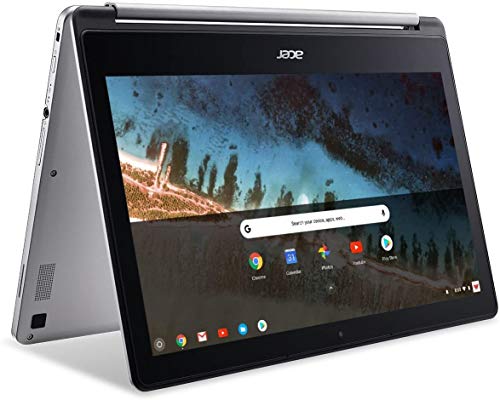
Chromebook runs on chrome OS - an operating system by Google that is built for the way we live today. It comes with built-in virus protection, updates automatically*, boots up in seconds and continues to stay fast over time. (*Internet connection is required).

2 in 1 Chromebook Touchscreen: Chromebook tablet features 15.6inch FullHD IPS Touchscreen with narrow bezel, LED-backlit, 360° Hinge.
Screen, Keyboard, and Battery for a School Day
Many budget Chromebooks still use a low-resolution 1366 by 768 panel. A Full HD IPS screen is easier on the eyes for long reading sessions and worth paying for if the budget allows.
Most students do well with an 11- to 14-inch screen, small enough for a backpack and large enough to split a window between notes and a source. Convertible 2-in-1 models add touch and stylus support, which helps with note-taking but adds cost and weight.
Check the keyboard and build too. A spill-resistant keyboard and reinforced corners help a device that’s carried around every day. Manufacturer battery claims are usually measured under light use, so treat them as a ceiling and look for independent reviews that test real runtime. A full school day away from a charger is a reasonable goal.
Products Worth Considering

BUILT FOR EVERYDAY USE — The IdeaPad Flex 5i Chromebook Plus features a x360 degree hinge, allows Flex 'Laptop' mode for everyday computing, 'Yoga' mode for sharing things, 'Flip' convertible mode for binge-watching, or 'Tablet' mode Spin for more intuitive interaction. With up to 10-hr battery life, it will last full-day use.

Intel Celeron N3160 Quad-Core Processor 1.6GHz with Intel Burst Technology up to 2.24GHz

【15.6-inch Display with IPS】Immerse yourself in a non-glare HD widescreen that minimizes reflections, presenting crisp and lively visuals ideal for streaming, studying, or enhancing productivity.
Chromebook Plus: Is the Upgrade Worth It?
Chromebook Plus is a Google certification for higher-spec models. Requirements include a 12th-generation Intel Core i3 or newer, or an AMD Ryzen 3 7000 series or newer, processor, at least 8 GB of RAM, 128 GB of storage, a Full HD IPS display, and a 1080p webcam. Plus models also add extra features, including AI-powered tools that Google updates over time.
For most students, the certification is a useful shortcut: it guarantees a baseline of hardware that should stay responsive for years. If a standard Chromebook meets the same specs at a lower price, the extra features alone aren’t a good reason to pay more.
If the student uses video calls, photo editing, or many tabs every day, the Plus hardware is worth considering.
Chromebook, Windows Laptop, or Something Else?
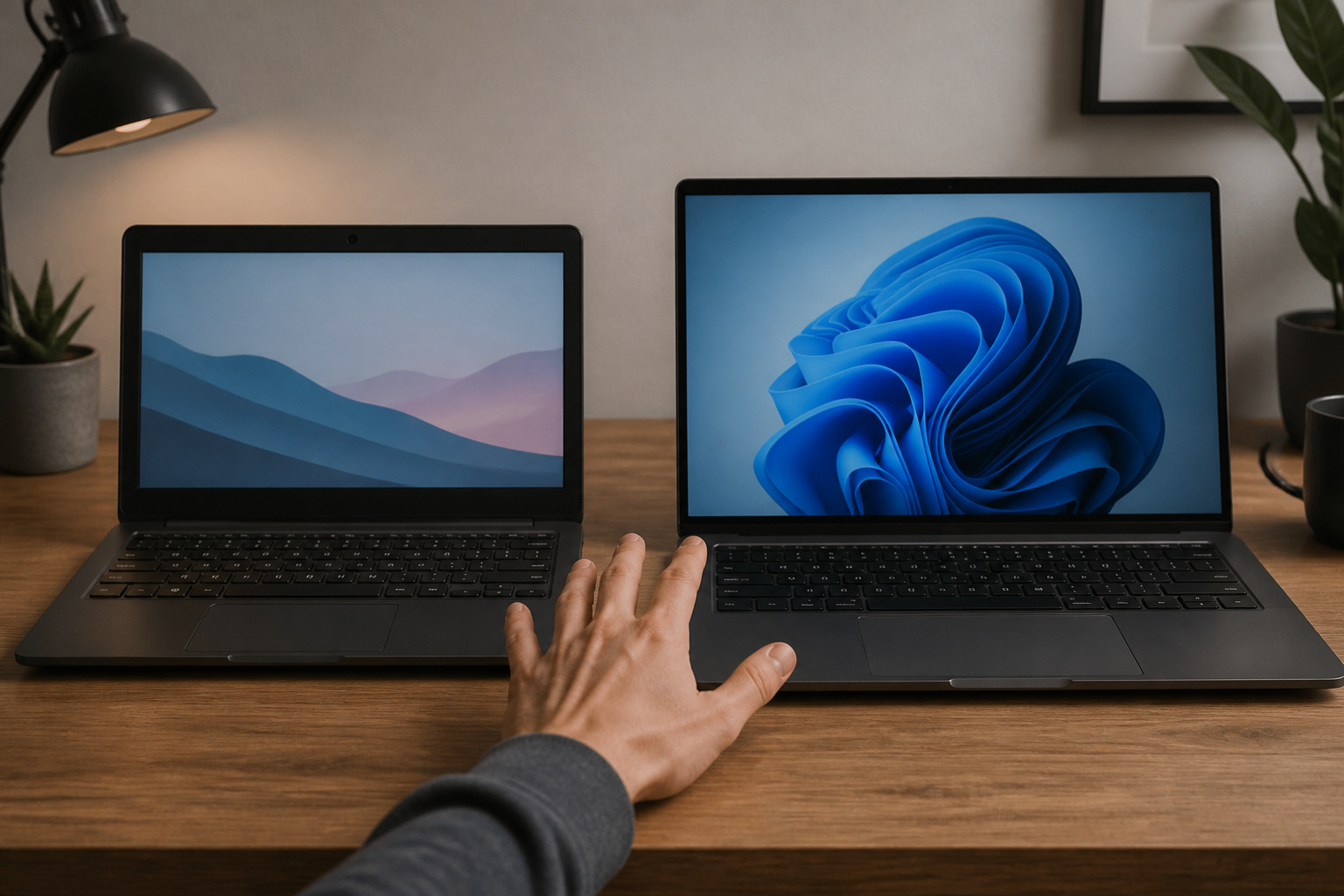
Choose a Chromebook when coursework is web-based, the budget is tight, and easy maintenance matters. ChromeOS updates itself; there is little to manage, and a school or parent can manage it through accounts.
Choose a Windows laptop or a Mac when a course needs desktop software, when the student will edit video or run specialized programs, or when the laptop must serve for years beyond school.
Our guide to choosing a laptop computer compares the platforms, and desktop versus laptop helps if a stationary machine could work. If the student’s major is undecided, a mid-range Windows laptop is the lower-risk pick because it runs the widest range of software.
Products Worth Considering

【Processor】Equipped with Intel Celeron N4120 processor, 1.1GHz (Up to Turbo Boost 2.6 GHz, 4 cores, 4 threads). Whether you're working on documents, streaming videos, or browsing the web, it offers a responsive and seamless experience.

Storage: 16 GB Flash Memory
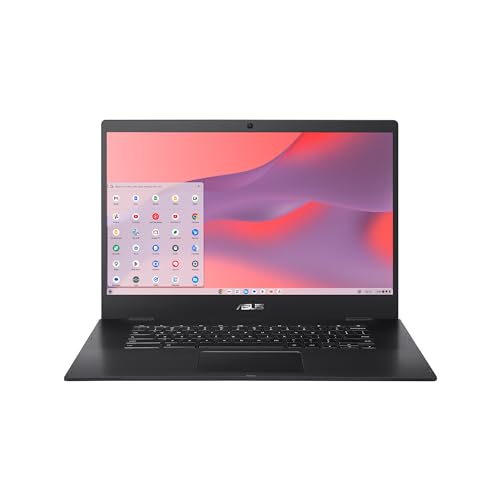
Powered by the Intel Celeron N3350 Processor (2M Cache, up to 2.4 GHz, 2 cores)
Buying Tips: Price, Timing, and Refurbished Models

Back-to-school and Black Friday sales bring the best Chromebook prices. In 2026, however, rising memory costs have pushed laptop prices up, and some makers have cut RAM or storage instead of raising the sticker price.
Read the spec sheet, not just the price. A very cheap Chromebook with 4 GB of RAM and 32 GB of storage may frustrate a student within a year. Our guides on what to look for when buying a computer on a budget and whether cheap computers are worth it cover how to spot the trade-offs.
Refurbished Chromebooks can save money, but check the Auto Update Expiration date first, because a refurbished model may have only a few years left. Buy from the manufacturer or a retailer that offers a warranty and a return window. Our guide to refurbished computers covers what to check.
Frequently Asked Questions
Can Chromebooks run Windows software?
Not directly. ChromeOS does not run Windows programs natively. Students can use web versions of Microsoft 365 and many other tools, Android apps on models that support Google Play, and Linux apps on many models. Some schools also offer remote access to Windows desktops. If a course requires a specific Windows program, ask the school before buying.
How long do Chromebooks last before they need replacing?
Until the Auto Update Expiration date passes, or until the hardware wears out or becomes too slow. Google says Chromebooks released from 2021 onward receive 10 years of updates from the platform’s release. Check the date before buying, and see our guide on signs it is time to replace your computer for what to watch for.
Are Chromebooks suitable for college students in all majors?
Not all. They work well for many humanities, business, and general education coursework. They are a weaker fit for programs that need Windows-only or Mac-only software, such as engineering, architecture, and media production. Check the department’s requirements first.
Can Chromebooks be used offline?
Yes, to a degree. Set up Google Docs, Sheets, and Slides for offline editing. Downloaded files and many Android apps work without a connection. Set up offline access while you are online, before you need it.
What security features do Chromebooks offer?
ChromeOS installs updates automatically, runs web pages and apps in a sandbox, and checks its own system files at startup through verified boot. That lowers risk but does not remove it, because phishing and malicious extensions still target Chromebook users. Keep updates on, install only the extensions you need, and follow the school’s guidance for student accounts.